
Are you getting a new iPad or iPhone and worried about safely transferring all your photos, apps, and messages? Or perhaps you’re planning to switch from an Apple device to Android? Data transfer might seem complicated, but thankfully Apple has created several simple ways to make this process smoother.

Transferring Data from an Old Apple Device to a New One
Apple offers several different options for data transfer that suit various needs and preferences.
1. Quick Start – the fastest way to transfer data
Quick Start is the simplest method created by Apple for data transfer. It works as a direct connection between devices.
Requirements:
- Both devices must be running iOS/iPadOS 12.4 or newer
- Bluetooth and Wi-Fi must be turned on
- Both devices must be connected to a power source during the process
Step-by-step instructions:
- Turn on your new device and place it near your old device
- A Quick Start prompt will appear on your old device’s screen – select “Continue”
- Scan the animated pattern displayed on the new device with your old device’s camera
- Follow the instructions on the screen, including confirming your Apple ID
- Select “Transfer” or “Transfer Data Directly” when offered the choice
- Wait until the transfer is complete (duration depends on data volume)
Quick Start transfers all settings, apps, photos, messages, and even biometric information (Face ID or Touch ID) directly from device to device.
2. iCloud backup and restore
iCloud is a great option if you don’t have the opportunity to hold both devices at the same time or want to backup to the cloud as well.
Requirements:
- Sufficient free space in your iCloud account (Apple offers 5GB free, but larger data volumes require a paid subscription)
- Stable internet connection
- Apple ID and password
Step-by-step instructions:
*Backup:*
- Connect your device to a Wi-Fi network
- Go to Settings > [Your name] > iCloud > iCloud Backup
- Turn on “iCloud Backup” if it’s not already active
- Select “Back Up Now” and wait until the backup is completed
*Restore:*
- When setting up your new device for the first time, select “Restore from iCloud Backup”
- Sign in with your Apple ID
- Choose the most recent backup
- Follow the on-screen instructions and wait until the restoration is complete
iCloud backup includes all photos, messages, contacts, apps, and settings, but its drawback is limited free space and slower restoration speed compared to direct transfer.
3. iTunes/Finder backup and restore
This method is ideal if you don’t have enough iCloud space or want to create a complete local backup.
Requirements:
- Mac or PC computer with iTunes (Windows or macOS Mojave and older) or Finder (macOS Catalina and newer)
- USB cable to connect devices
- Sufficient free space on your computer to store the backup
Step-by-step instructions:
*Backup:*
- Connect your iPad/iPhone to your computer with a USB cable
- Mac users (macOS Catalina or newer): Open Finder and select the connected device from the sidebar
Windows or older macOS: Open iTunes and locate the connected device
- Select “Back up all data” and check “Encrypt backup” (recommended, as it also stores health data and passwords)
- Set a backup password (don’t forget it!)
- Click “Back Up Now” and wait for the process to complete
*Restore:*
- Connect your new device to your computer
- In Finder or iTunes select “Restore from backup”
- Choose the correct backup and enter the password if the backup was encrypted
- Wait until the restoration is complete
This method provides a more comprehensive backup than iCloud, including app data and settings that might not be backed up to the cloud.
Switching from iOS to Android
If you’ve decided to leave the Apple ecosystem and switch to Android, you have several options.
1. Preparation before switching
Before switching from iOS to Android:
- Turn off iMessage and FaceTime
Go to Settings > Messages > Turn off iMessage
Go to Settings > FaceTime > Turn off FaceTime
This is a very important step! If you don’t turn off iMessage, SMS messages sent by your contacts may get lost because Apple’s system will continue trying to send them via iMessage.
- Back up your data
Make a complete iTunes/Finder backup or ensure that everything important is synced to cloud services like Google Photos, Dropbox, etc.
- Check your eSIM/SIM card
If you’re using an eSIM, contact your mobile operator to ensure service transfer to your new device. In some cases, the operator may require a QR code or other actions to activate the eSIM on your new device.
2. Samsung Smart Switch
For switching to Samsung devices:
Requirements:
- Samsung Android device
- Samsung Smart Switch app (pre-installed on most new Samsung devices)
- USB cable or iCloud backup
Step-by-step instructions:
- Launch the Smart Switch app on your Samsung device
- Select “Receive” and then “iPhone/iPad”
- Choose the connection method:
- With USB cable: Connect the devices using your iPhone/iPad USB cable and the USB adapter (included with Samsung device)
- Via iCloud: Select “Wireless” and then “iCloud”
- Follow the on-screen instructions
- Enter your Apple ID and password if using iCloud
- Select which data you want to transfer (contacts, messages, photos, etc.)
- Wait until the transfer is completed
Smart Switch transfers contacts, messages, photos, and some apps, but note that iMessage conversations won’t transfer to Android.
3. Google Pixel Transfer
For switching to Google Pixel:
Requirements:
- Google Pixel phone
- Lightning → USB-C cable (included with most Pixel phones)
Step-by-step instructions:
- During the Pixel phone’s initial setup, select “Copy apps and data” and then “iPhone or iPad”
- Follow the on-screen instructions to connect the devices with the cable
- Turn off your iPhone/iPad and connect it to the Pixel using the cable
- Sign in to your Google account on the Pixel
- Select which data you want to transfer
- Wait until the transfer is completed
Pixel Transfer is very efficient for transferring contacts, SMS, photos, and even some apps, but like other solutions, it cannot transfer iMessage conversations.
4. WhatsApp and other messaging apps
If you use WhatsApp, you can also transfer your conversations:
- Open WhatsApp on your iPhone
- Go to Settings > Chats > Move chats
- Follow the app instructions
- Install WhatsApp on Android and restore your conversations
This process requires a USB cable and a special procedure within the app, but allows you to preserve your entire conversation history.
Common Problems and Solutions
1. Quick Start can’t find the device
Solution:
- Make sure both devices are running iOS/iPadOS 12.4 or newer
- Turn Bluetooth off and on again on both devices
- Place the devices closer together
- Restart both devices
2. iCloud backup is too slow or fails
Solution:
- Check your internet connection and connect to WiFi
- Make sure you have enough iCloud storage
- Try backing up in smaller parts (for example, turn off photo backup and do it separately later)
3. Need to turn off Find My function
Before giving your device for trade-in or switching to an Android device:
- Go to Settings > [Your name] > Find My
- Turn off “Find My iPad/iPhone”
- Enter your Apple ID password to confirm
Turning off the Find My function is important so that a new user can activate the device. UPGREAT also offers a trade-in service if you plan to sell your old device.
4. Important! Don’t delete data from your old device until you’ve checked your new device
Make sure all your important data has been successfully transferred before performing a factory reset on your old device. Check your:
- Photos
- Contacts
- Important documents
- Apps and their data
- Notes and reminders
When should you use professional help?
Sometimes data transfer can be complicated, especially when:
- You have a very large volume of data
- You encounter persistent errors during transfer
- You have critically important data that you can’t risk losing
- Your device is damaged
In such cases, it’s worth considering professional help. UPGREAT offers Apple device maintenance and repair, which may include data transfer assistance.
Device selection: which iPad or iPhone suits you best?
When you’re ready to transfer data and plan to get a new device, it’s worth thinking about which model best meets your needs:
- iPad Pro – suitable for professionals and the most demanding users, offering an M-series chip and top-level screen. Compare iPad Pro and iPad Air models to make the best choice.
- iPad Air – good balance between performance and price, ideal for students and everyday use.
- Regular iPad – affordable option for families and simpler tasks.
- iPhone – wide range of models for different needs and budgets.
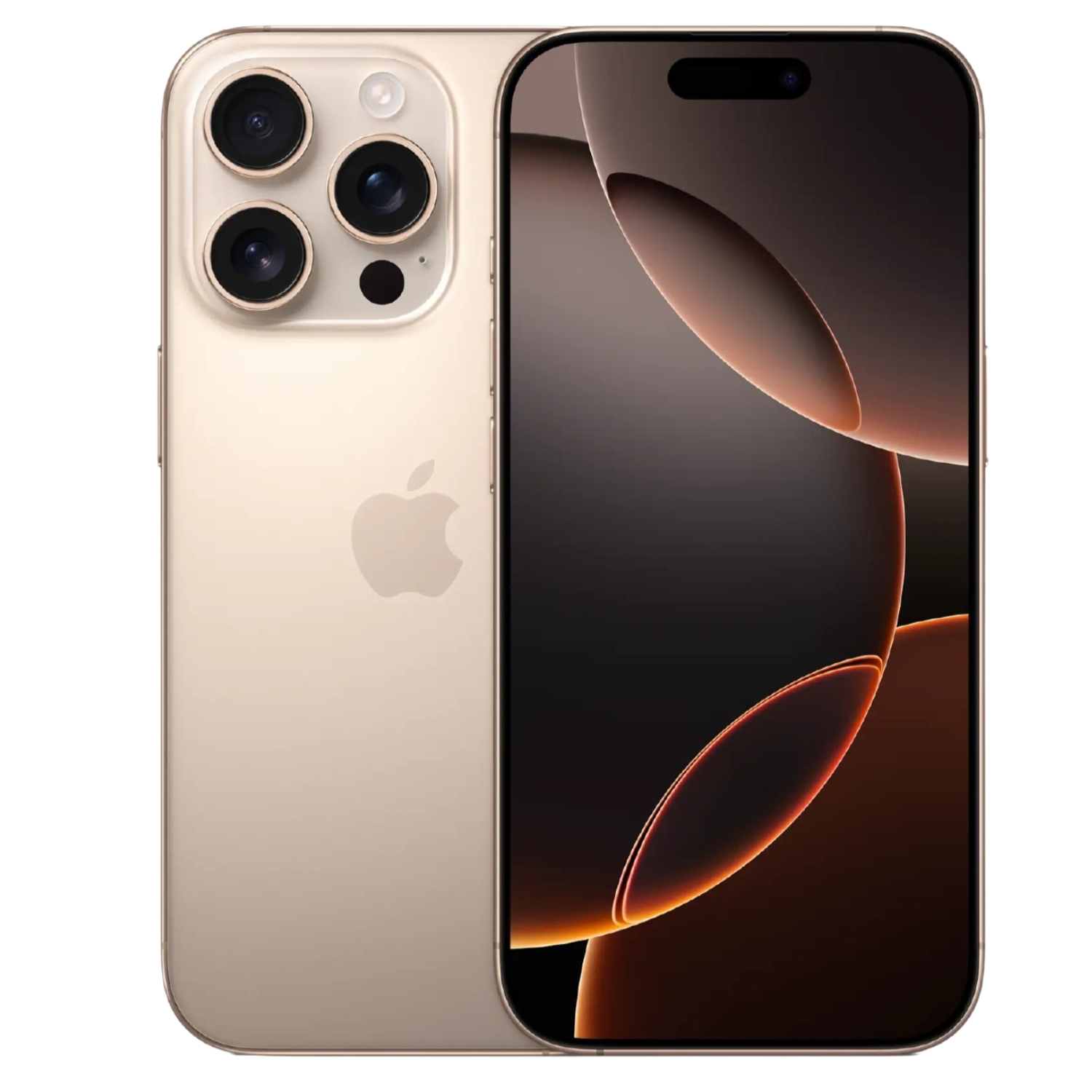
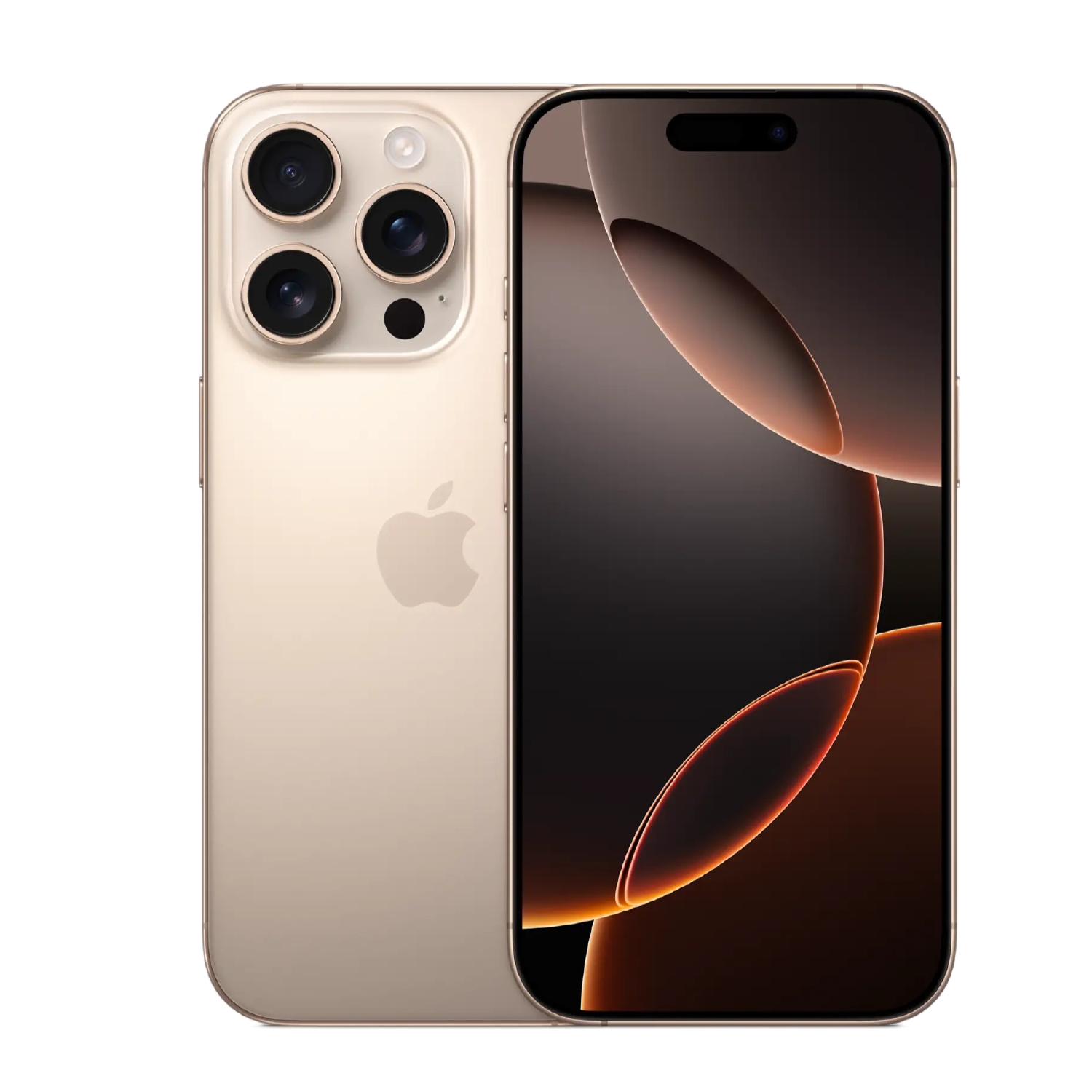
If you want a more affordable alternative, UPGREAT offers refurbished Apple devices with a 2-year warranty. Their selection includes iPhone 15, iPhone 15 Pro and the more affordable iPhone SE.
Considerations when switching to Android
If you’re considering switching from iPad to Android, you should consider several aspects:
- App ecosystem – Some apps may only be available on one platform or differ in features
- Accessories – Apple Pencil and Magic Keyboard are not compatible with Android
- File transfer – See comparison between iPad and Android tablets to make an informed decision
Summary
Transferring data from one device to another doesn’t have to be a daunting process. Apple has created several simple methods that work great for most users. It’s important to choose a method that suits your needs:
- Within the same ecosystem (iPad → iPad or iPhone → iPhone): use Quick Start, iCloud or iTunes/Finder
- iOS → Android: use the corresponding manufacturer’s transition tools (Smart Switch, Pixel Transfer)
Remember to back up your data before making major changes and verify that everything important has been transferred before resetting your old device. Whether you stay in the Apple ecosystem or move to Android, the process of safely migrating data is similar – plan carefully, back up beforehand, and check afterward.
Also check out our blog where we share overviews of trends and news.
To stay updated with Upgreat promotions, add us as a friend on FB or follow us on Instagram.