
Is your home office ready for the modern workspace? A proper setup is essential for a productive, secure workday—one where your technology supports your focus rather than getting in your way.
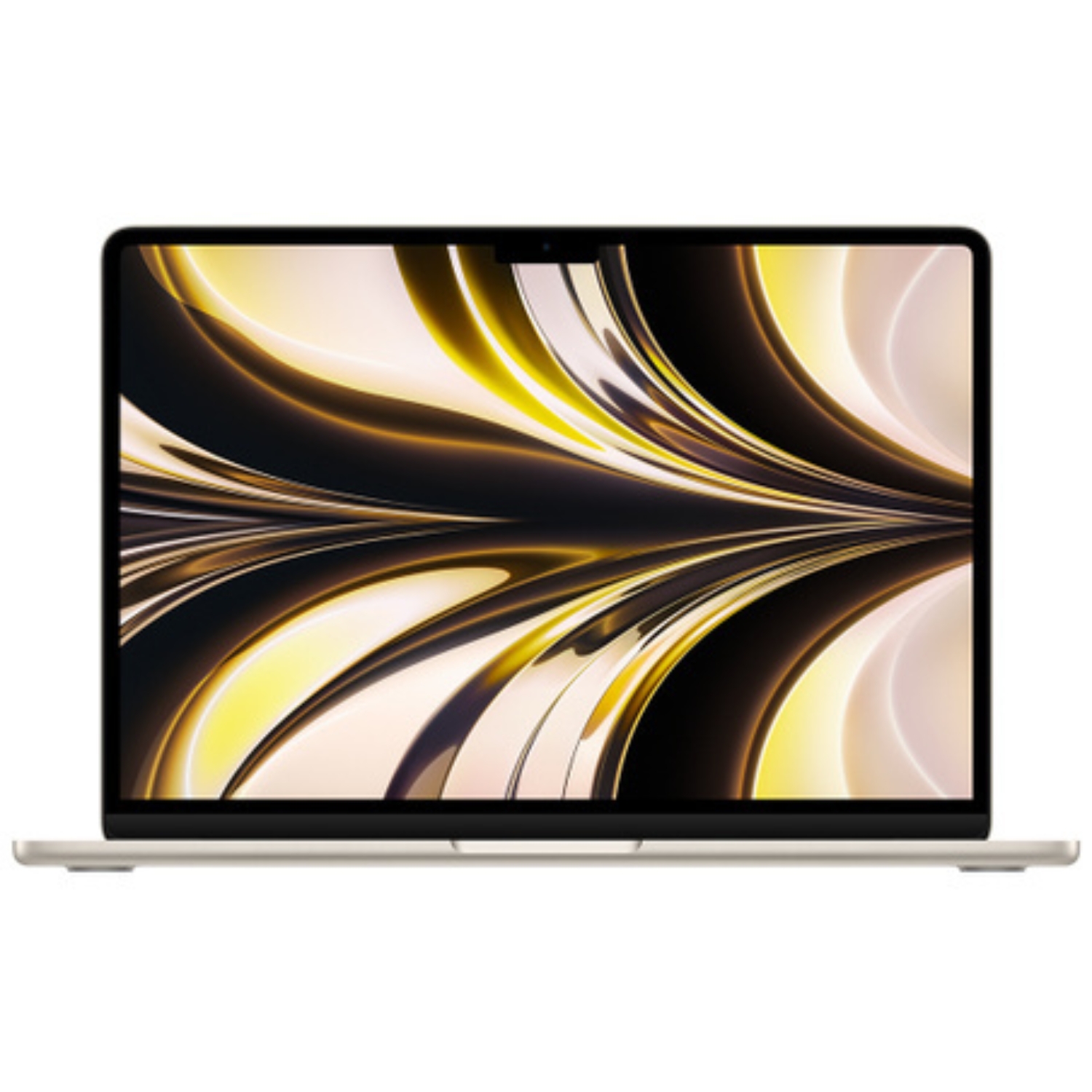
Remote work requires a balance of flexibility and robust security. Whether you prefer a portable refurbished MacBook or a powerful desktop setup, these steps will help you create a professional work environment anywhere.

Establish a Reliable Connection and VPN
A stable internet connection is the foundation of any remote setup. If your job requires accessing a corporate network or handling sensitive data, a VPN (Virtual Private Network) is a must-have tool. It encrypts your traffic, protecting your data even on public Wi-Fi. macOS includes native support for several VPN protocols, which you can easily configure in System Settings under the Network tab.
You should also review your remote access settings if you need to log into an office-based Mac from home. Enable “Remote Management” in your settings and specify exactly which users are authorized to connect. For added security, consider enabling “Remote Login” to allow secure connections via an SSH tunnel.
Sync Your Workflow with Apple ID and iCloud
To move seamlessly between your office computer and your home MacBook, use a single Apple ID across all devices. iCloud Drive is a game-changer here, allowing you to keep your Desktop and Documents folders perfectly synced. This means you can start a project on your MacBook and pick up exactly where you left off on an iPad or office iMac without needing to manually transfer files.
If you’ve recently upgraded your hardware, transferring data to a Mac via Migration Assistant is the fastest way to move your settings, files, and apps to your new machine. Don’t forget to enable iCloud Keychain as well; it keeps your work passwords accessible and secure across all your Apple devices, saving you the hassle of repeated logins.
Collaboration via Screen Sharing and Messages
The built-in Screen Sharing app in macOS is an excellent tool for both technical support and real-time collaboration. You can connect to a colleague’s Mac by entering their Apple ID and requesting permission to view or control their screen. For total transparency, an active session is always indicated by a blue icon in the menu bar.
One of the most useful features of screen sharing is the shared clipboard, which lets you copy and paste links or text between two different computers instantly. This integrates perfectly with the Messages app, where you can launch a FaceTime call or a screen-sharing session directly from a chat—perfect for when you need quick visual feedback on a project.
Optimize Your Keyboard and Mouse for Ergonomics
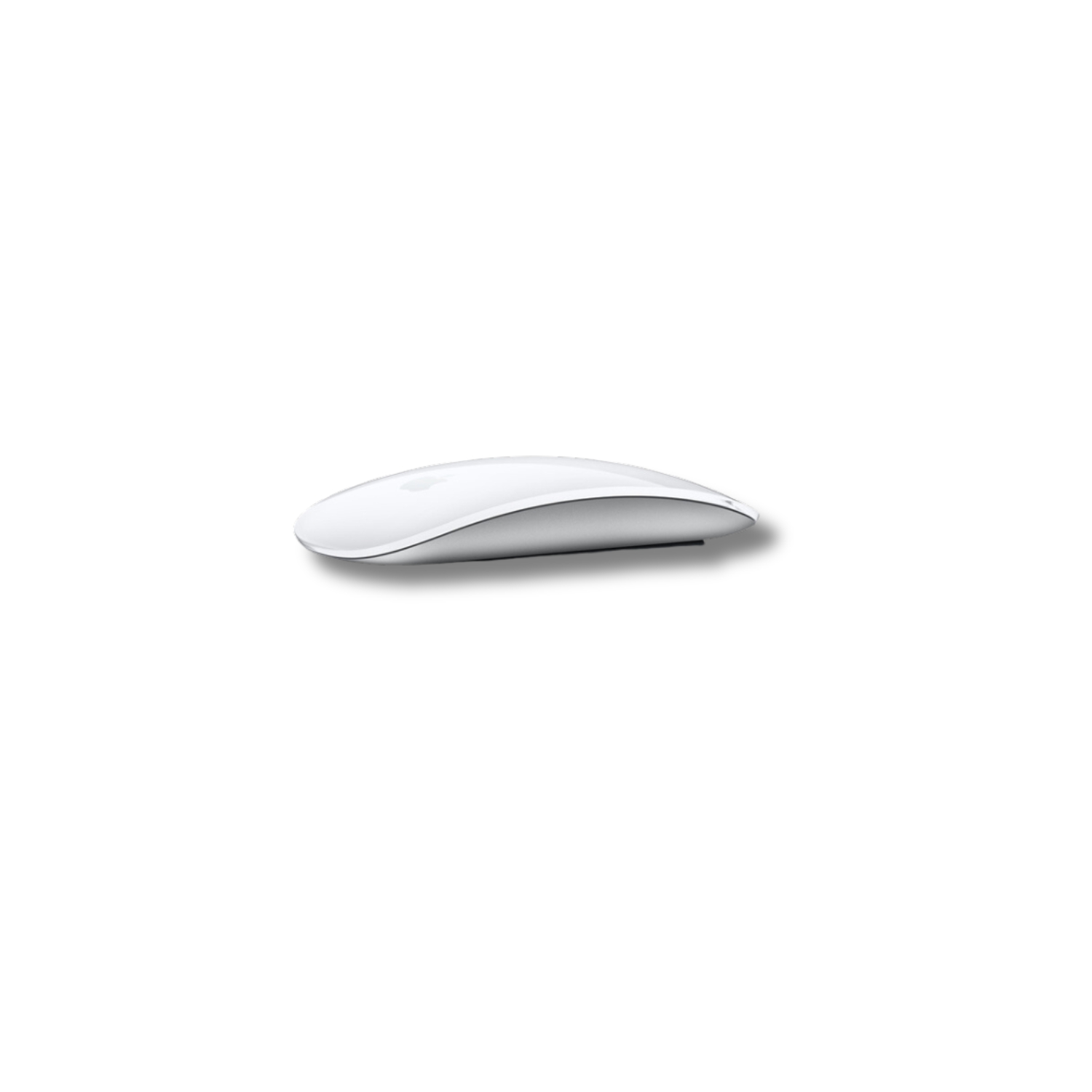
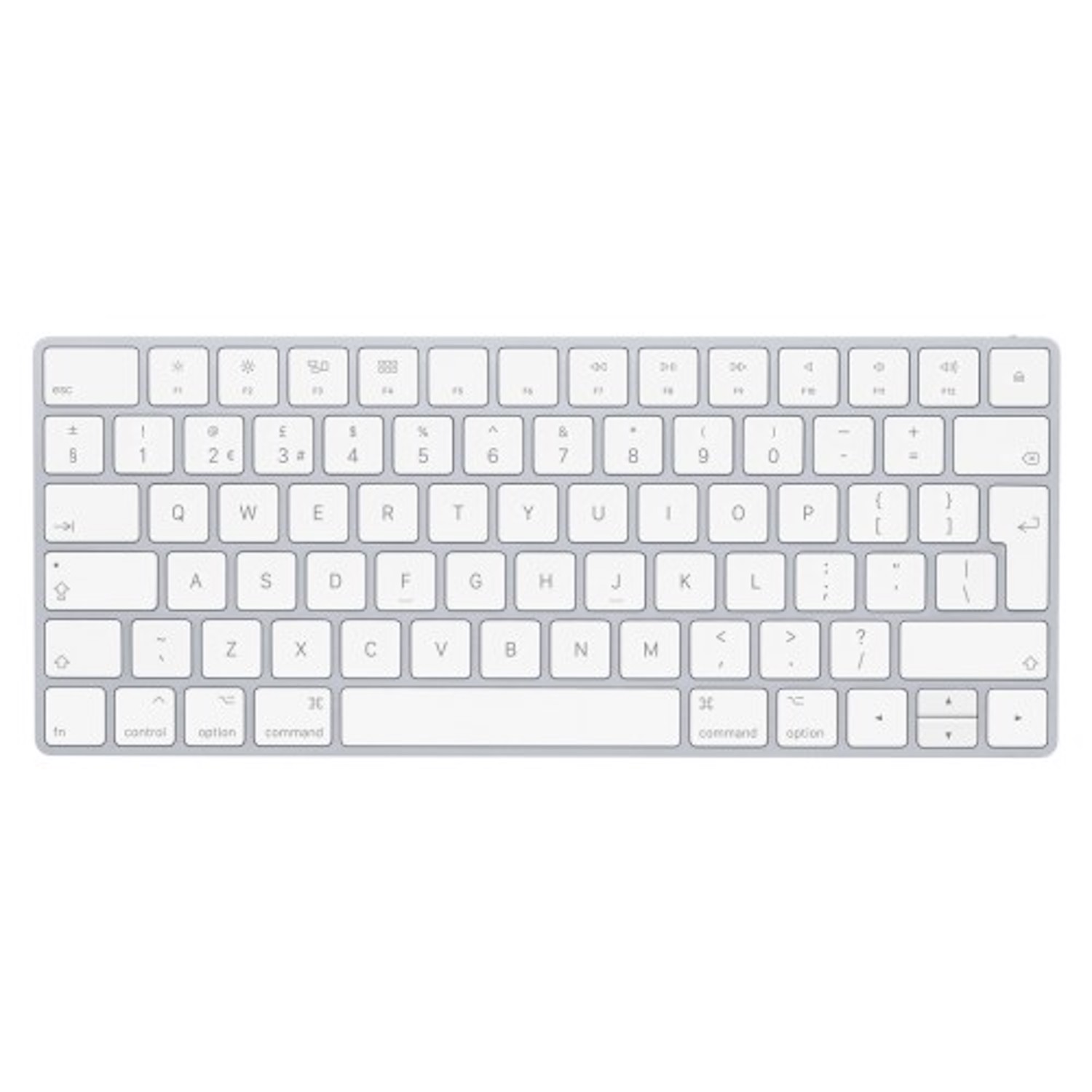
Long hours in a home office can take a toll on your body, making ergonomics a top priority. If you’re working on a laptop, using an external keyboard and mouse can significantly improve your posture. You can customize these peripherals in System Settings under the Keyboard section:
- Choose a keyboard layout that matches your typing style.
- Adjust tracking speed and scrolling direction for your mouse or trackpad.
- Configure Focus modes to silence distracting notifications during deep work.
If your device has a specific layout (like a SWE-keyboard) but you prefer typing in another language, you can switch layouts instantly through the software. For the best experience, Apple’s Magic Mouse and Magic Keyboard offer seamless integration within the ecosystem.
Prioritize Security and Privacy
When working outside the safety of a corporate firewall, security is paramount. Your first step should be enabling FileVault, which encrypts your entire hard drive. This ensures that even if your device is lost or stolen, your professional data remains protected. Additionally, keep the macOS firewall and Gatekeeper active to prevent unauthorized software from being installed.
If your workflow involves running multiple resource-heavy applications and security tools simultaneously, make sure your Mac has enough power to keep up. It’s worth checking how much RAM a Mac needs for your specific industry to avoid performance bottlenecks. Apple Silicon-based Macs are particularly well-suited for this, offering high performance and energy efficiency while staying cool and quiet.
External Monitors and Connectivity
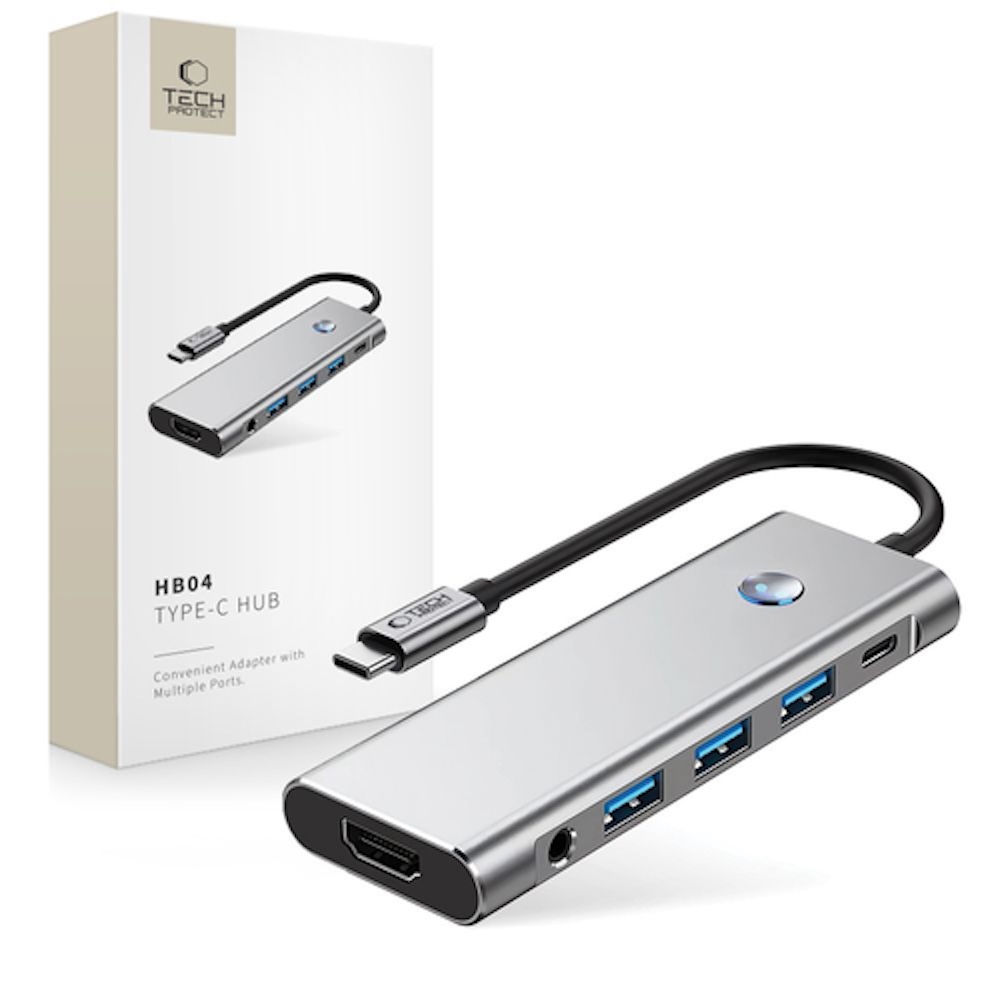
A second screen is often the quickest way to boost your productivity. Depending on your specific Mac model and chip, you can connect one or more external displays. External monitors for Mac typically connect via USB-C, Thunderbolt, or HDMI. Keep in mind that base M-series chips have specific limits on the number of external displays they support, but a high-quality USB-C hub can help expand your connectivity for peripherals and screens alike.
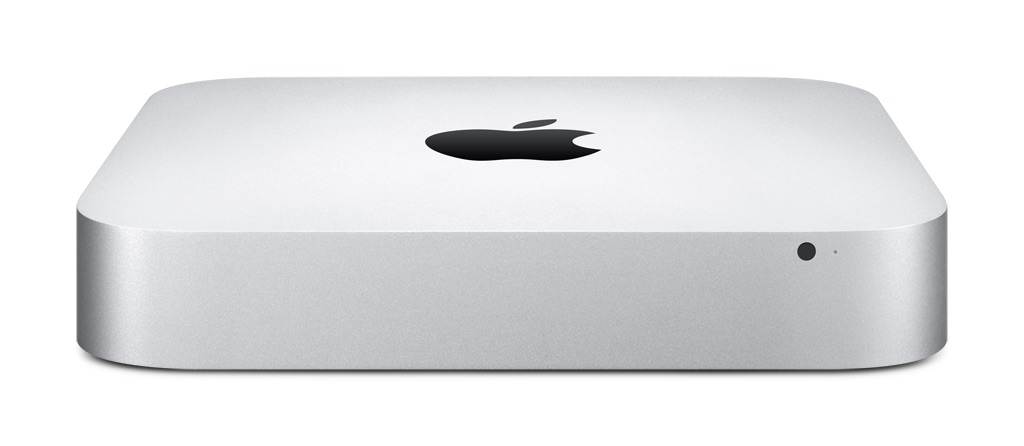
If you’re tight on desk space, a refurbished Mac Mini or a sleek iMac are great alternatives, providing desktop power in a compact footprint. With the right hardware and a thoughtful configuration, your remote setup can be more than just a temporary solution—it can be a highly efficient workspace that helps you reach your goals.

Visit our blog for more tech news and trends. To stay updated on the latest Upgreat campaigns, find us on FB or follow us on Instagram.