
Ever feel like your laptop screen is too cramped for multitasking? With Sidecar, you can transform your iPad into a portable secondary monitor, streamlining your workflow whether you’re working from a cafe or your home office.

What is Sidecar and which devices support it?
Sidecar is a built-in Apple feature that allows you to use your iPad as an extension or a mirror of your Mac’s desktop. It’s the perfect solution when you need more screen real estate but don’t want to carry a bulky monitor or lose your mobility. Before you get started, ensure your devices meet the hardware and software requirements. You’ll need at least macOS Catalina and iPadOS 13. Additionally, both devices must be signed into the same Apple ID using two-factor authentication. Note that Managed Apple IDs are not supported by Sidecar.
The following Mac models support Sidecar:
- MacBook Pro and MacBook (2016 or newer)
- MacBook Air (2018 or newer)
- iMac (2017 or newer) or iMac Retina 5K 27-inch (Late 2015)
- Mac mini (2018 or newer) and Mac Pro (2019 or newer)
- iMac Pro, Mac Studio (2022 or newer)
Compatible iPad models include:
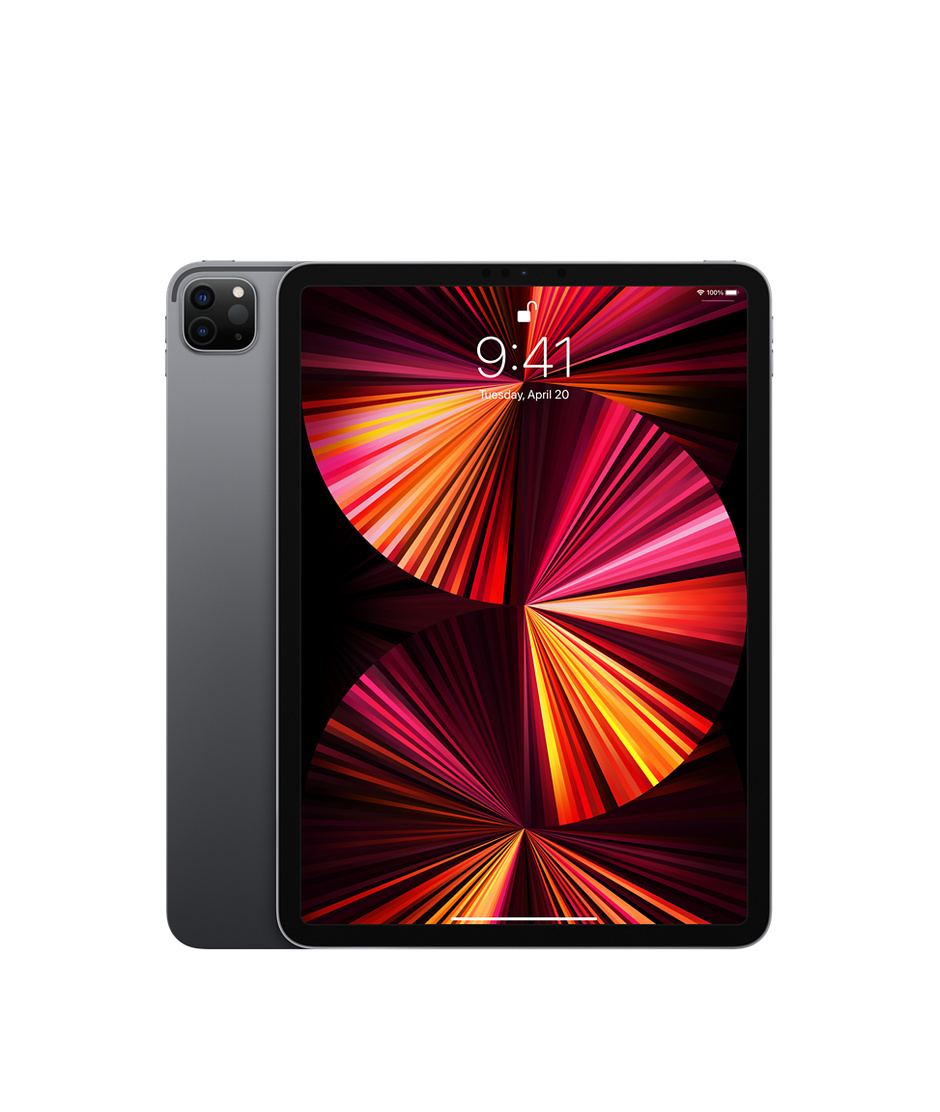
- All iPad Pro models
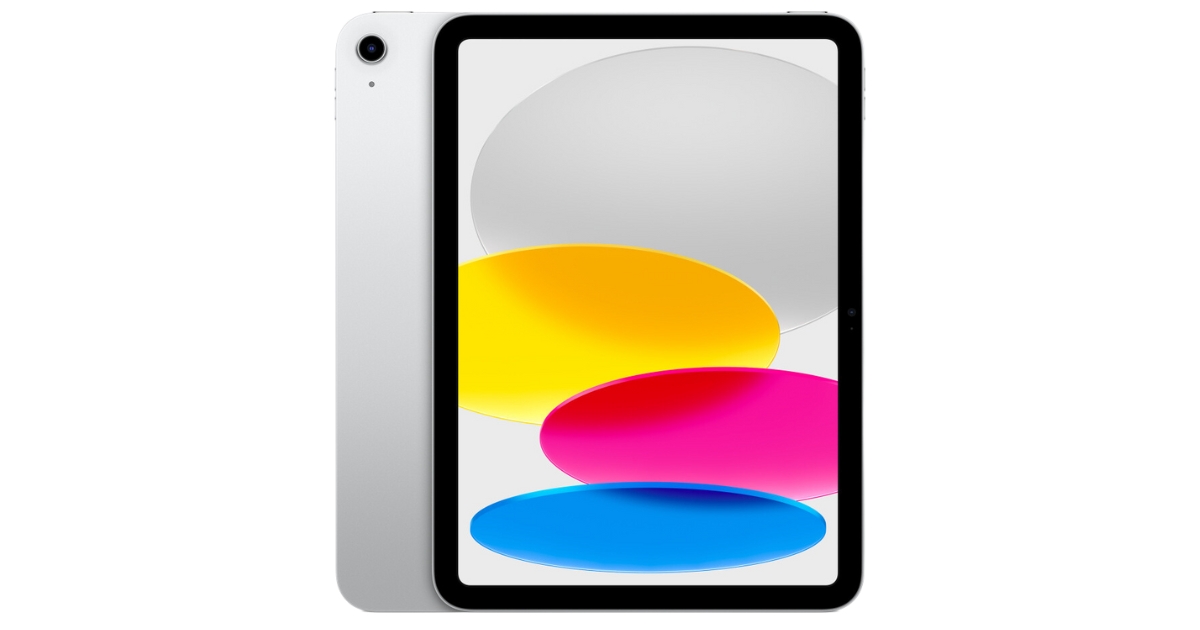
- iPad (6th generation or newer)
- iPad mini (5th generation or newer)
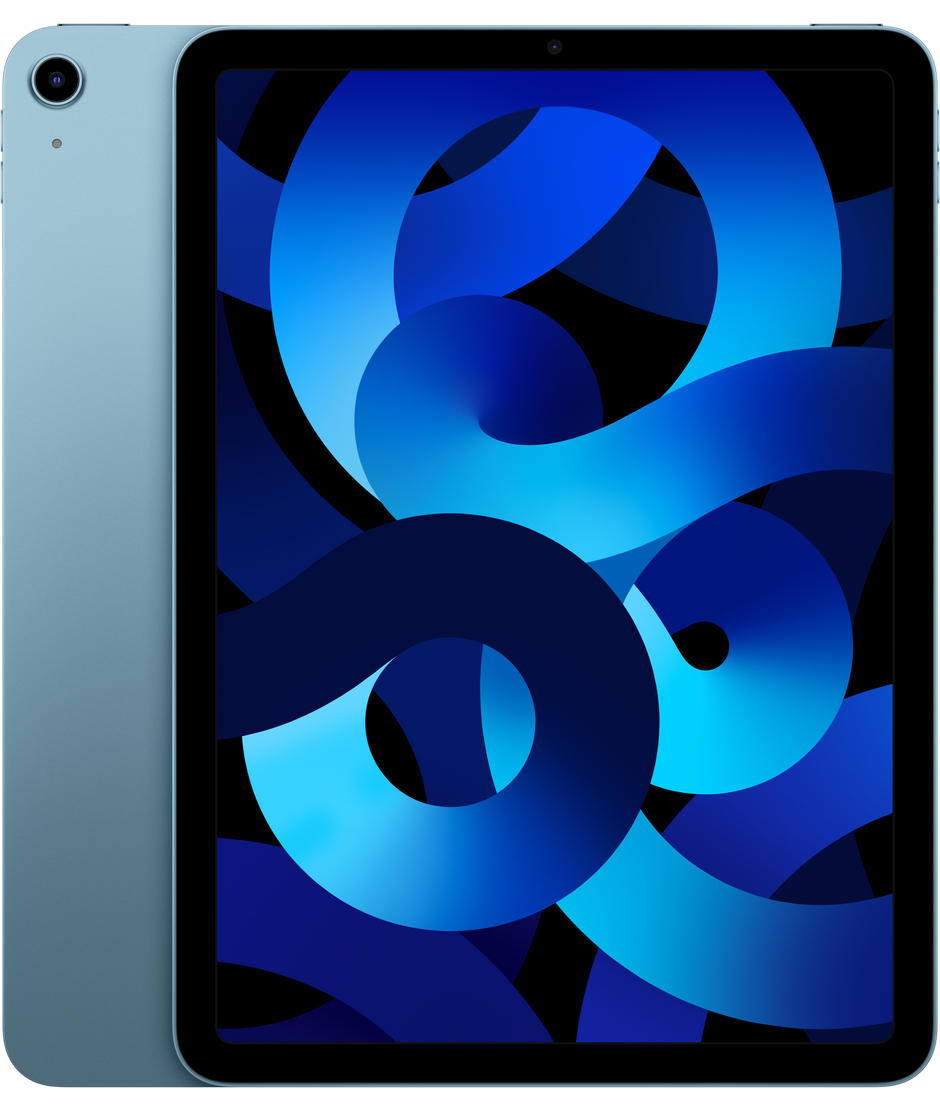
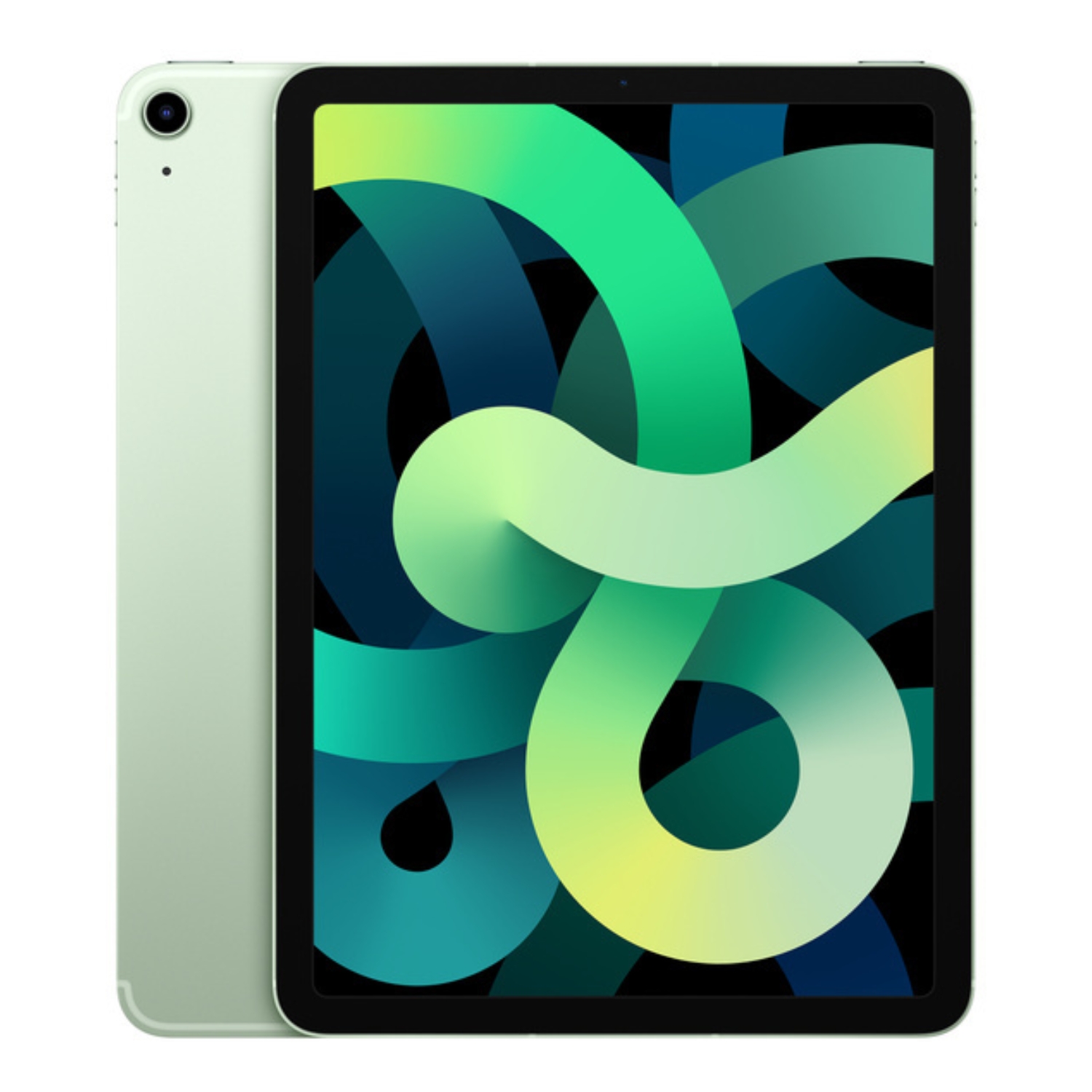
- iPad Air (3rd generation or newer)
Both devices must have Bluetooth, Wi-Fi, and Handoff enabled. For the best experience and smoothest performance, check out our selection of refurbished iPads, all of which are technician-certified and fully compatible with modern connectivity features.
Step-by-step: How to set up Sidecar
Setting up Sidecar is an intuitive process that doesn’t require any third-party software. For a wireless connection, keep your devices within 10 meters of each other. Also, ensure that neither the Mac nor the iPad is sharing its cellular connection (Hotspot). Follow these steps to connect:
- Open the Apple menu on your Mac and select System Settings.
- Click Displays in the sidebar.
- Click the “+” icon at the top of the window.
- Select your iPad from the list.
Once connected, your Mac desktop will appear on your iPad. In the settings, you can choose to either Extend your desktop (using the iPad as a separate space) or Mirror your display (showing the same content on both). While wireless is convenient, it can drain your battery quickly. For long work sessions, use a USB cable to keep your iPad charged and ensure a rock-solid connection. If prompted, select “Trust this Mac” on your iPad. Since constant screen use impacts battery life, it’s a good idea to check your device’s battery health occasionally.
Practical settings and extra features
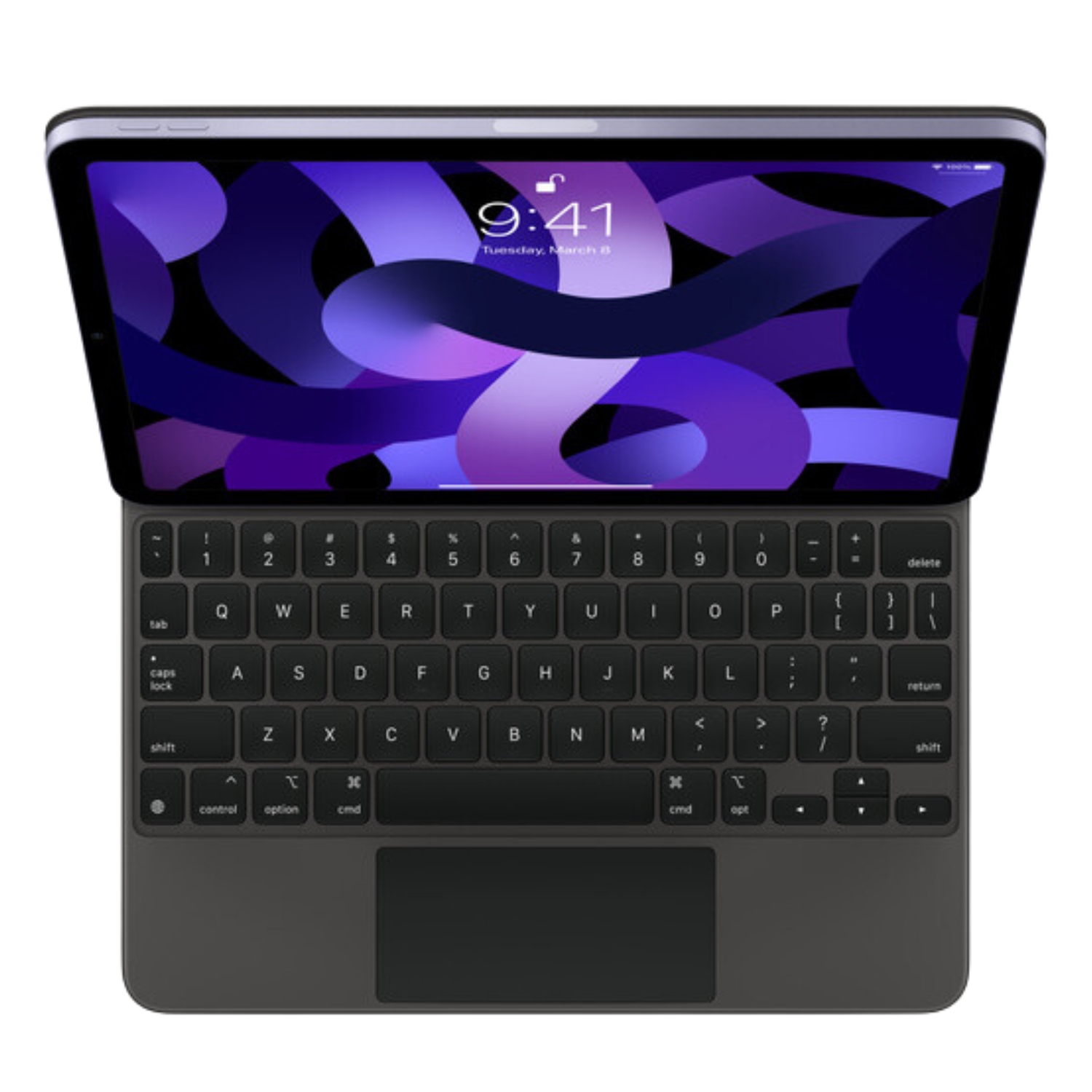
Sidecar offers more than just extra screen space; it adds touch-based functionality and useful shortcuts to your Mac experience. You can enable a Sidebar on the iPad screen, which places frequently used keys like Command, Shift, and Control right at your fingertips. This is particularly helpful if your iPad is positioned away from your keyboard. You can also display a virtual Touch Bar at the bottom of the iPad screen, even if your Mac doesn’t have a physical one.
One of Sidecar’s biggest perks is Apple Pencil support. This effectively turns your iPad into a high-end graphics tablet, allowing you to draw or annotate directly on the iPad while the changes appear instantly in Mac apps like Photoshop or Illustrator. If you’re thinking about making the iPad your go-to productivity tool, read our article on using an iPad as a laptop replacement to see what’s possible.
Alternatives and Universal Control
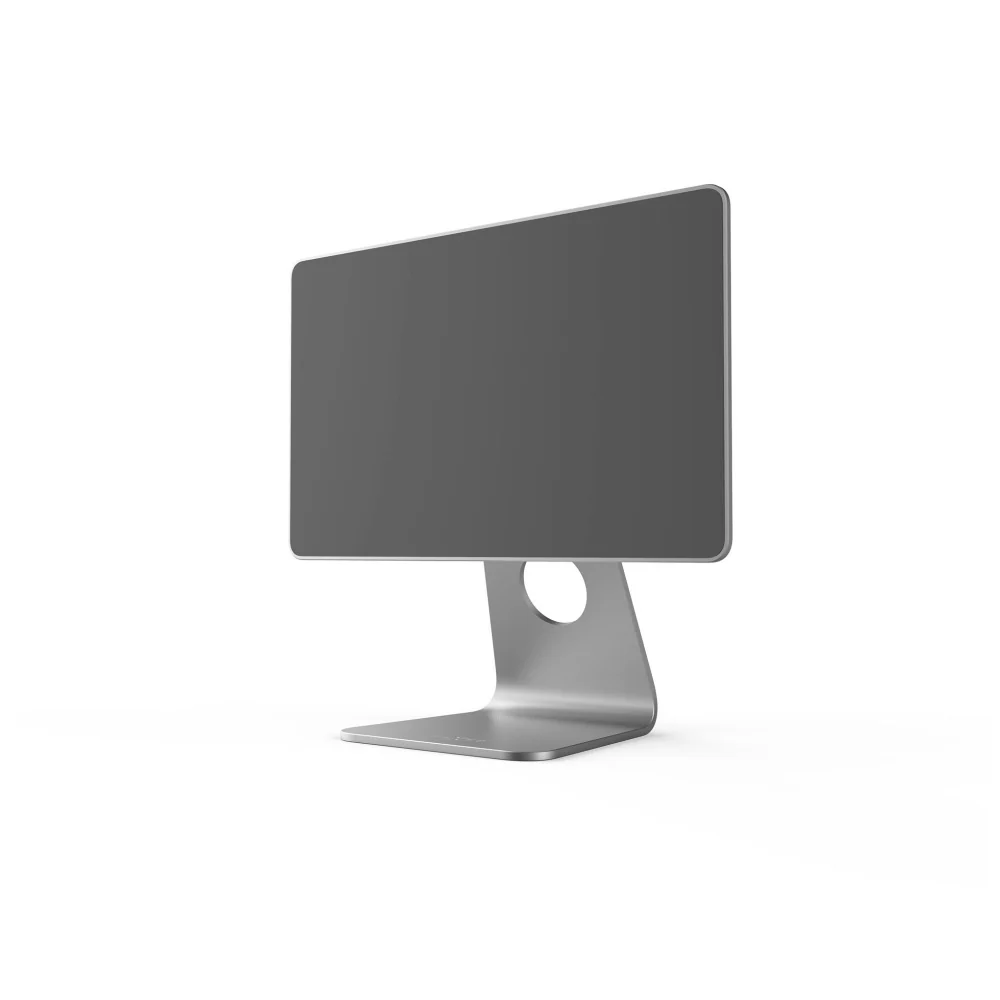
If your devices are too old to support Sidecar, consider third-party apps like Duet Display or Spacedesk, which can also connect iPads to Windows PCs. However, if you are within the Apple ecosystem, you might prefer Universal Control. Unlike Sidecar, Universal Control doesn’t turn the iPad into a second monitor; instead, it lets you use a single mouse and keyboard to control both your Mac and iPad simultaneously. This is perfect for dragging and dropping files between the two operating systems. Still deciding on your primary machine? Take a look at our comparison of Mac vs Windows.
Troubleshooting common issues
If your devices aren’t connecting or the link keeps dropping, start with the basics: ensure Bluetooth and Wi-Fi are active on both devices and that your software is up to date. Connection issues are often caused by Handoff being disabled; make sure it’s turned on in both your Mac and iPad settings. If you’re using a cable, verify that it supports data transfer and is plugged in securely.
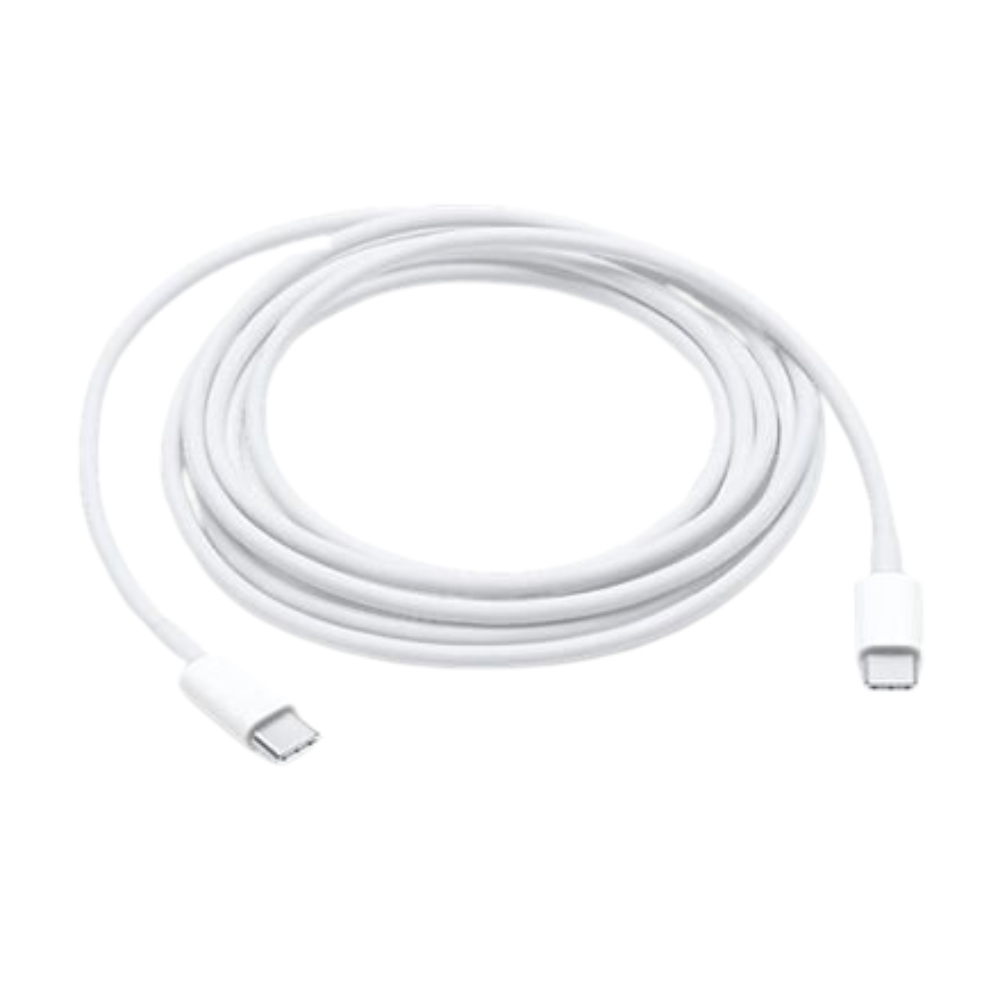
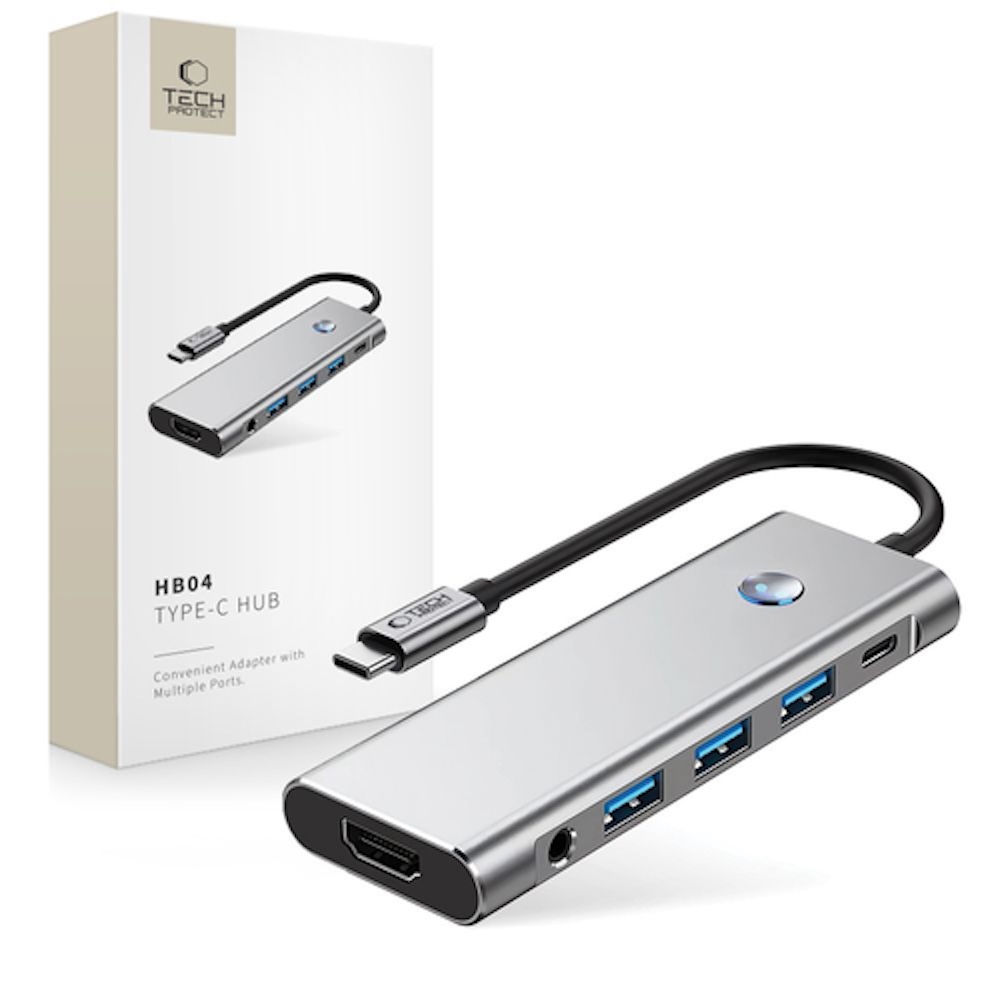
To maintain a fast, lag-free connection, always use high-quality cables and adapters. For more tips on screen setups, check out our guide on using external monitors with a Mac.
Using an iPad as a second screen is one of the most efficient ways to expand your workspace without the need for a bulky monitor. Whether you’re using a refurbished iPad Air or a top-of-the-line Pro, Sidecar turns your Apple devices into a versatile, unified workstation.
Check out our blog for more tech insights and news. To stay updated on the latest Upgreat deals, follow us on FB or Instagram.