
Drawing on iPad opens an exciting world of digital creativity where you don’t need to worry about cleaning real brushes, buying art supplies, or wasting paper. However, as a beginner, it can be challenging to understand which apps to choose, how to use the Apple Pencil, or which iPad is suitable for creative work.

Why Draw on iPad?
Digital drawing on iPad offers several advantages over traditional art. It gives you freedom to experiment without wasting materials, the ability to use layers, and correct mistakes with a single touch. You can draw anywhere you take your iPad, try different art styles and tools with one device, and easily share and store your work digitally.
Best Drawing Apps for Beginners
Choosing a drawing app can initially seem complicated as there are many options. Let’s first focus on beginner-friendly apps.
1. Procreate
Procreate is many artists’ first choice, being a powerful sketching, painting, and illustration app suitable for both professionals and beginners.
The app costs €13 as a one-time fee and offers a 7-day free trial. Procreate’s biggest advantages are its intuitive interface and powerful tool selection. It also has a large user community sharing tutorials and brush sets, making learning easier.
2. Linea Sketch
If Procreate seems too complicated, Linea Sketch is a great alternative for beginners. Its beginner-friendly interface, perfect shape creation, and color harmony suggestions make the app easy to use. Although it offers fewer features than Procreate, it still supports using layers.
3. Adobe Fresco
At the end of 2024, Adobe Fresco became a completely free app without limitations. It offers special “live” brushes that simulate oil and watercolor painting, animation tools, and symmetry guides. Adobe Fresco also includes drawing aids, including rulers, circles, squares, and perspective grids that help beginners draw lines correctly.
4. HiPaint
If you’re looking for a free alternative to Procreate, HiPaint is one of the best choices. It supports layers, pressure-sensitive brushes, and allows you to work offline. While it has fewer features than paid apps, it’s well-suited for beginners.
5. Sketch Club
Affordably priced (€2.99), Sketch Club offers drawing tools along with integrated community features like daily challenges and tutorials. Its active community makes learning easier, although the interface may not be as intuitive as some other apps.
Apple Pencil – Why and Which to Choose
The Apple Pencil completely transforms the drawing experience on iPad. Pressure sensitivity, tilt sensitivity, and low latency make it an excellent tool for creating digital art.
Different Apple Pencil generations:
- Apple Pencil (1st generation): Suitable for older iPad models, needs to be plugged into iPad Lightning port for charging
- Apple Pencil (2nd generation): Magnetic attachment and wireless charging on newer iPad Air and iPad Pro models
- Apple Pencil (USB-C): More affordable alternative for newer iPads with USB-C connection, but fewer features
- Apple Pencil Pro: The newest version, offering additional features like hover effect
Make sure you choose an Apple Pencil compatible with your iPad model. For a beginner, the 1st or 2nd generation Apple Pencil is completely sufficient.
Setting Up Your iPad for Drawing
1. Essential Settings
To achieve an optimal drawing experience, it’s worth adjusting screen brightness – but keep in mind that higher brightness consumes more battery. When drawing, it’s better to turn off True Tone to see colors more accurately. It’s also worth configuring under Settings > Apple Pencil how your iPad responds when your hand touches the screen.
2. Setting Up Apps
Before you start drawing, familiarize yourself with the app’s layer system, set up brushes and tools according to your preferences, and learn the basic functions like zooming in/out and gestures.
3. Optimizing Battery Life
Drawing can drain the battery quickly. To extend battery life, reduce screen brightness, close background apps, and if possible, turn on airplane mode when you don’t need an internet connection.
iPad battery life varies by model, and intensive drawing can significantly shorten it. You can find more detailed information about battery life on different iPad models in our blog.
Which Refurbished iPad Models Are Suitable for Drawing?
Choosing an iPad model for drawing depends on your needs and budget. Fortunately, you don’t always need to buy the latest model.
Budget Options for Beginners
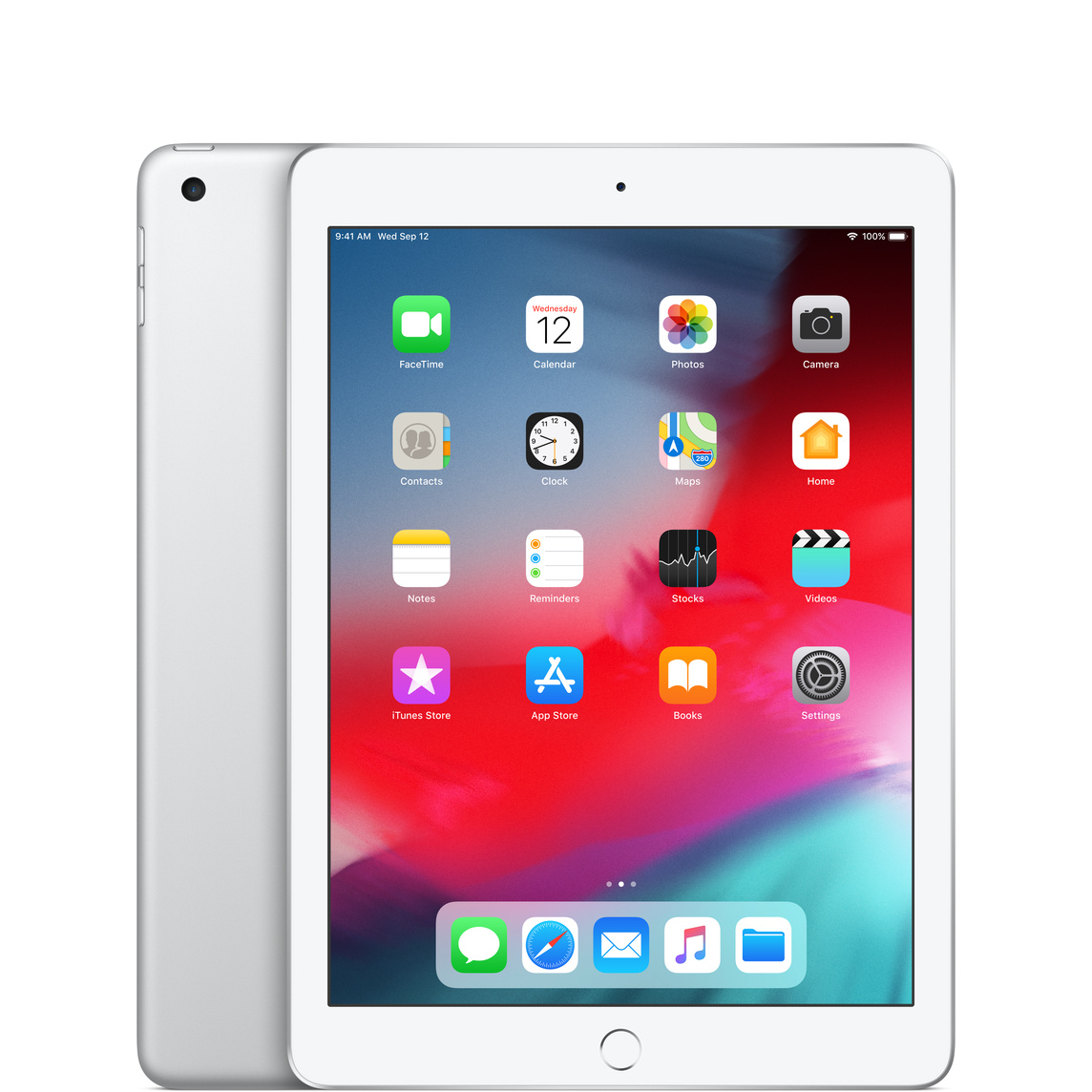
- iPad 6th generation
- Great for beginners who want to start with low costs
- Supports Apple Pencil (1st generation)
- Powerful enough for basic drawing apps
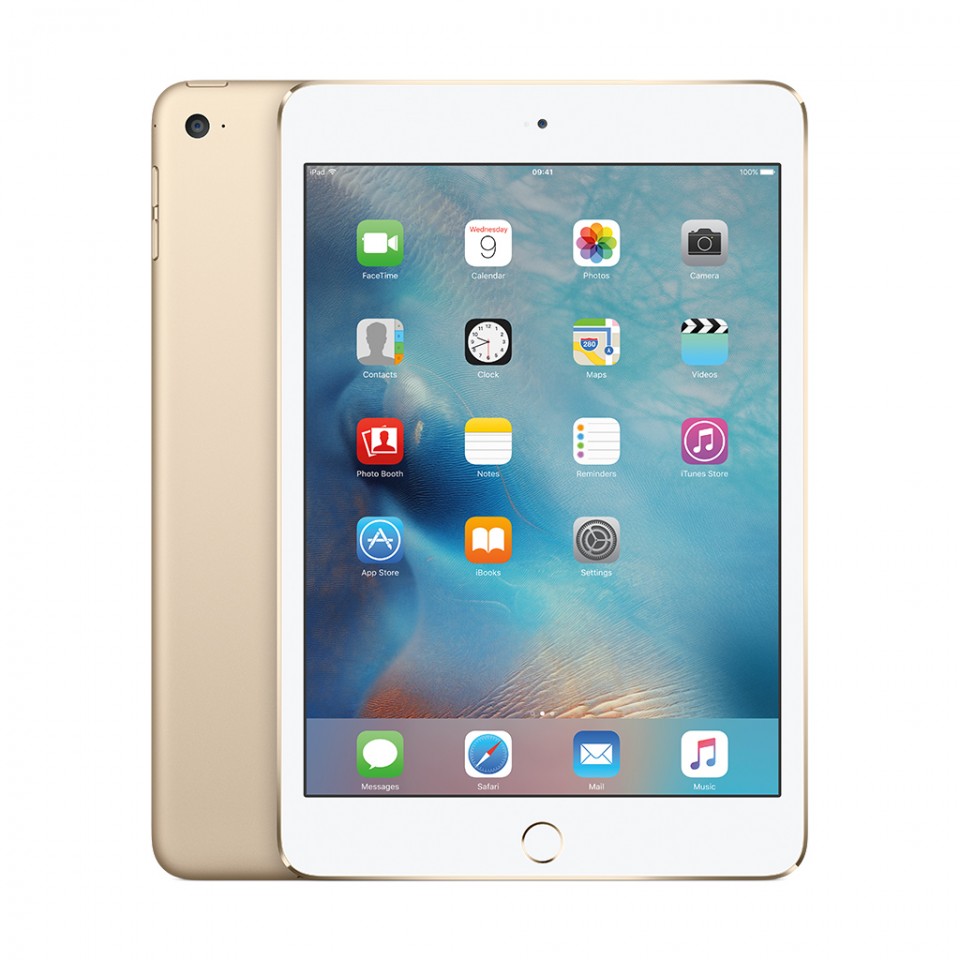
- iPad Mini 4
- Compact size makes it portable
- Ideal for sketching on the go
- Suitable for smaller drawings and notes
Mid-Range Options
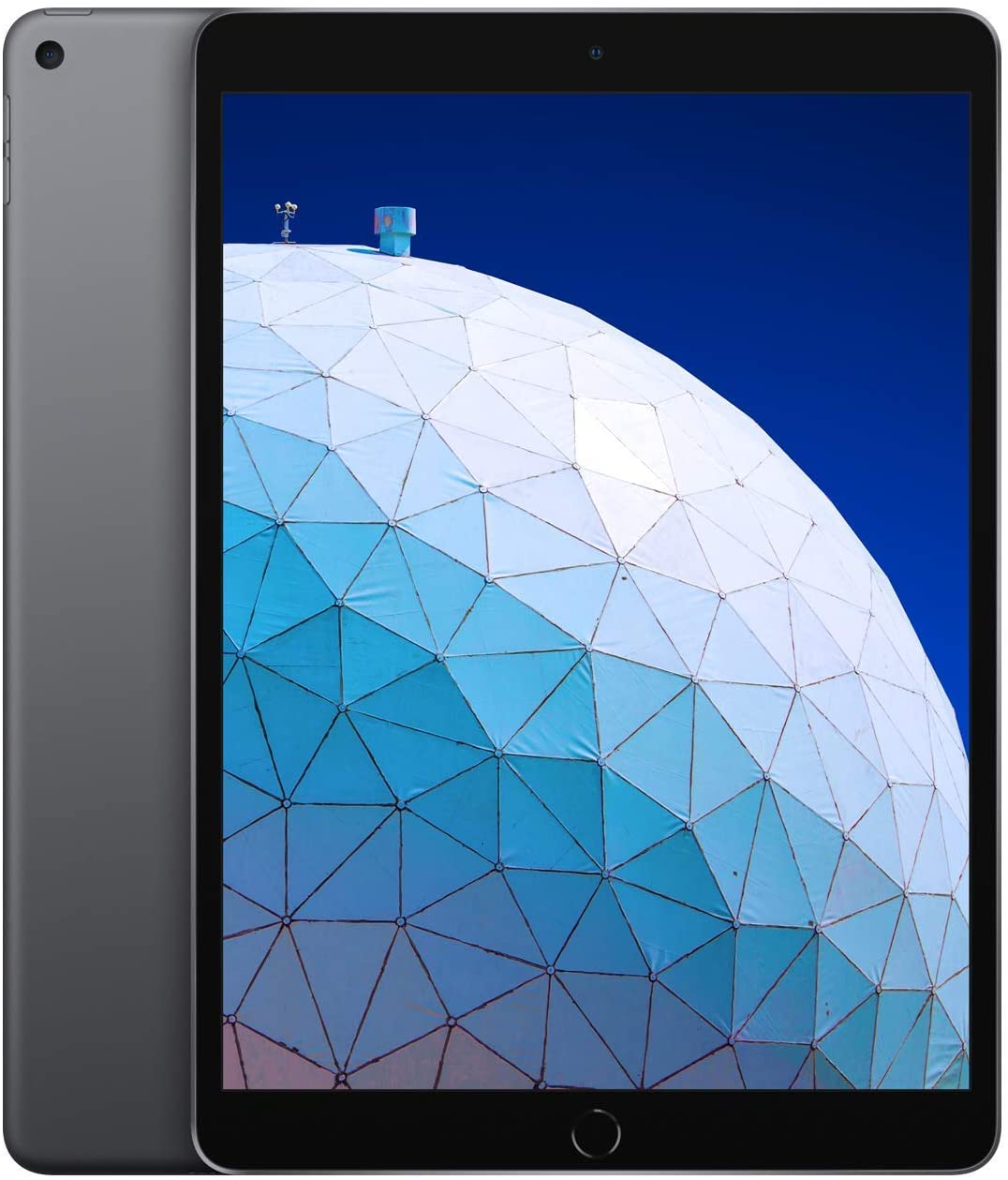
- iPad Air (3rd generation)
- Larger 10.5-inch screen offers more drawing space
- A12 Bionic processor ensures smooth performance
- Supports Apple Pencil (1st generation)
- iPad Air (4th generation)
- Modern design and USB-C port
- Supports Apple Pencil (2nd generation)
- Great balance between performance and price
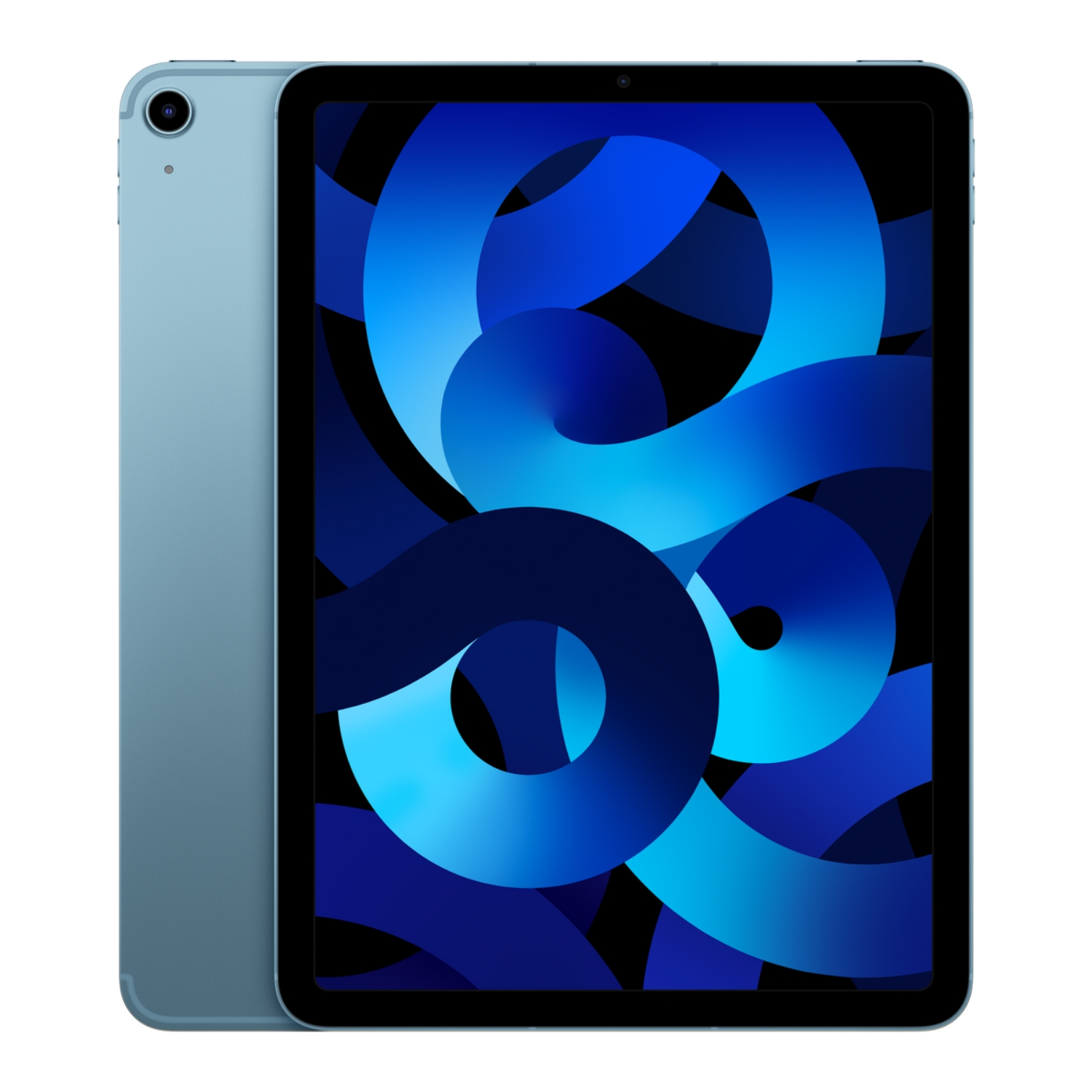
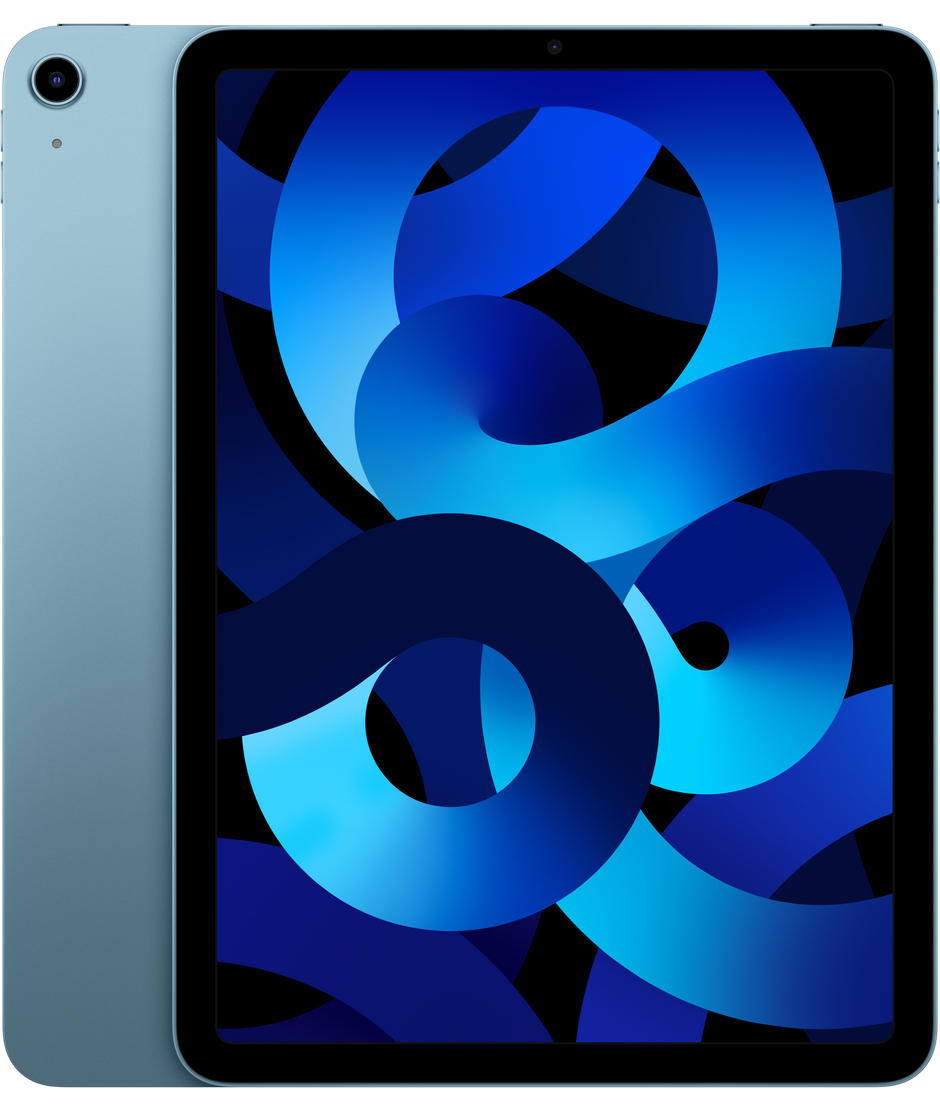
- iPad Air (5th generation)
- M1 chip offers remarkable performance
- Excellent color accuracy for creative work
- Supports Apple Pencil (2nd generation)
Premium Options for Serious Artists
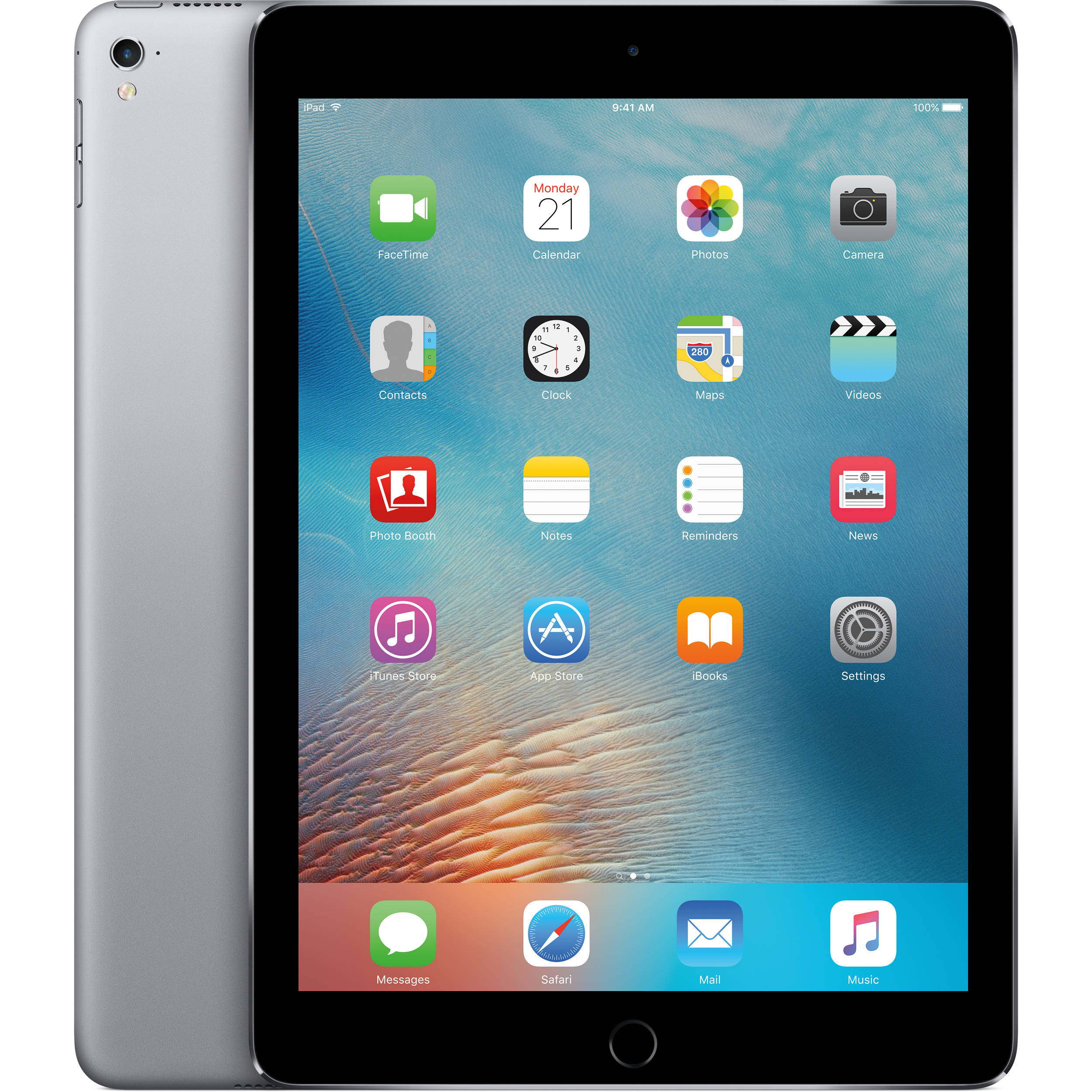
- iPad Pro 9.7-inch
- Older Pro model, but still capable
- ProMotion screen technology
- Excellent color viewing and performance
- iPad Pro 11-inch (2nd generation)
- Powerful A12Z Bionic processor
- ProMotion technology with 120Hz refresh rate
- Rich drawing experience
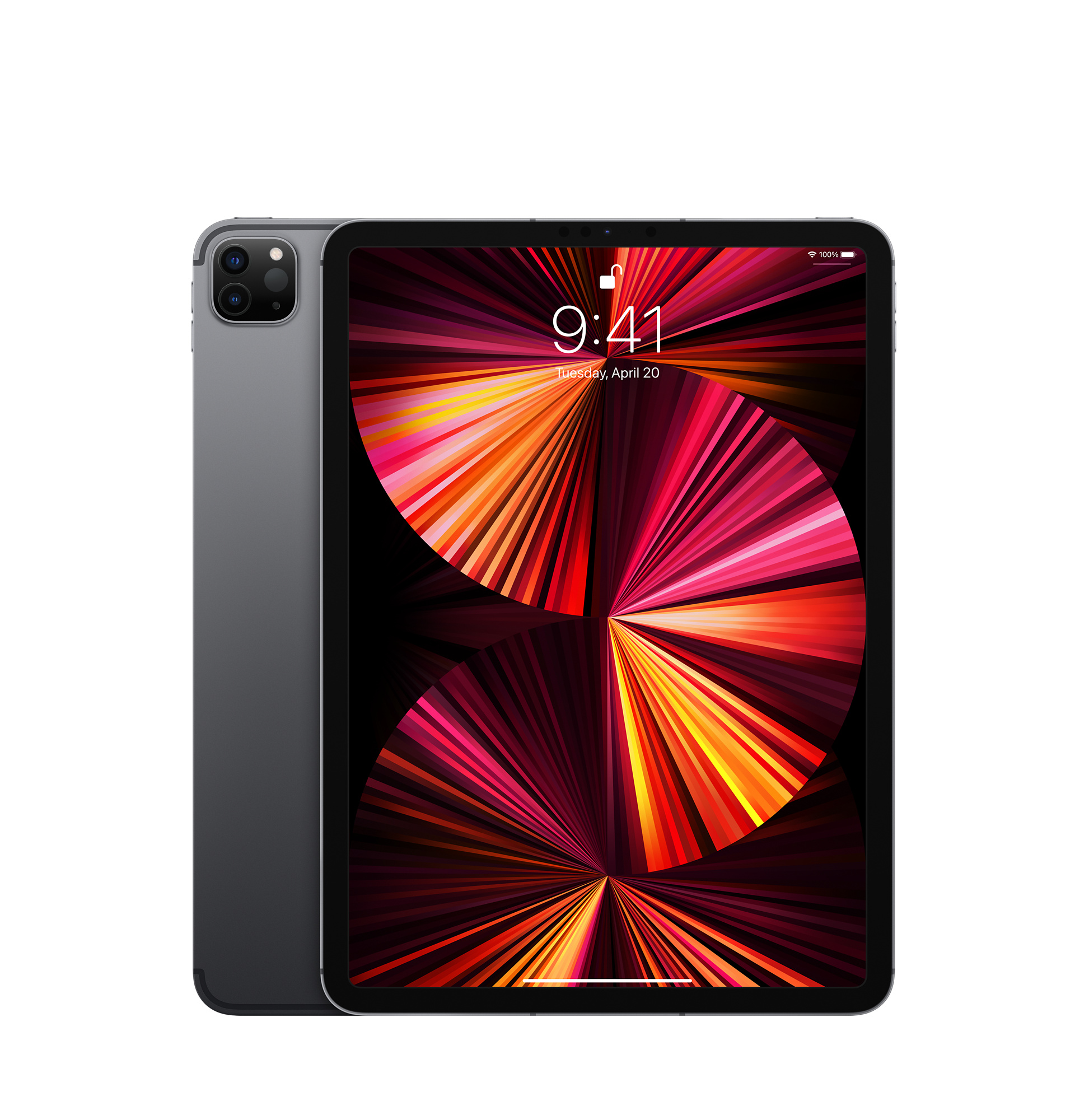
- iPad Pro 11-inch (4th generation)
- M2 chip ensures ultimate performance
- Hover function for Apple Pencil (2nd generation)
- Ideal for professional work
- iPad Pro 12.9-inch (6th generation)
- Largest screen for maximum creative space
- Mini-LED technology for best color accuracy
- Professional-level performance for complex projects
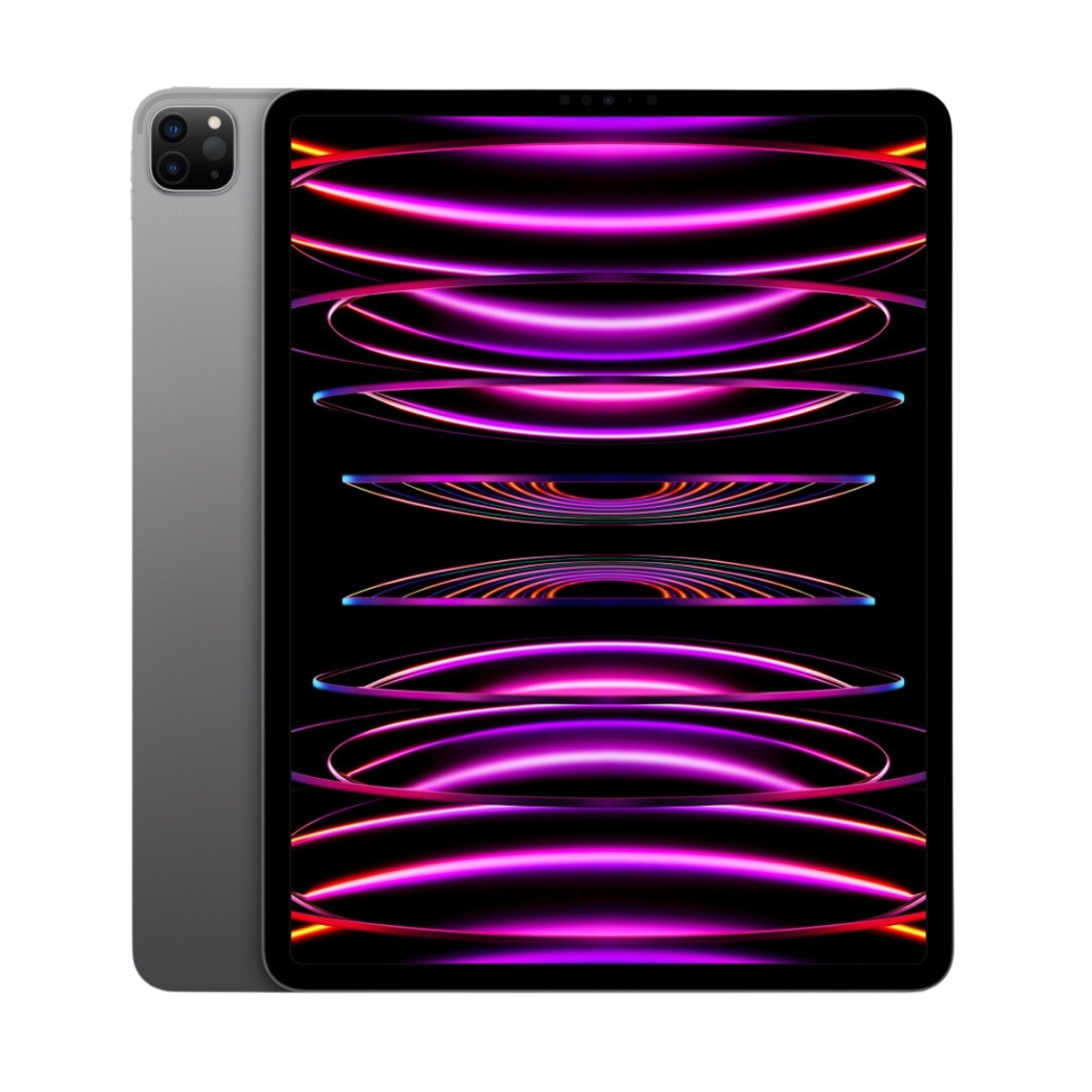
- iPad Pro 13-inch (1st generation)
- Latest M4 processor
- OLED screen with the best color reproduction
- Future-proof investment for serious artists
For more information about modern iPad comparison, check our article iPad Model Comparison.
Useful Accessories for Drawing
In addition to the Apple Pencil, some accessories can make drawing more comfortable:
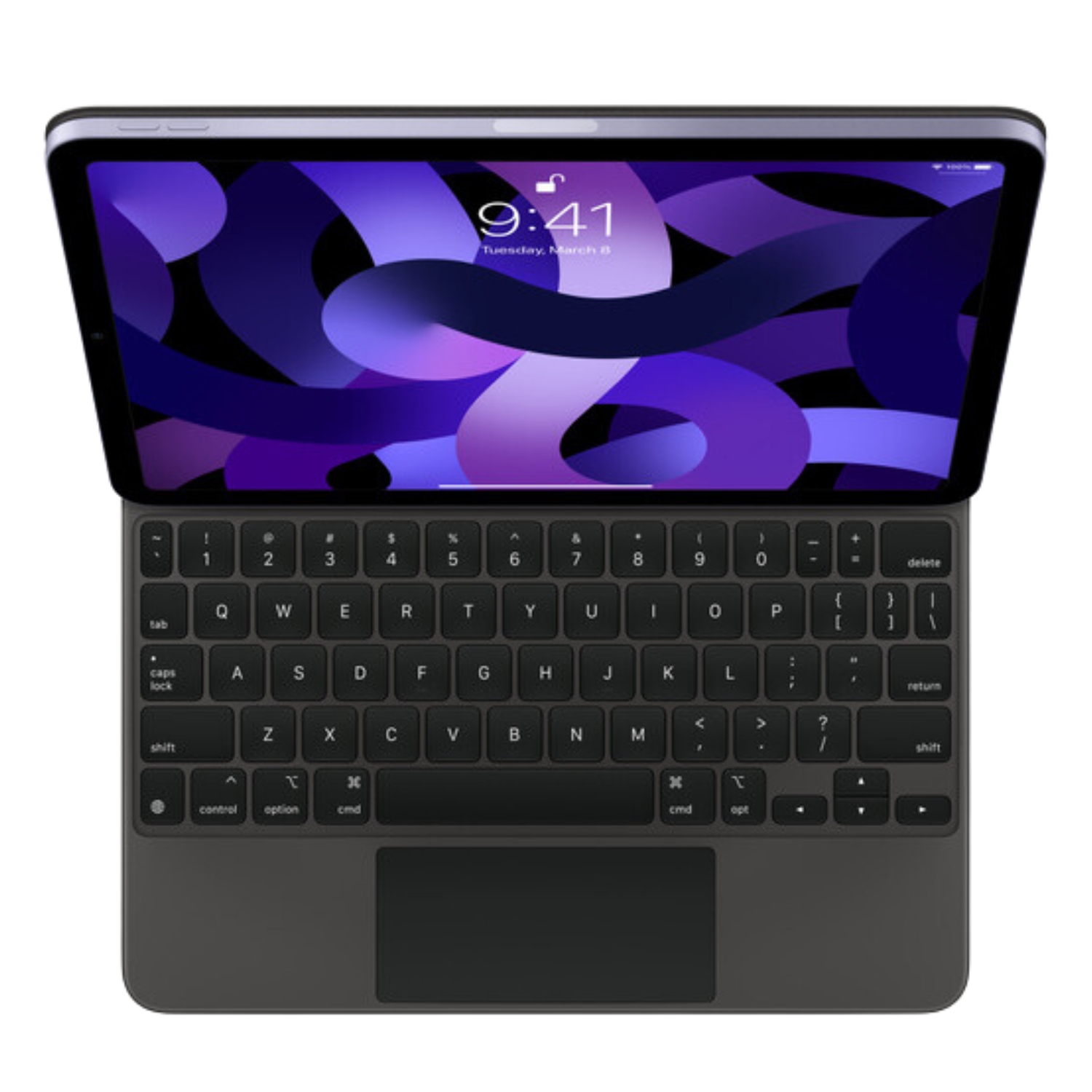
Magic Keyboard
While not directly necessary for drawing, the Magic Keyboard can be useful if you use your iPad for other activities or need shortcuts when using apps.
Other Useful Accessories:
Drawing experience can be enhanced with screen protectors that simulate paper texture (matte screen protectors), paper-like tips for Apple Pencil, or a stand to hold your iPad at a specific angle. Also practical are covers that allow you to hold your iPad in different positions.
Tips and Tricks for Beginners Drawing on iPad
1. Start with Simpler Apps
If you’re a complete beginner, it might be good to start with simpler apps like Linea Sketch or Adobe Fresco before moving on to more complex apps like Procreate.
2. Use Guides and Aids
Most drawing apps offer aids like rulers, perfect shape tools, symmetry modes, and perspective grids. These help create more accurate drawings, especially when you’re just learning.
3. Learn to Use Layers
Layers are a powerful feature of digital drawing. You can draw different elements on different layers, experiment without ruining your original work, and use layer transparency and blending modes to create interesting effects.
4. Practice Regularly
Like any skill, digital drawing is something that improves with practice. Try to dedicate time daily to practice, experiment with different styles and techniques, and follow tutorials and challenges.
5. Understand iPad vs Android Differences
If you have previous experience drawing on Android tablets, it’s worth familiarizing yourself with iPad vs Android tablet differences to better understand iPad’s specifics.
Conclusion
Drawing on iPad is an exciting journey that doesn’t require a huge initial investment. A refurbished iPad with a suitable Apple Pencil can provide an excellent starting point for exploring the world of digital art. Start with simpler apps, learn the basic tools, and practice regularly – soon you’ll discover how natural and enjoyable digital drawing can be.
Our refurbished iPads undergo thorough testing and come with a 2-year warranty, making them an ideal choice for beginners who want to dive into the world of digital drawing without paying the full price for a new device.
Also check out our blog where we share reviews of trends and news.
To stay updated with Upgreat campaigns, add us as a friend on FB or follow us on Instagram.