
Have you ever opened your camera to capture the perfect moment, only to see the dreaded “Storage Full” message pop up? It’s one of the most frustrating things about owning a smartphone, especially when your device starts slowing down or refuses to install new apps. But before you rush to buy more iCloud storage or upgrade your device, it’s worth trying to optimize your current phone.
In this guide, we’ll walk you through practical steps to get your iPhone’s storage under control and clear up space for your important memories.

1. Analyze Your Storage Usage
The first step is understanding exactly what is taking up space. Apple makes this easy by providing a visual breakdown of your storage. To check this, go to Settings > General > iPhone Storage.
The color-coded chart shows exactly how much space is being used by apps, photos, system files, and other data. Usually, the biggest culprits are photos, videos, or social media apps. This screen also offers immediate Recommendations, such as “Review Large Attachments,” which is often the quickest way to free up hundreds of megabytes with minimal effort.
2. Optimize Photos and Videos
Photos and videos are often the biggest storage hogs, especially if you have a newer model that shoots in high resolution. Fortunately, you don’t have to delete your memories; you just need to optimize them. Go to Settings > Photos and ensure there is a checkmark next to Optimize iPhone Storage.
This feature keeps full-resolution photos and videos safely in iCloud while keeping smaller, space-saving versions on your phone. When you open a photo, the high-quality version downloads instantly from the cloud. Before making major changes, it is always a good idea to back up your data. Read more about transferring iPhone data to avoid losing important files during the cleanup process.
3. Delete vs. Offload Apps
Many users don’t realize the iPhone offers two different ways to remove an app. If you have games or apps you rarely use but want to keep the associated data (like game progress or login info), the best solution is Offload App. To do this, go to Settings > General > iPhone Storage, tap on the specific app, and select Offload App. This removes the app itself to free up space but keeps all your documents and data intact.
For heavy social media apps like Instagram, TikTok, or Facebook, the cache can grow massive over time. For these, it is often smarter to delete the app entirely (Delete App) and then reinstall it from the App Store. This simple trick clears the cache and can free up a gigabyte or more of space, giving your phone a fresh start.
4. Delete Old Messages and Attachments
The Messages app can quietly accumulate gigabytes of data, especially if you send and receive a lot of photos, videos, or GIFs. If you don’t need to keep conversation history from years ago, you can set your phone to delete it automatically.
Go to Settings > Messages > Keep Messages. By default, this is set to “Forever.” Change this to 30 Days or 1 Year. Your phone will ask for confirmation to delete older messages. This is a simple, set-and-forget option that keeps your message history from clogging up your phone.
5. Clear Browser Cache
If you use Safari daily, it saves a significant amount of website data and cookies to help pages load faster. However, over time, this can slow down your phone and waste valuable space.
Go to Settings > Safari and scroll down to Clear History and Website Data. Note that this will log you out of websites, but it is an effective way to “refresh” the system and reclaim storage.
6. What to Do with “System Data”?
At the bottom of your storage graph, you will often see a gray area labeled “System Data” (formerly “Other”). This category contains logs, Siri voices, streaming caches, and temporary files. Sometimes, this section can grow unexpectedly large and cause confusion.
The simplest trick to reduce this is a Restart. Restarting your iPhone forces iOS to clear out temporary files and caches. It is also important to keep your software updated, as outdated iOS versions can cause log files to pile up. Check for updates regularly and read more on our blog about what you need to know about iPhone software support to ensure your device runs smoothly.
7. Manage Music and Podcasts
Music and podcast listeners often forget to check their “Downloads” folder. We frequently download entire playlists or podcast series for offline listening that we no longer need.
Delete files you aren’t actively listening to. Streaming music takes up much less space than storing files on the device. The same applies to Netflix or YouTube videos—check your in-app downloads and remove content you have already watched.
When Is It Time to Upgrade?
If you have tried all the steps above but your iPhone storage is still critically full, it may be time to admit that your current device no longer meets your needs. This is especially common with 64GB models, as modern apps, games, and 4K videos fill up space quickly.
However, getting a new phone doesn’t have to mean spending a thousand euros. A refurbished iPhone is a smart choice that allows you to get a model with larger storage (like 128GB or 256GB) for much less than buying new. It is also an eco-friendly choice that extends the lifespan of tech products.
Before deciding, we recommend reading our guide on how to choose an iPhone model to find the device that fits your habits. In Upgreat’s product range, you will find a wide selection of verified devices with warranties.
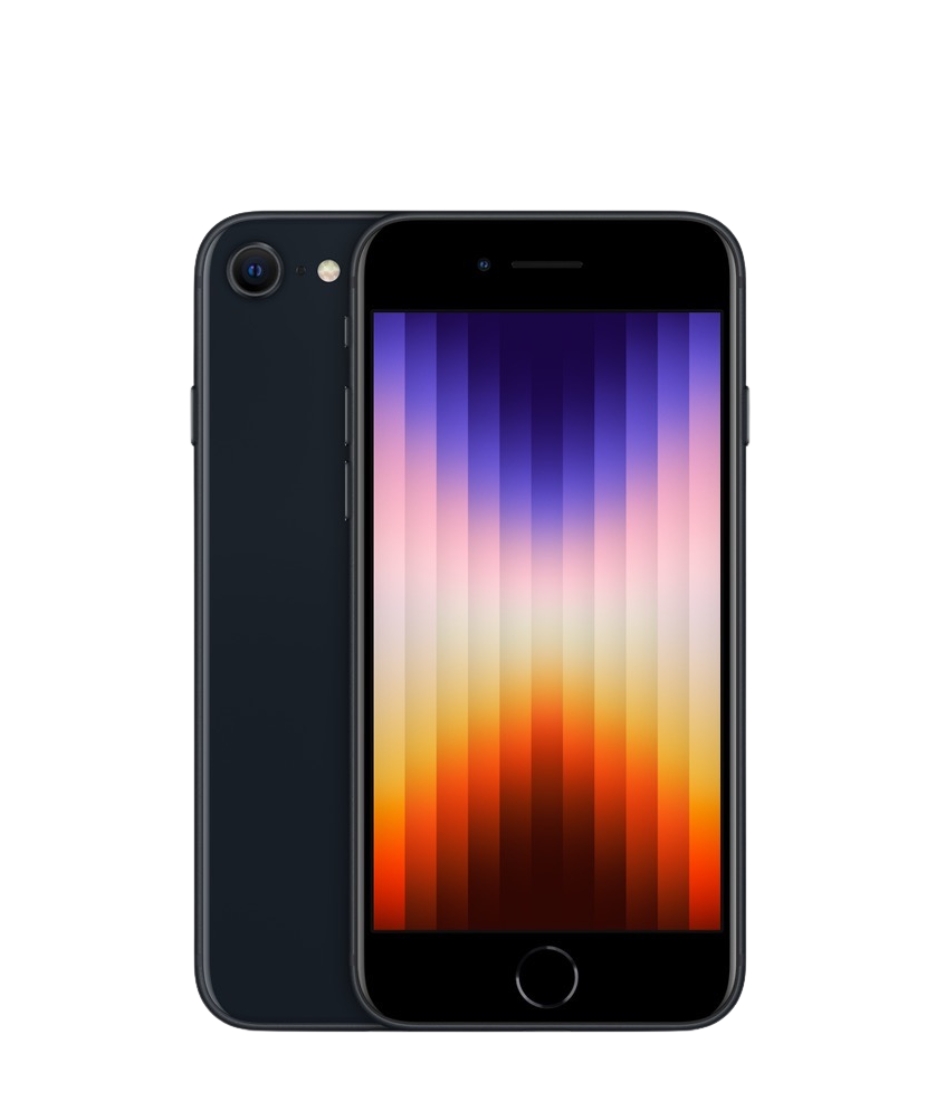
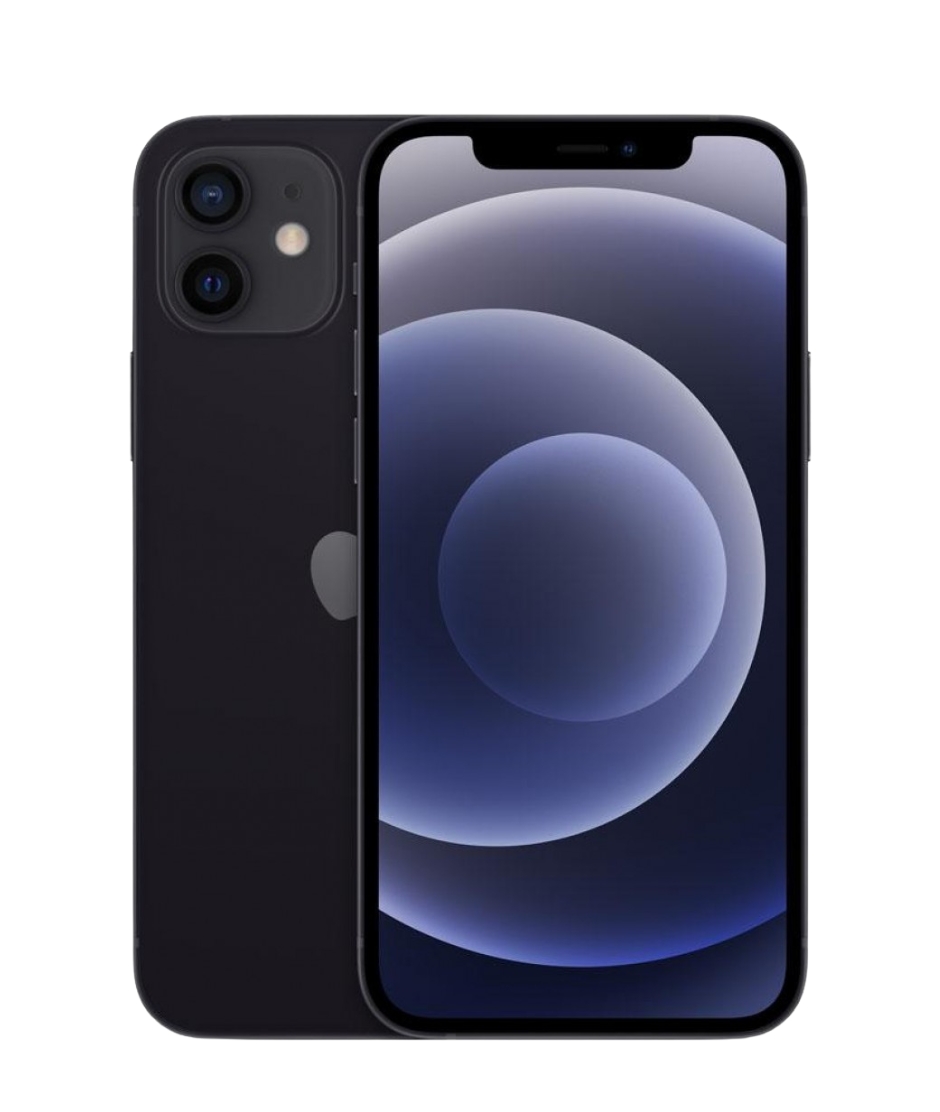
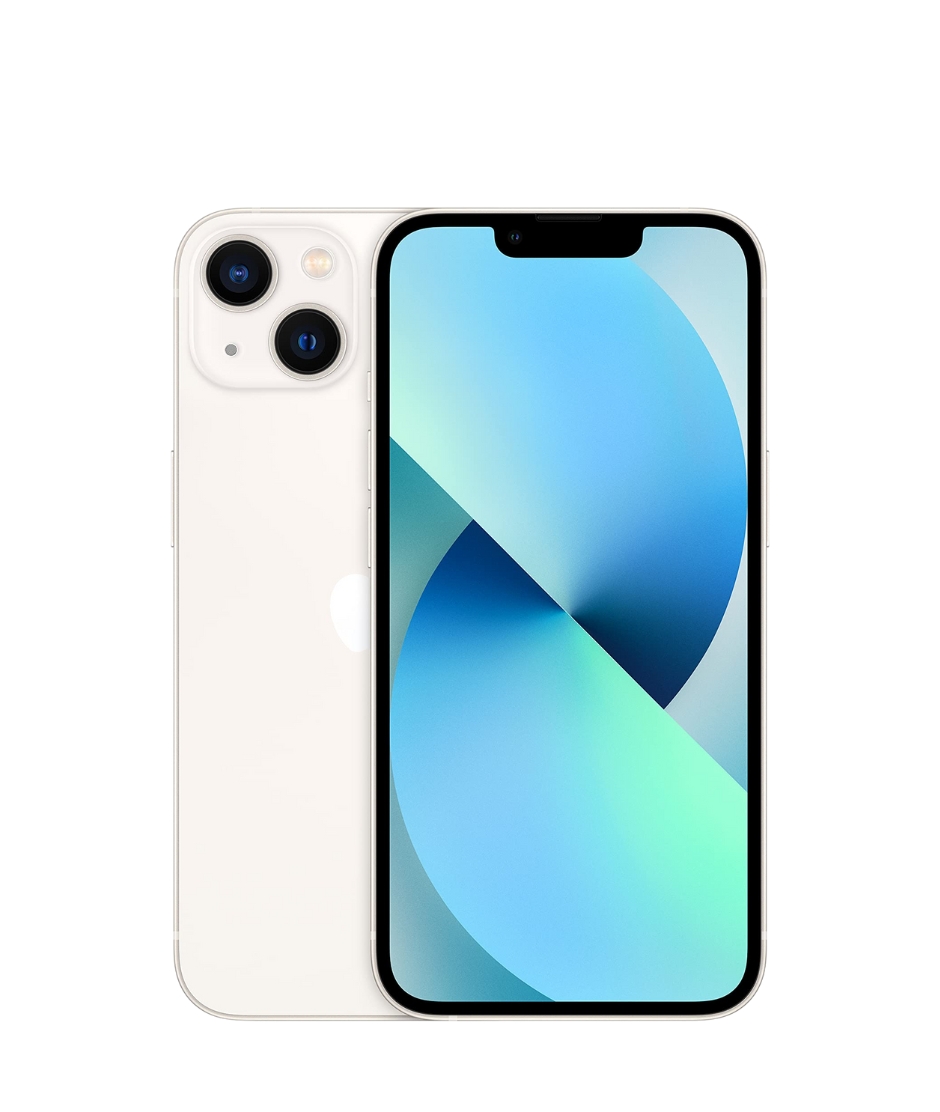
Here are some of our customers’ favorite models that offer excellent value for money:
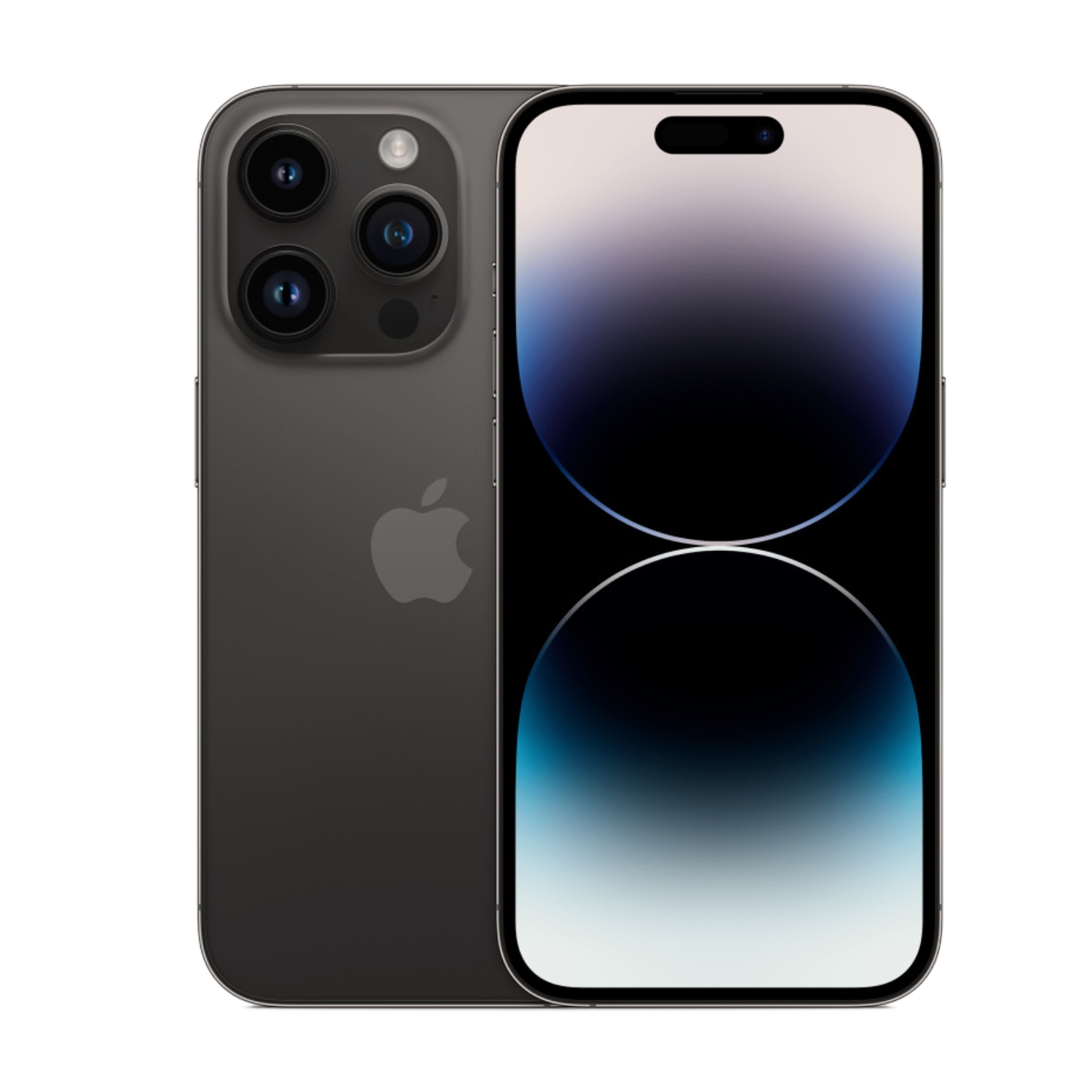
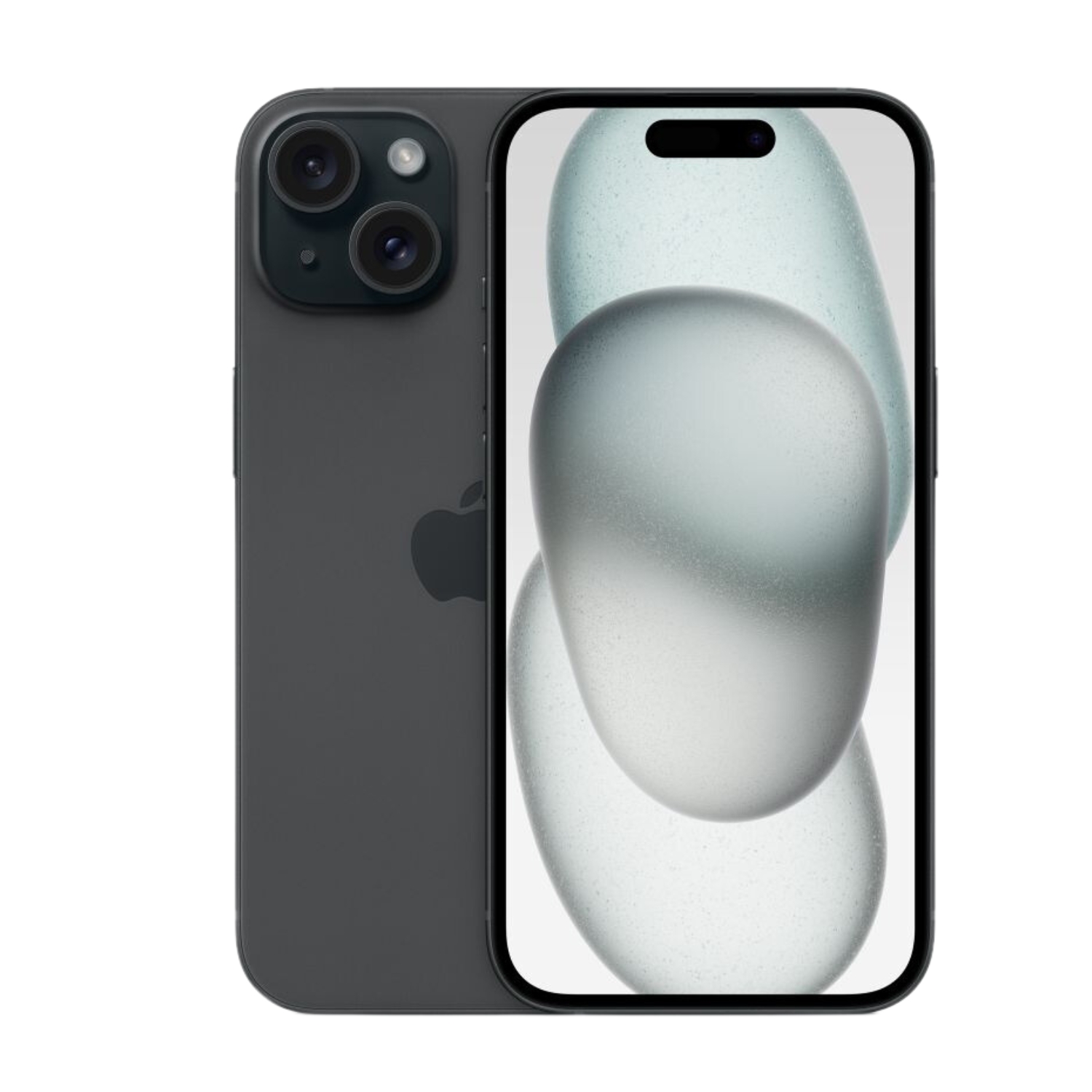
If you are looking for newer tech, a more powerful camera, and the Dynamic Island, check out our selection from the newer series:

In conclusion, managing iPhone storage is an ongoing process. By regularly deleting unnecessary files and using cloud services wisely, you can keep your phone fast and ready for new photos. However, if a lack of space starts interfering with your daily life, it is worth considering upgrading to a higher capacity refurbished iPhone.
Check out our blog for more trends and news. To stay up to date with Upgreat campaigns, like us on FB or follow us on Instagram.