
Have you ever spent hours fine-tuning an image to perfection, only to realize later that the colors look completely different on a client’s screen or phone? This is a classic frustration for photographers who haven’t fully explored display technology. Choosing the right tool isn’t necessarily about buying the most expensive model; it’s about understanding the technical specifications that genuinely impact image quality.
When selecting a Mac or monitor for photo editing, the color gamut, panel type, and calibration options are critical. In this guide, we’ll dive deep into the technical parameters that ensure color accuracy and discuss which refurbished Mac models offer the best price-to-performance ratio.

Which Screen Specs Are Decisive in Photo Editing?
In photography, a screen is more than just a window into the digital world; it is the canvas upon which your final result depends. Here are the main terms you need to know.
Color Space: sRGB vs P3 vs Adobe RGB
Color space (or gamut) defines the spectrum of colors a screen can display. The most common standard is sRGB, which is the default for the web. While any serious monitor should cover 99–100% of sRGB, this is often insufficient for print preparation. Apple standardizes on Display P3 (DCI-P3). The P3 color space is approximately 25% wider than sRGB, offering significantly more vibrant reds and greens. Macs with Retina displays widely support the P3 gamut, making them a favorite among photographers. While Adobe RGB is crucial for high-end printing, Apple screens cover a large enough portion of the Adobe RGB spectrum to satisfy the needs of most professionals.
Panel Type and Viewing Angle
For photo editing, IPS (In-Plane Switching) panels are the industry standard. They ensure that colors remain accurate even when viewing the screen from an angle. Cheaper TN panels suffer from color shifting with even slight head movements, making precise color correction impossible. Apple’s Retina displays and newer Liquid Retina XDR displays utilize IPS or advanced mini-LED technology, ensuring a stable image from every viewing angle.
Resolution and Pixel Density
High resolution (4K or 5K) is vital for sharpening and working with fine details. Apple’s “Retina” philosophy ensures a pixel density so high that the human eye cannot distinguish individual pixels. This is incredibly useful for photo editing, as the image appears smooth, similar to a high-quality print. Additionally, higher pixel density (PPI) reduces eye strain during long editing sessions.
Calibration and Delta E
Even the best screens can drift over time. Professional monitors are often factory-calibrated to a Delta E (color deviation) of less than 2, meaning the difference is indistinguishable to the human eye. While macOS features world-class color management, critical work still benefits from a hardware calibrator (such as X-Rite or Spyder). Crucially, you must disable features like True Tone and Night Shift during editing. These settings warm the screen’s white balance based on ambient light or time of day, which interferes with objective color assessment.
MacBook for Photo Editing: Which Model Should You Choose?
For the mobile photographer, a laptop is often the primary workspace. MacBook screen size and performance capability are the deciding factors. At Upgreat, you can find refurbished models that offer professional performance at a fraction of the price of a new device.
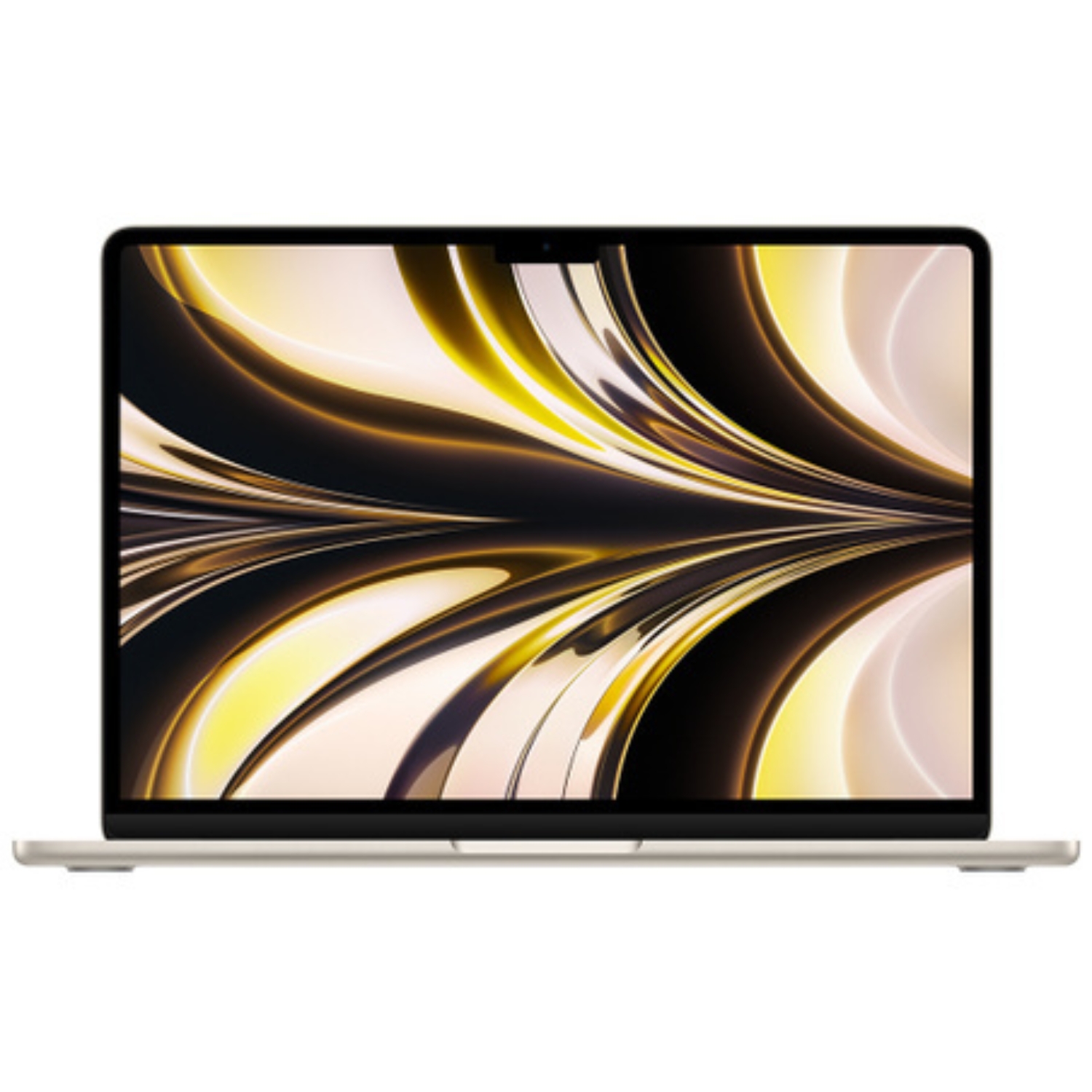
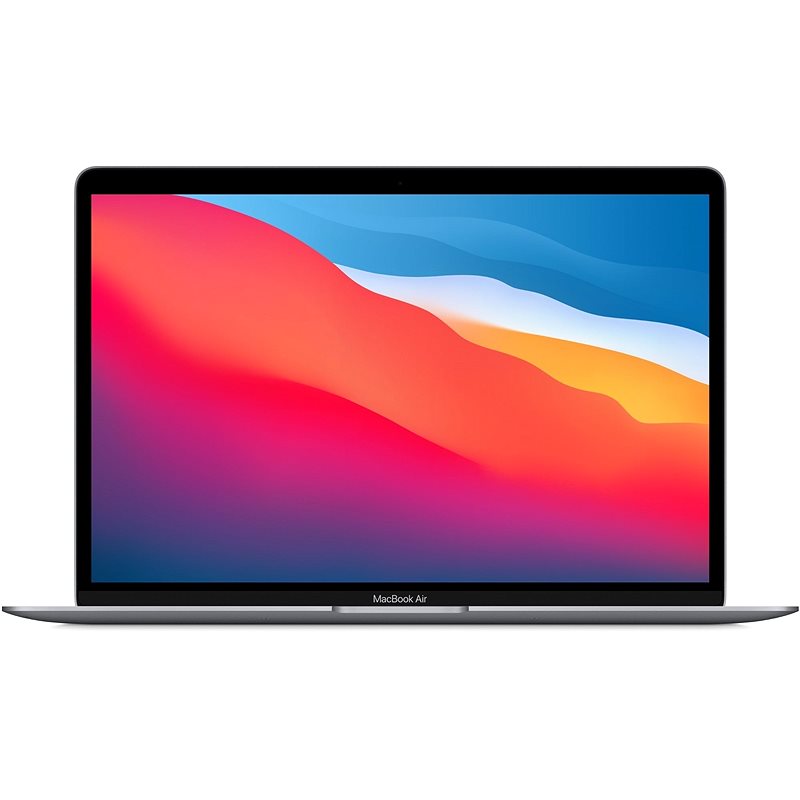
For everyday light editing, such as social media content creation, the MacBook Air (specifically with the M1, M2, or M3 chip) is an excellent choice. It is lightweight, completely silent due to its fanless design, and features a superb screen with P3 color support.
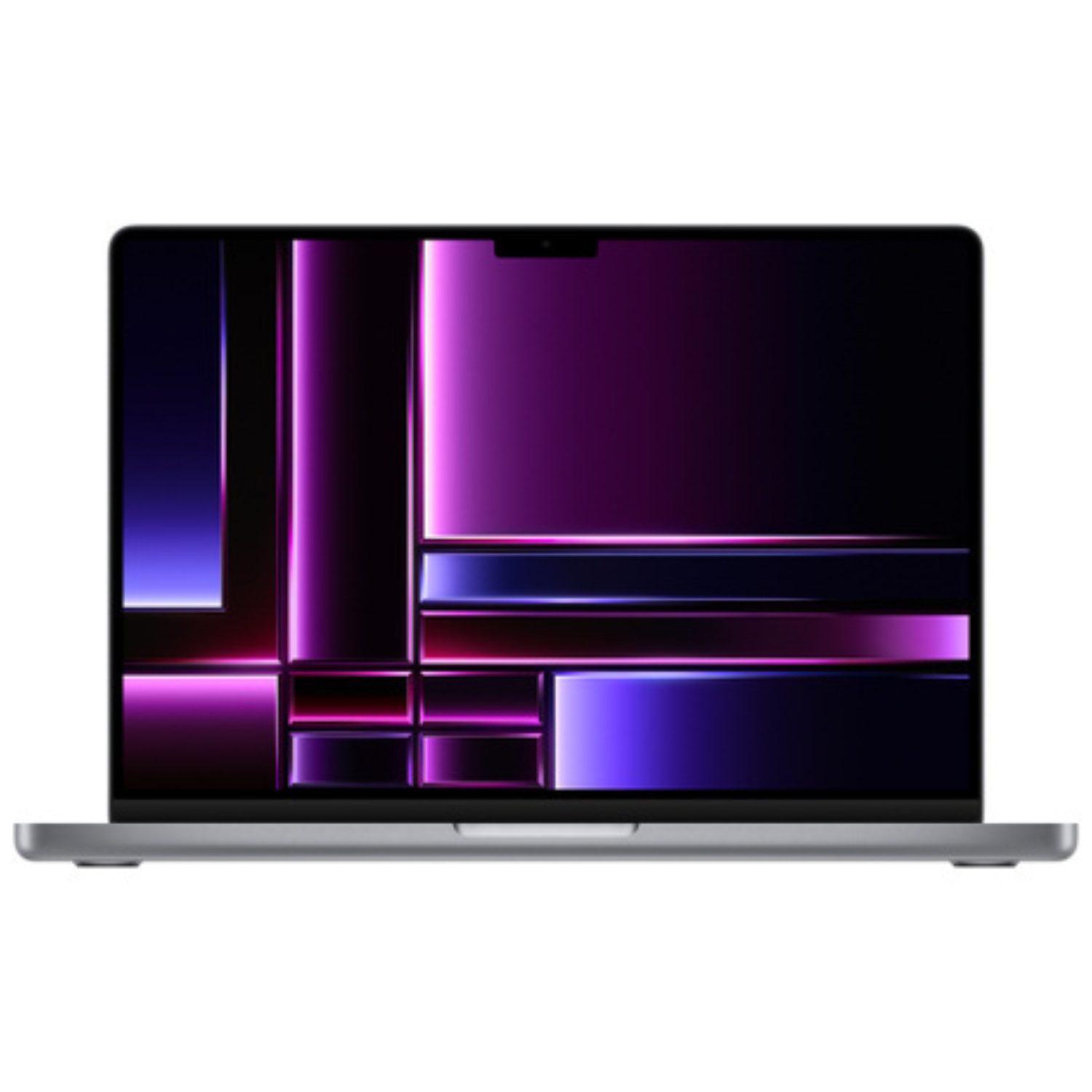
However, if your workflow involves processing hundreds of RAW files or using complex layers in Photoshop, the MacBook Pro is the superior choice. Pro models feature active cooling, maintaining stable performance during long exports. Furthermore, the 14- and 16-inch models boast Liquid Retina XDR displays, which offer extreme contrast and brightness—ideal for HDR content. Compare the models in detail in our article: MacBook Air vs Pro comparison.

Desktop Solutions: Mac Studio and Mac mini
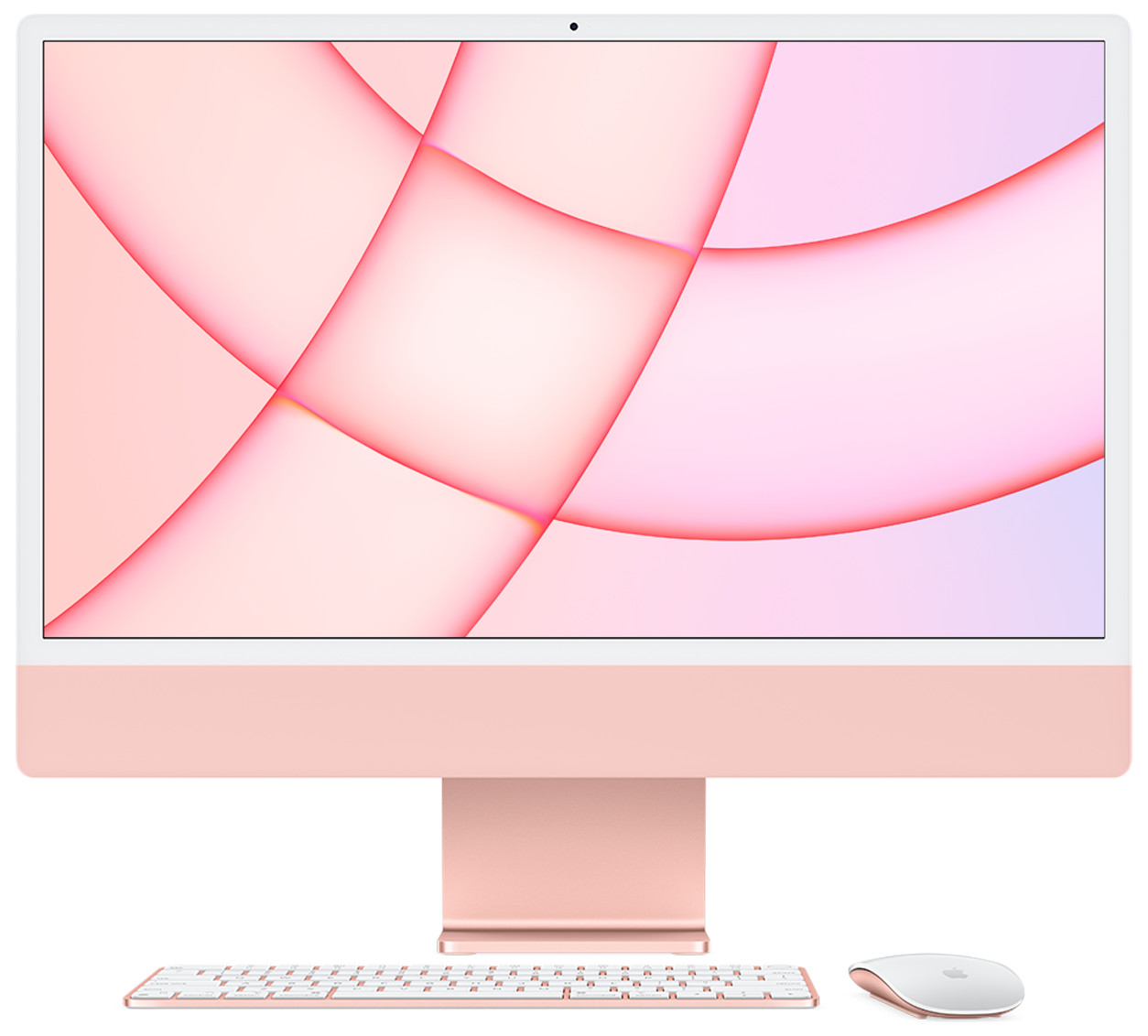
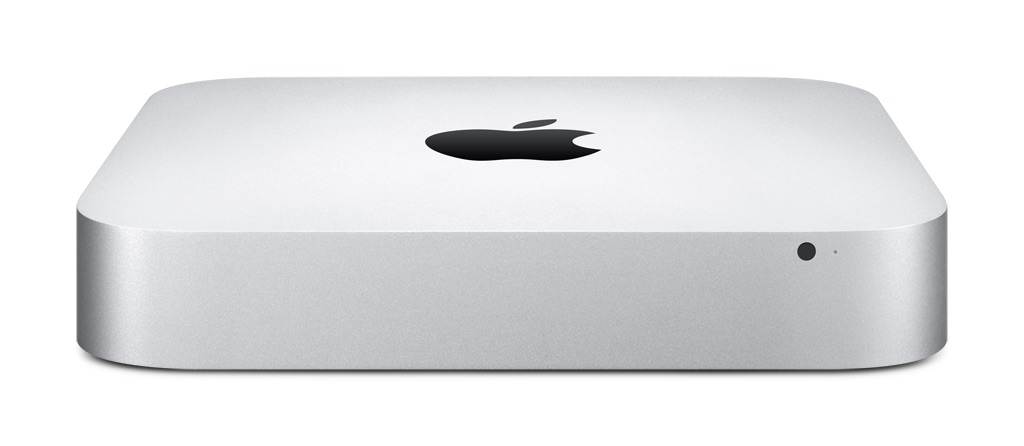
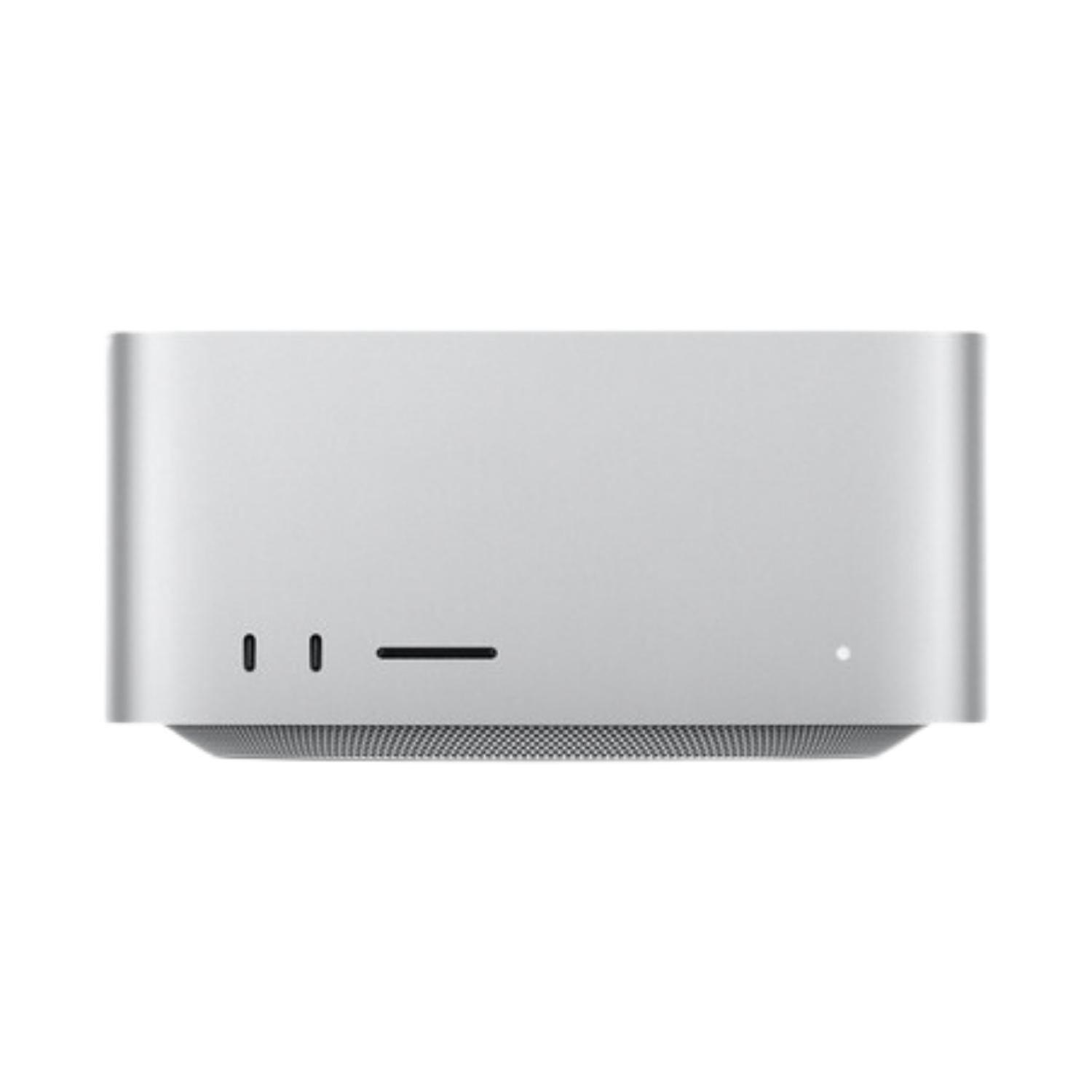
If you work primarily from a studio or home office, a standalone desktop computer may offer better value. The Mac mini is surprisingly capable and perfect for photographers who already own a high-quality monitor. For the most demanding professionals, the Mac Studio is a true powerhouse, handling massive panoramas and video editing without breaking a sweat. Our in-depth overview will help you decide: iMac vs Mac mini vs Mac Studio.
External Monitors and Compatibility
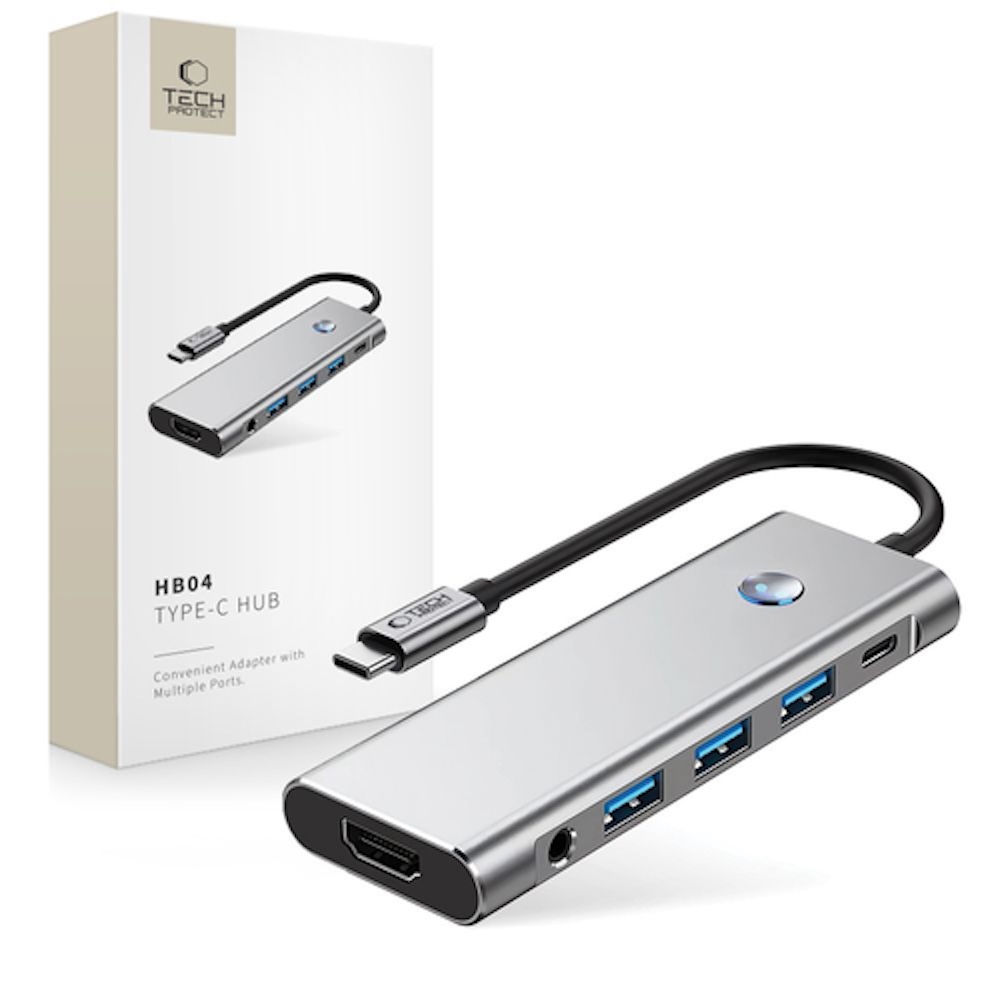
Many photographers prefer the real estate of a large screen. You must consider the specifics of connecting external monitors. Look for monitors with USB-C or Thunderbolt connections, which can charge your laptop and transmit video over a single cable. If the monitor uses HDMI, a high-quality adapter is essential.
It is important to note that base model MacBook Air and Pro laptops with M1, M2, and M3 chips officially support only one external monitor. If you require a multi-monitor setup, you should look toward models with Pro or Max chips. The ideal companion for a Mac is the Apple Studio Display, offering 5K resolution, P3 color space, and an integrated camera and sound system. Its nano-texture glass option reduces glare, which is a major asset when working in bright environments.
Should You Choose Intel or Apple Silicon (M-Series)?
When it comes to photo editing, the transition from Intel to Apple Silicon (M1, M2, M3, etc.) has been revolutionary. M-series chips process images in Lightroom and Photoshop significantly faster while consuming far less battery. If your budget allows, we strongly recommend choosing a model with Apple Silicon. However, if you need a very affordable starter workstation, a well-maintained MacBook Pro with an Intel processor can still get the job done, especially if screen quality is a higher priority for you than raw processing speed.
Summary: What Is the Best Choice for You?
Color accuracy starts with informed decisions. If you are a mobile photographer needing the best possible laptop screen, a refurbished 14- or 16-inch MacBook Pro (M1 Pro/Max or newer) is a safe bet thanks to the XDR display and ports like the SD card slot. For a home office, the best combination is likely a capable Mac mini or Mac Studio paired with a high-quality external monitor. At Upgreat, you will find verified and warrantied Apple devices, allowing you to invest the money you save into other gear, like a better lens.
Check out our blog for more reviews and news.
To stay updated on Upgreat campaigns, follow us on FB or Instagram.