
Is your Mac ready for the AI revolution? The latest update, codenamed macOS Tahoe, introduces Apple Intelligence alongside a complete visual overhaul designed to make your workflow faster and more intuitive than ever.

Liquid Glass: A Modernized Interface
macOS Tahoe marks the most significant aesthetic shift since the release of macOS Big Sur. The new “Liquid Glass” design language focuses on transparency and depth, featuring softer, more pronounced rounded corners on windows. The menu bar is now fully transparent by default, separated from your wallpaper by only a subtle shadow to create a more immersive viewing experience.
Users can now tailor the interface with four distinct styles: ‘Default’, ‘Dark’, ‘Clear’, and ‘Tinted’, making it easy to match your setup to your environment or personal taste. Notably, Launchpad has been retired, with Spotlight now serving as the primary hub for searching and launching apps. If you’re looking to experience this stunning new design on a high-quality display, browse our selection of refurbished Mac computers.

The Rise of Apple Intelligence
At its core, Tahoe is built around Apple Intelligence, which weaves AI directly into your daily tasks. The Messages app now features Live Translation for real-time multilingual communication, a feature that also extends to FaceTime. This includes live captions and translations during standard voice calls as well.
Beyond communication, Tahoe introduces system-wide Writing Tools and an Image Playground, both of which are accessible via the Shortcuts app. This allows you to create powerful, time-based, or event-triggered automations. Whether you’re generating content, summarizing long documents, or polishing your prose, these tools are designed to keep you focused by eliminating the need to switch between apps.
Enhanced iPhone Integration and Pro Tools
The Apple ecosystem feels more connected than ever with Live Activities now appearing directly in the Mac menu bar. Clicking a notification instantly triggers iPhone Mirroring, giving you full control over your phone’s apps and notifications without having to pick it up—perfect for when your device is charging or out of reach.
Developers and gamers also have plenty to look forward to. Terminal has received its first major visual update in years, adding support for 24-bit color and Powerline fonts. For gamers, the new Games app provides a centralized hub for your library, messages, and invites. For advice on choosing the right hardware for gaming or development, see our M1, M2, and M3 chip comparison.
Hardware Requirements and Compatibility
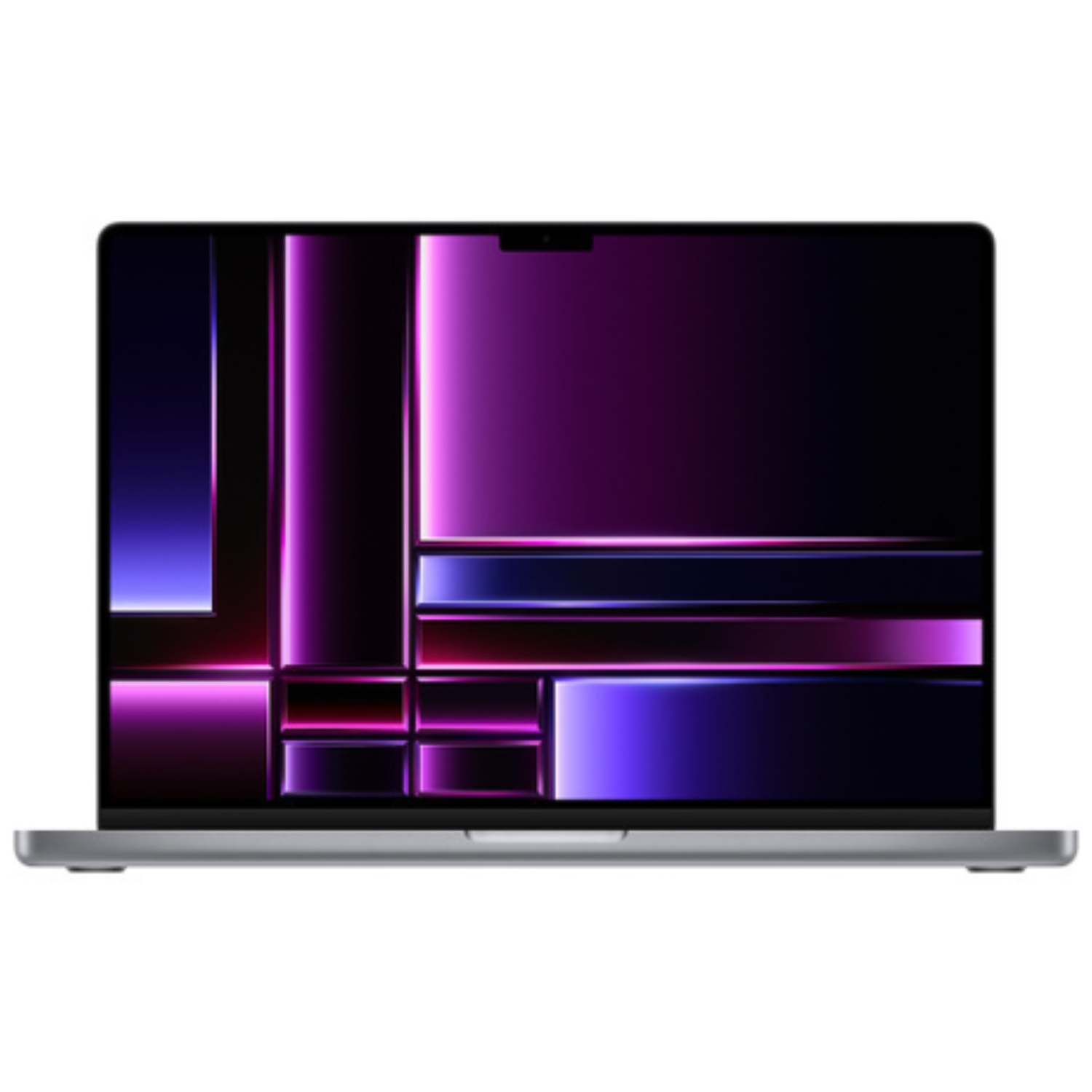
macOS Tahoe demands more from its hardware than previous versions, as full support for Apple Intelligence requires the power of Apple Silicon. While some features may still work on older machines, an M-series chip is necessary to unlock the full AI-driven experience.
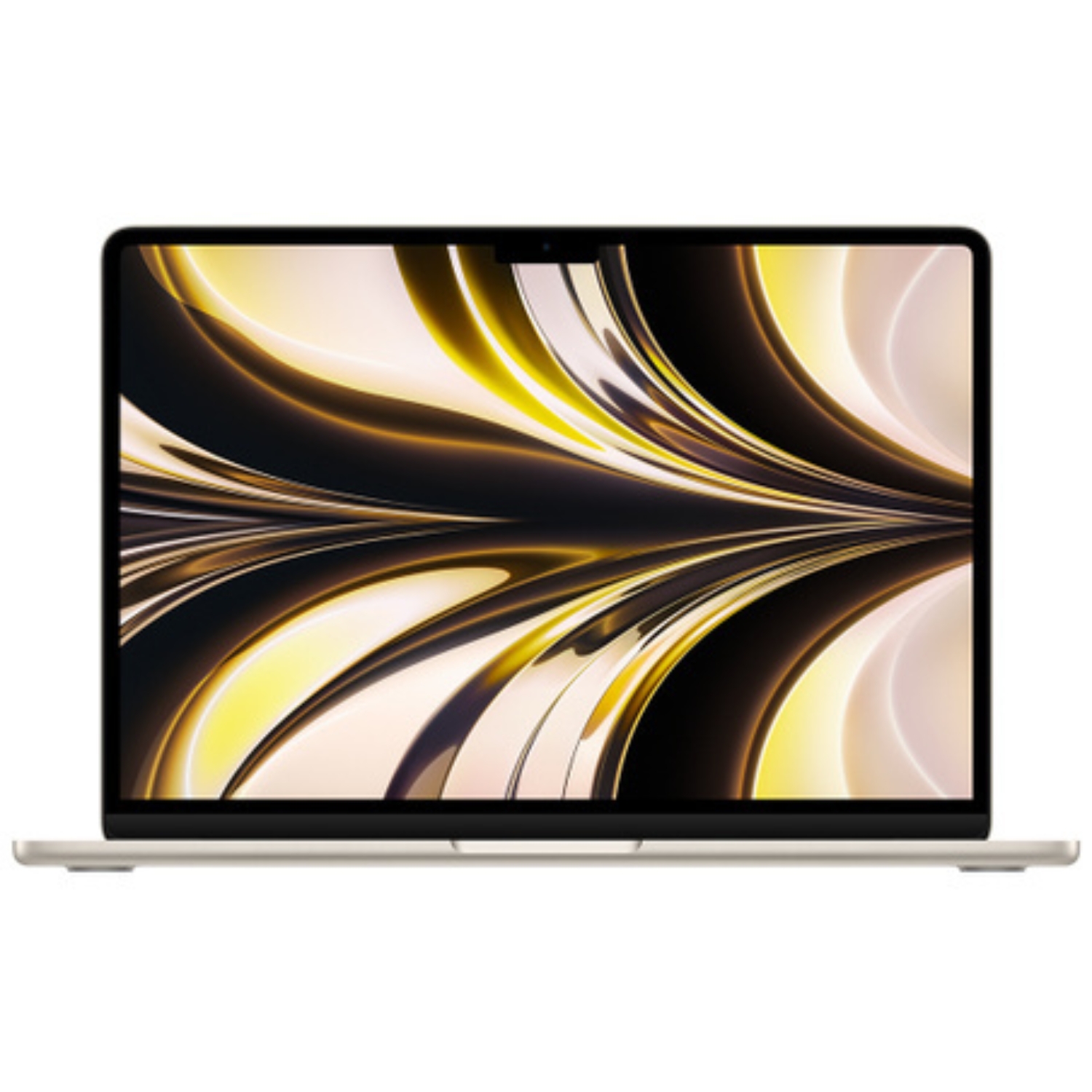
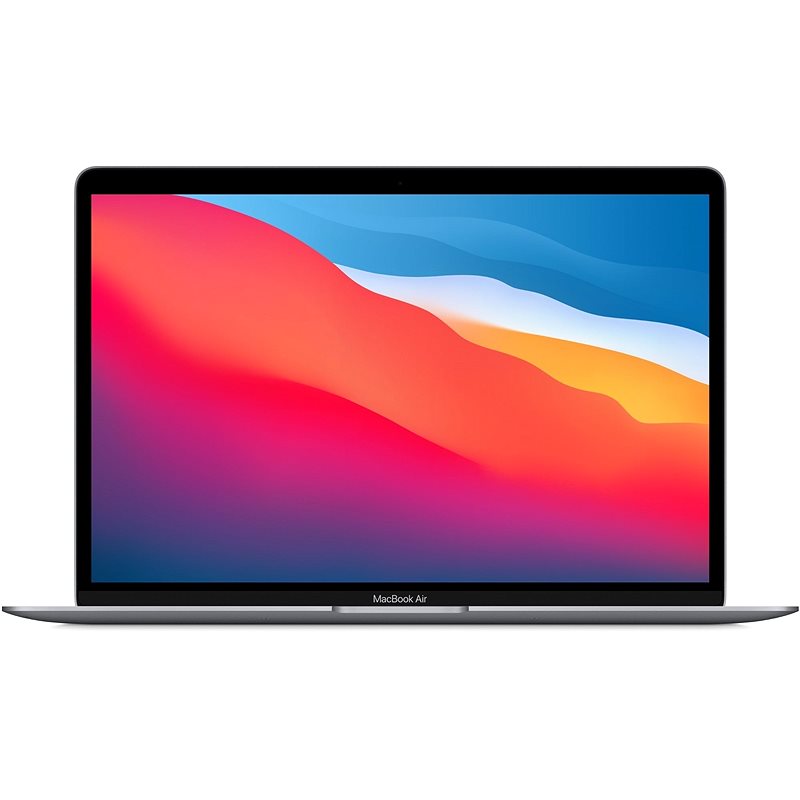
If you are still using an Intel-based Mac, now is an ideal time to upgrade to a refurbished Apple Silicon model. Investing in M-series hardware ensures you won’t miss out on the most innovative features of the new OS. To learn more about why this transition is a vital long-term investment, check out our Intel Mac vs. Apple Silicon comparison. For those seeking portability, the MacBook Air remains a top-tier choice.
When Should You Upgrade?
With any major software release, the big question is whether to update immediately or wait for the initial patches. Because Tahoe introduces such fundamental changes to the UI and AI architecture, we recommend that professional users wait for the first stability updates. It is also vital to ensure your Mac has enough storage and memory to handle the new features smoothly.
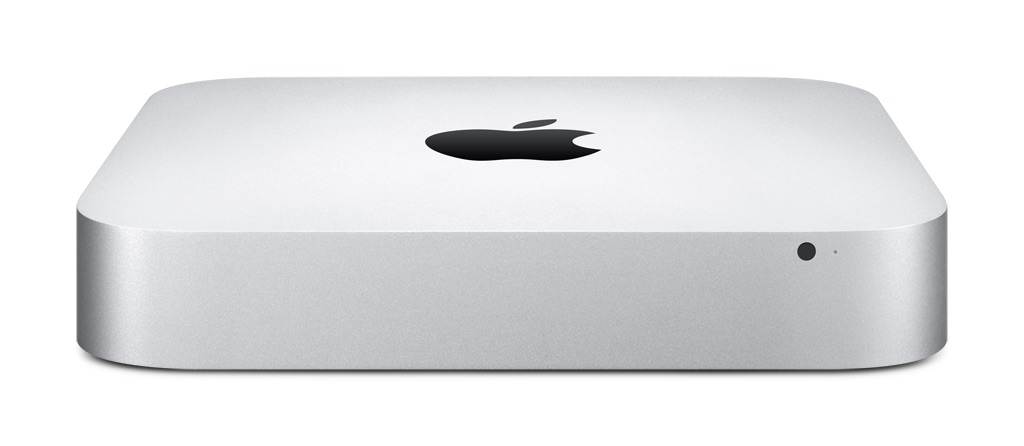
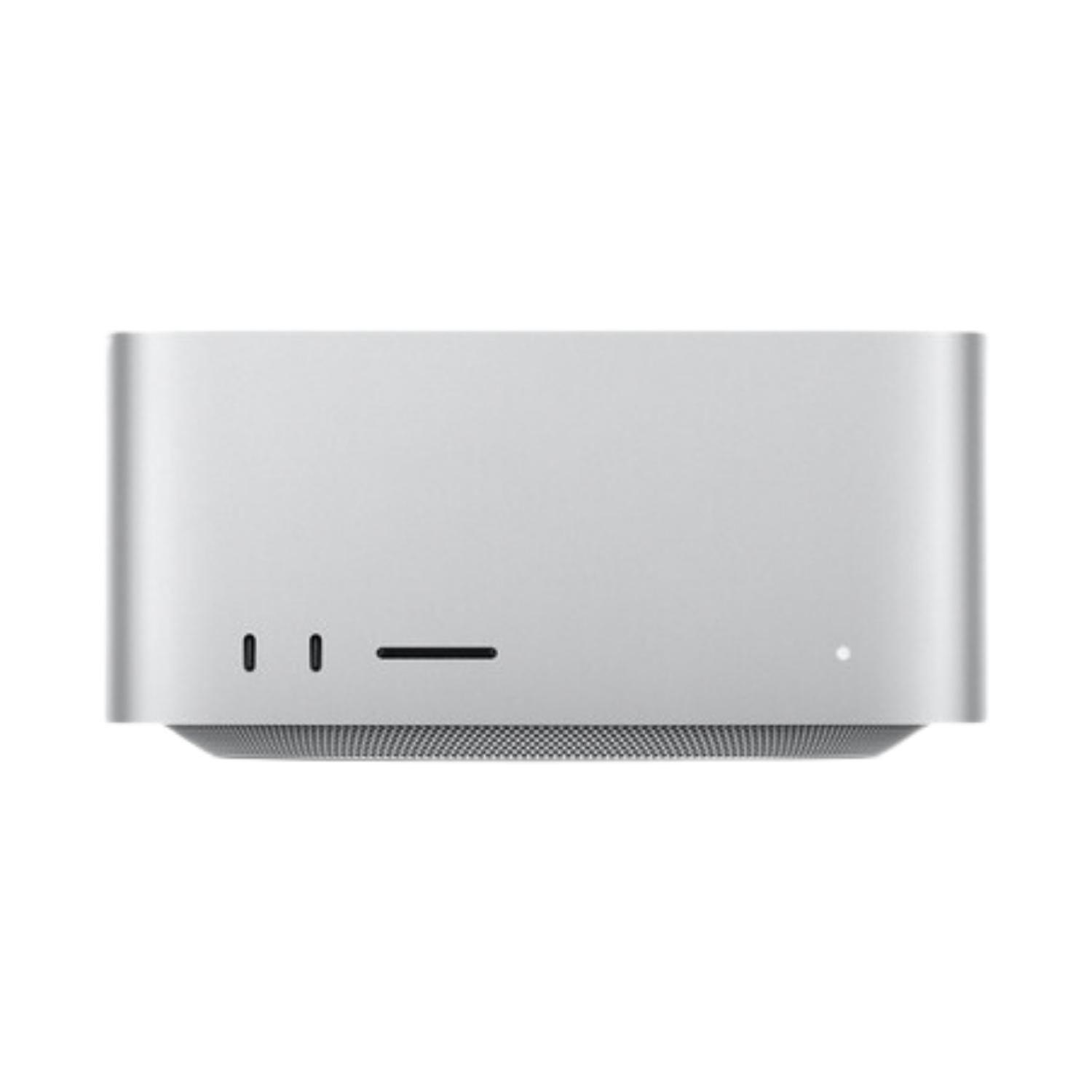
Before hitting “Update,” take a moment to review your available storage, as AI-driven features can be resource-intensive. If you’re running low on space, read our guide on how to free up Mac storage space. We also suggest checking our breakdown of how much RAM you need for your Mac to ensure your setup is future-proof. For power users, the Mac Studio and Mac mini are excellent professional-grade options.
Preparing for a Seamless Transition
Before installing macOS Tahoe, backing up your data is essential. If you’re planning to upgrade your hardware along with the software, Apple’s built-in migration tools make the process simple. We’ve created a step-by-step tutorial on transferring data from Mac to Mac to help you move your files safely.
Don’t forget about your physical workspace; the new OS is optimized for the latest external monitors and peripherals. Connectivity options vary depending on your specific chip, so be sure to consult our guide to connecting external monitors. You can also find the latest accessories in our keyboard and mouse category to complete your setup.
Visit our blog for more tech trends and reviews. To stay updated on the latest Upgreat deals, follow us on FB or Instagram.