
As a video editor, you face tremendous possibilities today – Apple’s Mac computers have been the favorite choice of editors for decades. However, with an ever-expanding range of Apple devices, finding the right model can be challenging, especially if your budget doesn’t allow for the latest model. Which Mac offers the best performance-to-price ratio for your workflow?
Why Are Macs Popular Among Video Editors?
Mac computers are ideal for video processing for several reasons:

Final Cut Pro and DaVinci Resolve work extremely efficiently with Apple Silicon chips, offering optimized software that translates into a smooth workflow. Both programs have received significant performance improvements through software updates.
MacOS provides a stable and reliable platform, which is especially important for long editing sessions. System stability significantly reduces the risk of crashes and data loss.
Mac computers are known for their high-quality displays – Retina and Liquid Retina XDR displays offer high color range and resolution, which is essential for video processing.
Additionally, Mac computers remain effective for years. Even older models can successfully handle video processing, making them a sensible investment.
Which Specifications Are Important for Video Editors?
Processor (CPU/Chip)
Mac computers based on Apple Silicon chips are remarkably capable for video processing. The comparison between Intel-based Macs and Apple Silicon shows that Apple M-series chips offer significantly better performance and energy efficiency.
- Standard M-chips (M1, M2, M3, M4) – Suitable for beginners and moderate video editors
- Pro/Max/Ultra variants – For professional editing, especially 4K and 8K video
The M4 chip’s single-core performance is 34-48% better than previous models, and in graphics, the M4 Max can show up to 541% better rendering performance compared to the M1 Max chip.
Memory (RAM)
Video processing is memory-intensive:
- 8 GB – Minimum for beginners, suitable for 1080p to simpler 4K projects
- 16 GB – Recommended for most editors, especially when working with 4K videos
- 32 GB+ – For professionals or when working with complex effects and multiple applications
Sticking with base models is often “false economy” in video editing, especially if you work at a professional level. Higher RAM configurations offer better future-proofing and a smoother workflow.
Storage (SSD)
Video files are large, and fast storage is important:
- 256 GB – Absolute minimum, requires using an external hard drive
- 512 GB – Reasonable starting point for most users
- 1 TB+ – Recommended for more serious editors
SSD speed is also important – in the MacBook Air vs Pro comparison, Blackmagic Disk Speed Test results showed MacBook Air M3 at 2981 MBps, while MacBook Pro M4 Pro achieved 6640 MBps. An external SSD is also recommended even when using a base model Mac mini (including M4) to ensure sufficient storage performance.
Display
Display quality is crucial for video editors:
- Standard Retina – Good for starting, with 227 PPI pixel density
- Liquid Retina – Better color space, especially on newer models
- Liquid Retina XDR – For professionals, 1000 nits continuous brightness and 10000 mini-LED backlighting elements
The comprehensive overview of Retina displays shows that newer models support P3 color space, which is 25% wider than standard sRGB, offering more accurate color reproduction in video projects.
Comparison of Mac Models from a Video Editor’s Perspective
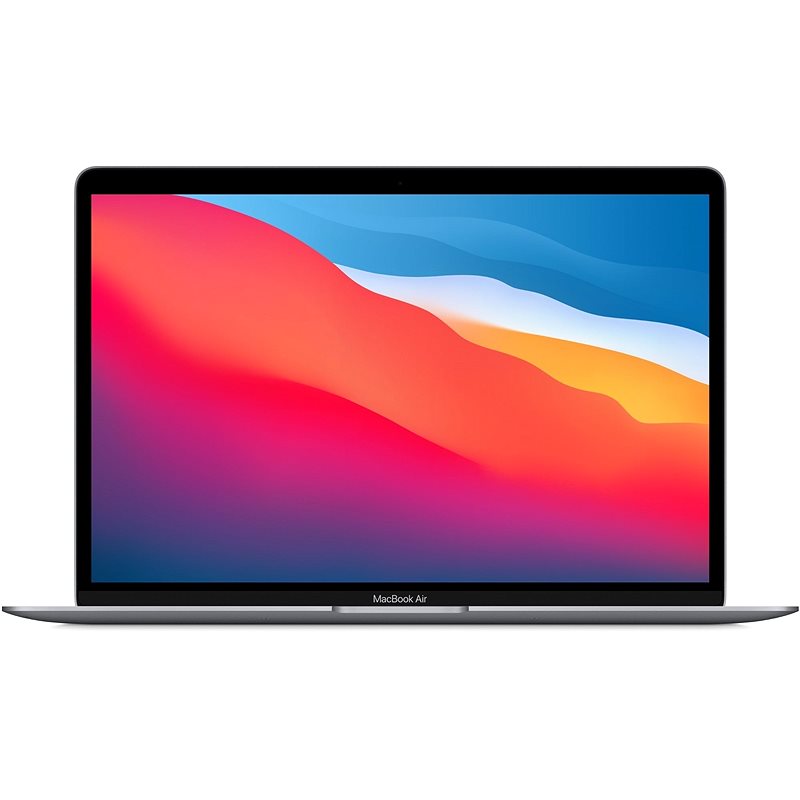
MacBook Air (M1, M2, M3, M4)
MacBook Air offers good performance metrics for video editors who need a portable solution:
- Pros: Lightweight (1.24-1.29 kg), long battery life (10+ hours), good price-to-performance ratio
- Cons: Fanless cooling system limits sustained performance, limited number of ports
M2 and M3 MacBook Air models offer a good balance of portability, performance, and price for video editing workflows. An 8-minute 4K video project can be exported on an M2/M3 MacBook Air, although density adjustments may show minor delays during intensive operations.
MacBook Air M1 (2020) is still a considerable option for beginners, offering sufficient performance for 1080p and simpler 4K projects even four years after release. Battery capacity typically retains 90% even after four years of use.
MacBook Pro (M1 Pro/Max, M2 Pro/Max, M3 Pro/Max, M4 Pro/Max)
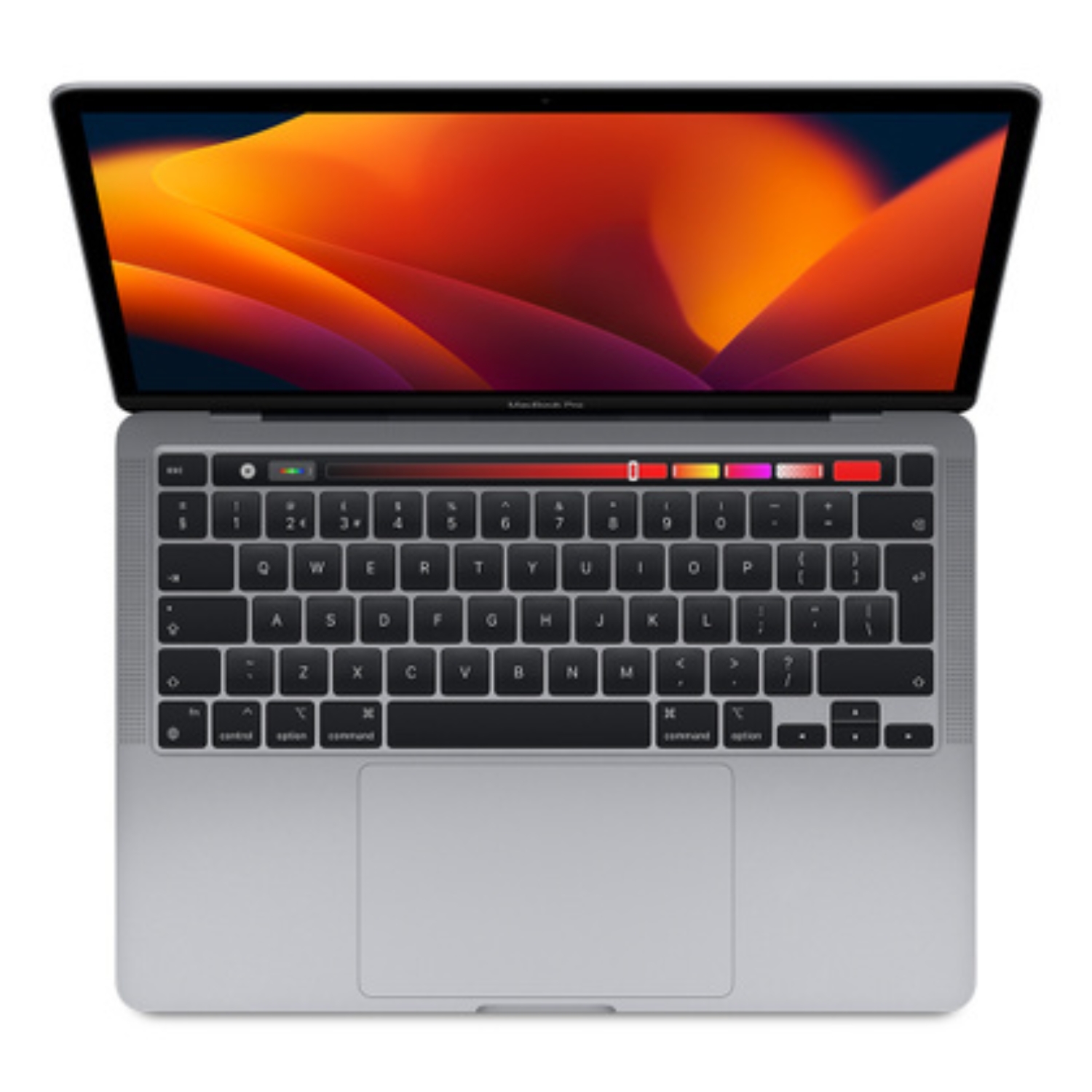
MacBook Pro is a professional choice:
- Pros: Active cooling system ensures sustained performance, Liquid Retina XDR display (ProMotion 120Hz), more ports
- Cons: Heavier (1.55-2.16 kg) and more expensive than Air
The M1 Max with 64GB RAM handles 4K and most 8K video edits smoothly in Final Cut Pro and DaVinci Resolve even after three years of use. For creative work, the MacBook Pro M4 Pro offers a noticeable performance advantage in 3D work and video processing compared to Air models.
MacBook Pro 14″ and 16″ models offer ProMotion 120 Hz displays and a choice of different M-series chips, allowing you to select the power that suits your workflows.
Mac mini (M1, M2, M3)
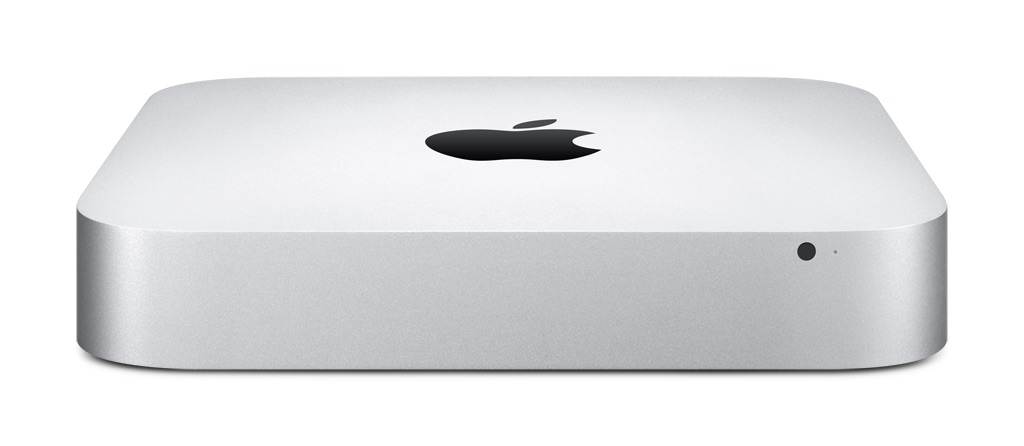
Mac mini is an affordable desktop for video editing:
- Pros: Good price-to-performance ratio, more ports, ability to choose your preferred display
- Cons: Requires a separate monitor, mouse, and keyboard
Mac mini is an ideal choice if you already have a suitable display and input devices. Compared to laptops, you typically get a more powerful configuration for the same money.
Mac Studio (M1 Max/Ultra, M2 Max/Ultra)
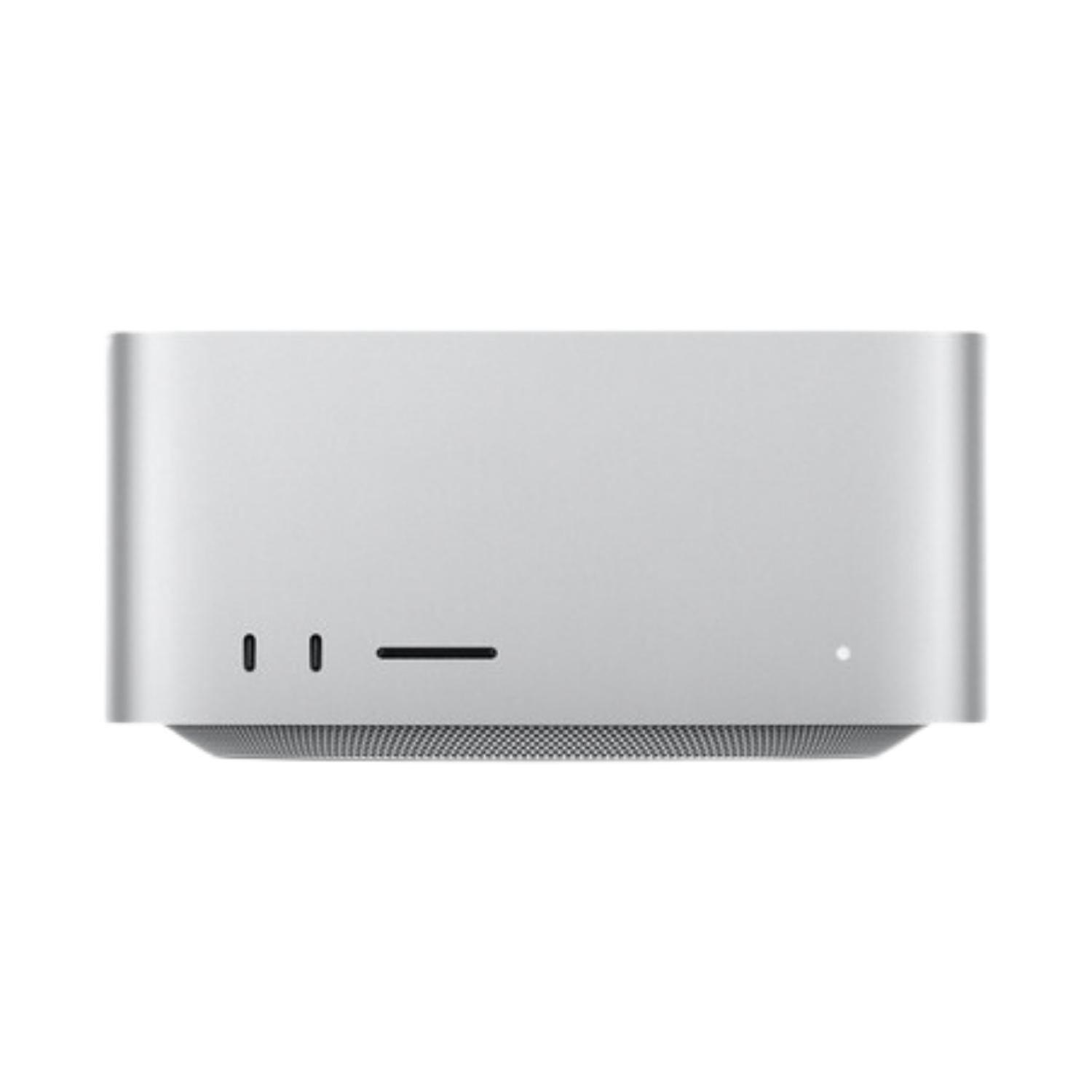
Mac Studio is designed for professionals:
- Pros: Maximum performance, plenty of ports, quiet cooling system
- Cons: Higher price, not portable
Mac Studio offers the most powerful Apple Silicon chips and greater cooling, allowing sustained peak performance during long rendering and complex editing workflows.
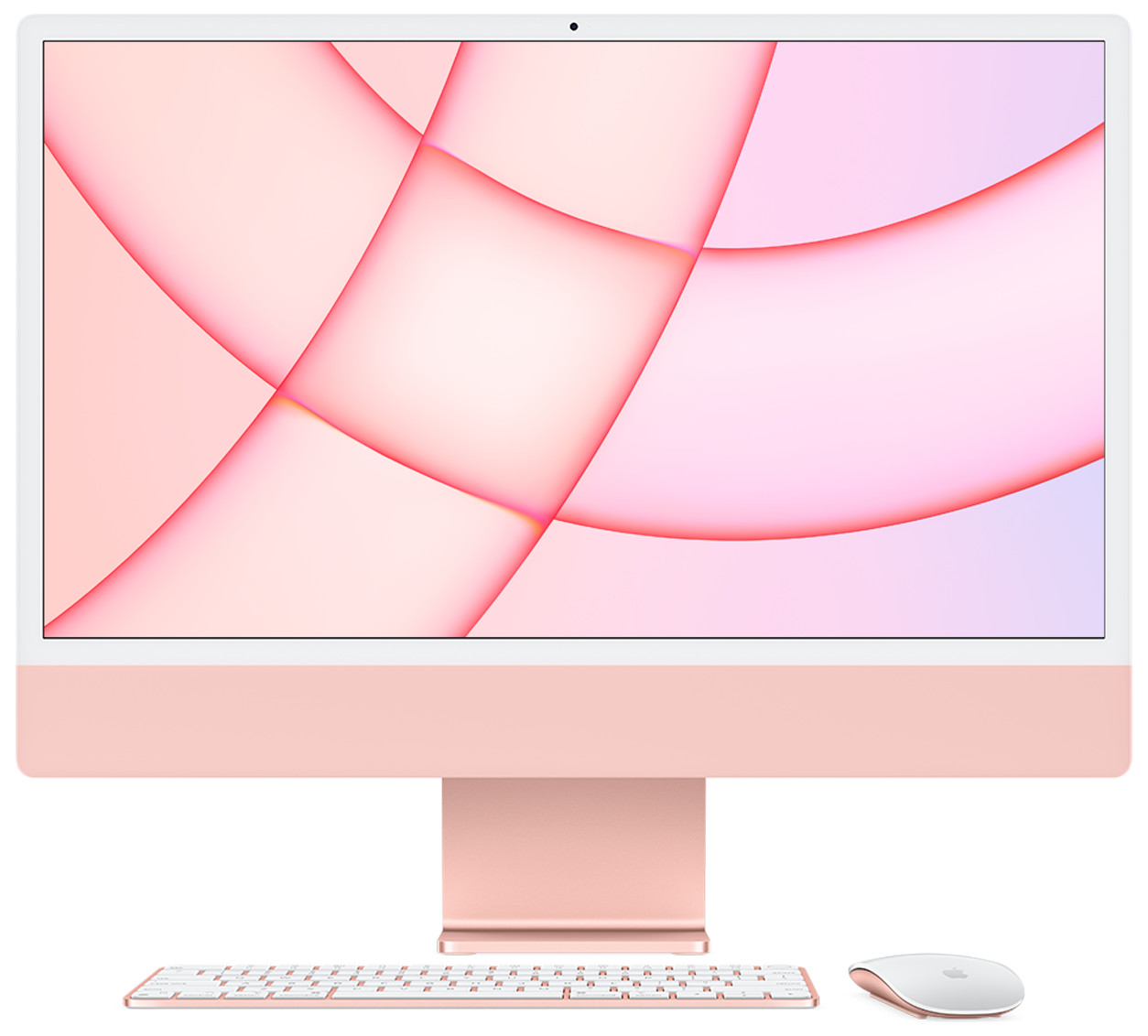
iMac (M1, M2, M3)
iMac is a compact all-in-one solution:
- Pros: Excellent 24-inch 4.5K display, compact design
- Cons: Limited number of ports, not portable, limited upgrade options
iMac is a good choice if you value elegant design and an excellent built-in display. The 24-inch 4.5K Retina display offers a rich color space and sharp image, ideal for video editing.
Video Editing Software for Mac Computers
Final Cut Pro
Apple’s professional video editing software, optimized for macOS and Apple Silicon chips.
- Pros: Excellent optimization, fast rendering, one-time payment
- Recommended specifications: At least 16GB RAM, M2 or newer chip
Final Cut Pro works extremely efficiently on Apple Silicon computers and offers significantly faster rendering times for some workflows compared to other editing programs.
DaVinci Resolve
Professional color correction and editing software.
- Pros: Color correction, audio processing, and visual effects in one package, free basic version
- Recommended specifications: 16GB+ RAM, M2 Pro or more powerful
DaVinci Resolve offers excellent performance on M-series Macs and has received significant optimizations for the Apple Silicon platform through software updates.
Adobe Premiere Pro
Industry standard for professional video editing.
- Pros: Integration with other Adobe products, universal user interface
- Recommended specifications: 16GB+ RAM, M2 or newer chip
Premiere Pro offers a flexible work environment and integration with other Adobe Creative Cloud applications, which is useful for a comprehensive creative workflow.
Recommendations for Video Editors with Different Needs and Budgets
Beginner Video Editor (budget 400-700€)
- Recommendation: MacBook Air M1 (2020) or Mac Mini M1 (2020)
- Rationale: These offer sufficient performance for 1080p and simpler 4K projects
The M1 MacBook Air is still capable of 4K video editing four years after release, demonstrating strong durability for content creation tasks. During typical content creation processes, including video processing and photo management, the M1 MacBook Air offers 8-10 hours of battery life.
Intermediate Editor (budget 700-1100€)
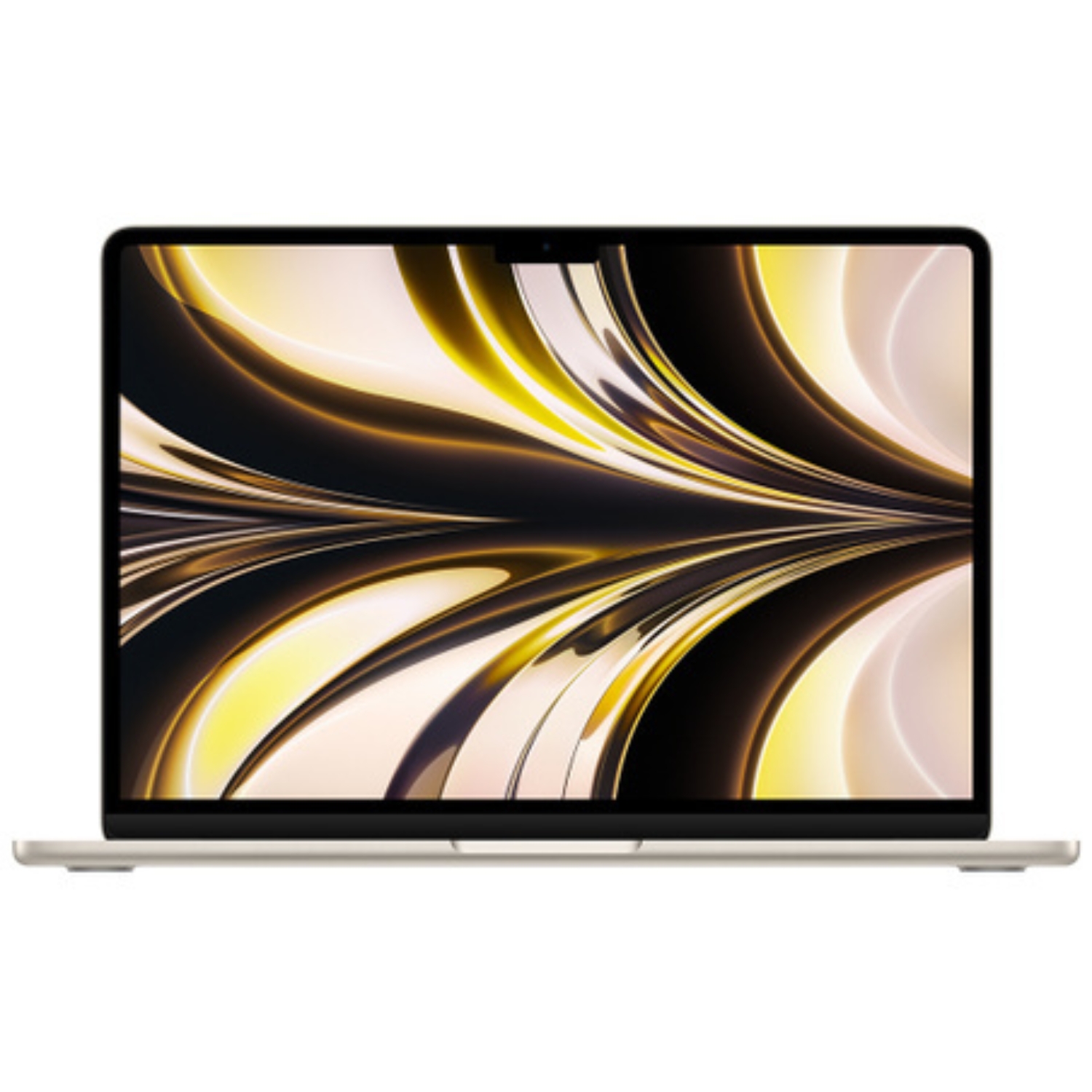
- Recommendation: MacBook Air M2 (2022) or MacBook Pro (2019-2020)
- Rationale: Better performance for more complex projects, more versatile options
The M3 MacBook Air offers a faster processor and graphics compared to the M2, hardware-accelerated ray tracing, mesh shading, and supports using two displays in clamshell mode. The base model M3 MacBook Air with 8GB unified memory is sufficient for many video processing workflows, though more RAM offers better future-proofing.
Semi-Professional Editor (budget 1100-1500€)
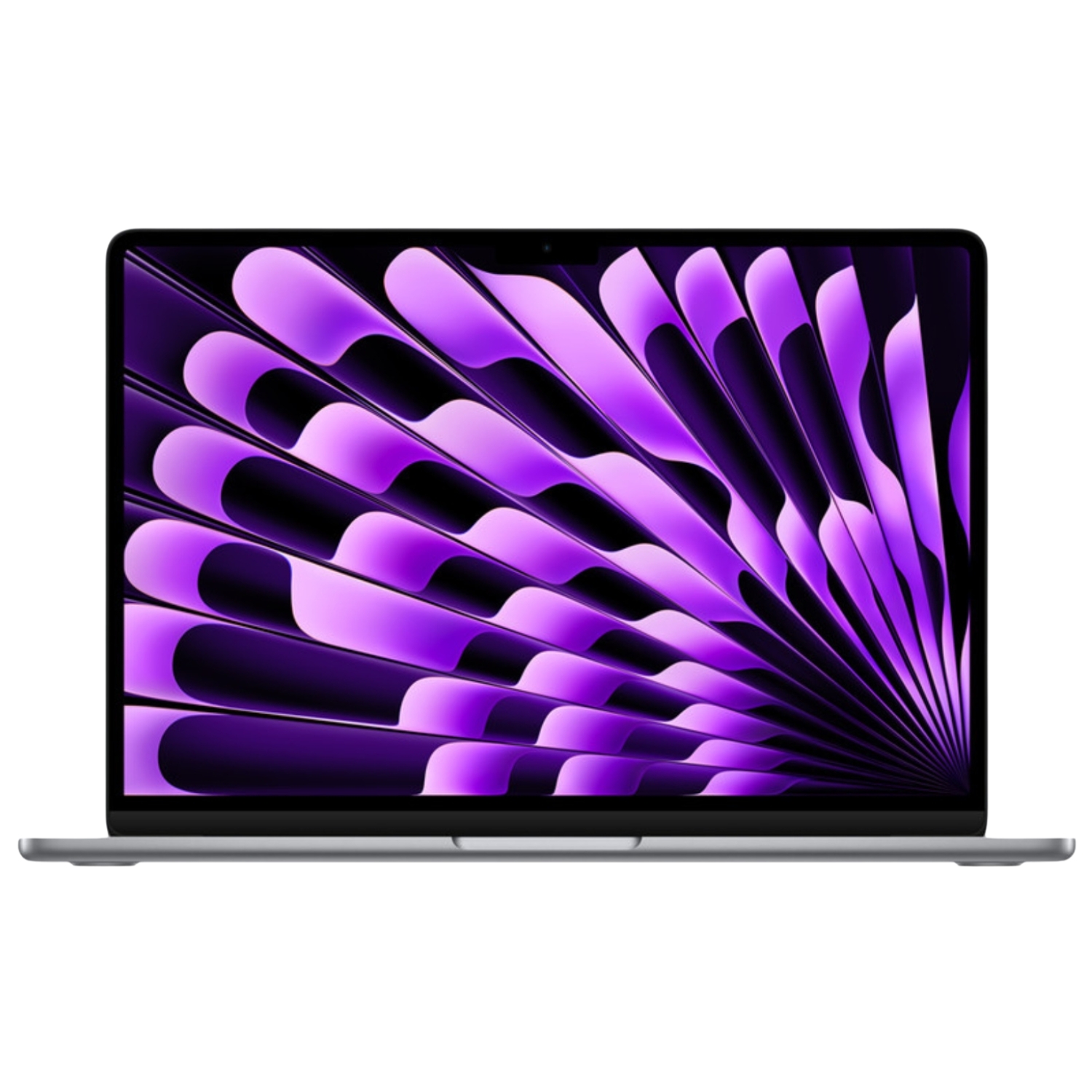
- Recommendation: MacBook Pro M1 Pro (2021) or MacBook Air M4 (2024)
- Rationale: More professional performance, better display (on Pro models), longer sustained performance
The M4 Pro offers significant memory bandwidth improvements, resulting in noticeable performance gains specifically for video processing and 3D workflows. The M4 MacBook Air supports two external monitors (compared to the M1’s single monitor) and offers 22% better battery life than the M1 model.
Professional Editor (budget 1500€+)
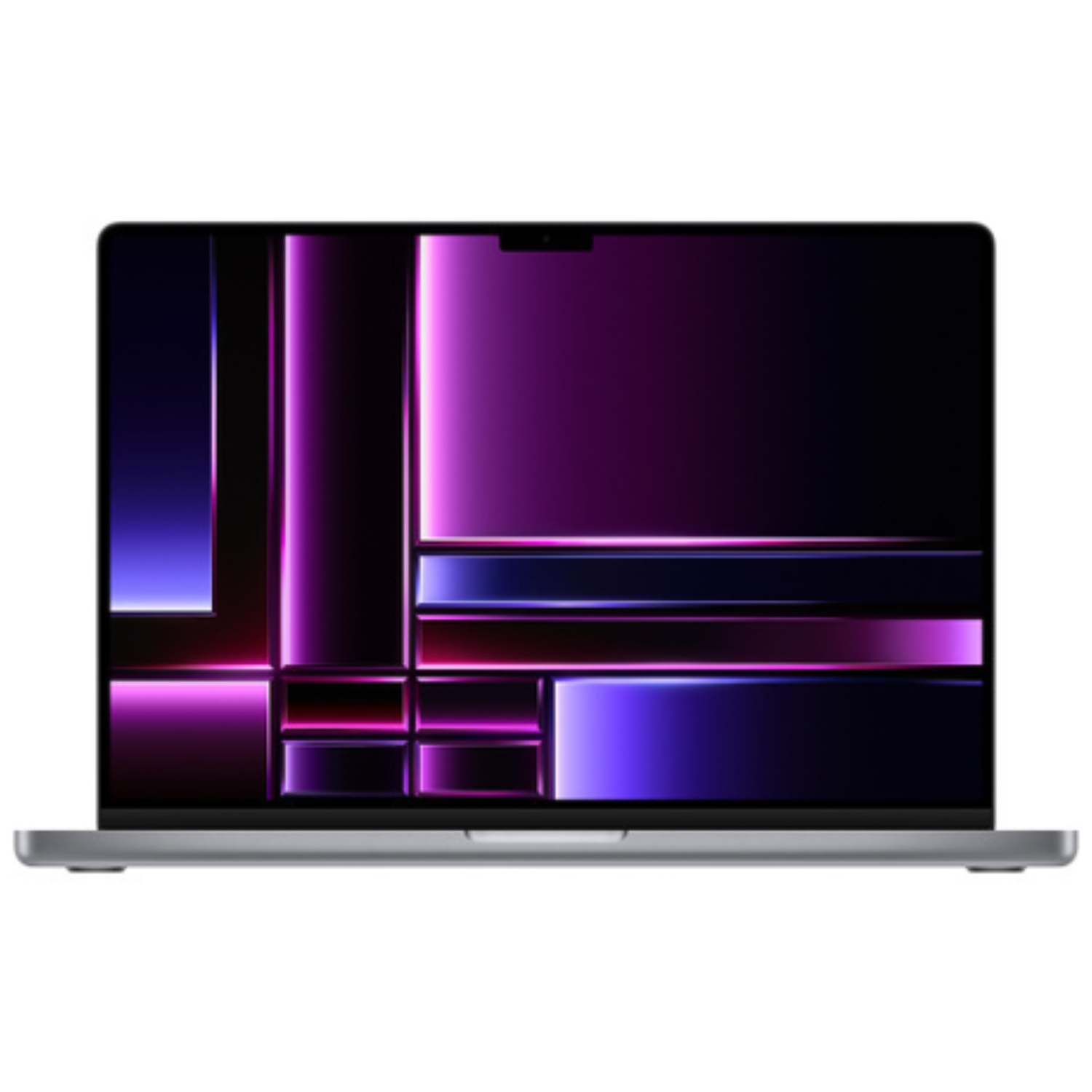
- Recommendation: MacBook Pro M3 Pro/Max (2023) or Mac Studio M1 Max
- Rationale: Maximum performance for more complex projects and 4K/8K video
MacBook Pro models using Liquid Retina XDR displays (1000 nits sustained brightness, 120Hz ProMotion) are crucial for video editing in terms of color accuracy. Performance differences between M2, M3, and M4 Pro are minimal for some tasks (code compilation) but significant for others (Photoshop, video editing).
Practical Tips for Setting Up a Mac Computer for Video Editing
External Monitors
External monitors can be connected to Mac computers, which is important for editors:
- M1/M2 MacBook Air officially supports one external monitor
- M3/M4 and all Pro/Max chips support at least two external monitors
Read more about how to connect external monitors to your Mac computer. A good external monitor can significantly improve workflow, allowing more space for toolbars and editing panels.
Accessories
Video editing workflows can be significantly improved with the right accessories:
- External hard drives – Fast NVMe SSDs with Thunderbolt or USB-C connection
- Mouse/trackpad – For precise control
- Keyboard – For using shortcuts
- Adapters and docks – For connecting more devices
The right accessories can significantly speed up workflow and improve user experience. Take a closer look at chargers, cables, and adapters, monitors, and keyboards and mice.
Summary: Which Mac Is the Best Choice for Video Editing?
The best Mac for video editing depends on your specific needs and budget:
- Portability and mobility – MacBook Air or MacBook Pro
- Maximum performance – MacBook Pro M3 Pro/Max or Mac Studio
- Good price-to-performance ratio – Mac mini or used MacBook Pro
- Compact desktop – iMac
UPGREAT’s used selection offers various Mac computers in all price ranges, with 2-3 generation older devices still providing excellent performance for video editors at a significantly lower price.
For video editing, it’s sensible to choose a model with at least 16GB RAM and a 512GB SSD, but much depends on the size and complexity of your projects. It’s also worth considering monitors and accessories that complement your editing workflow.
Also check out our blog where we share reviews of trends and news.
To stay up to date with Upgreat campaigns, add us as a friend on FB or follow us on Instagram.