
Buying a pre-owned Apple device is a smart way to save money, but the secondary market is full of phones with hidden defects. Do you know how to tell the difference between a solid device and one that was rescued from water damage or patched up with substandard parts? This practical checklist will help you assess the real condition of the phone so you can make a safe purchase.

1. Inspect the Appearance and Body
First impressions count, but you need to look past minor scratches and check for impact damage. Pick up the phone and examine it closely under good light. Pay special attention to the housing and the metal frame. Look specifically for dents on the corners; a deformed aluminum or steel frame suggests a heavy impact that could have caused internal damage to the motherboard.
Next, check the camera lenses to ensure there are no cracks or moisture trapped under the glass. It’s also worth looking closely at the two screws flanking the charging port. If they look stripped, worn, or are missing entirely, the phone has likely been opened by an amateur.
While minor cosmetic wear is expected on a used device, it’s crucial to distinguish between normal usage and serious damage. At Upgreat, we sort our devices into specific appearance categories so you know exactly what the device looks like before you buy.
2. Test the Screen and Touch Responsiveness
The screen is the most valuable and vital component of a smartphone. Unfortunately, broken original screens are often replaced with cheap third-party copies that suffer from dull colors and poor touch sensitivity. To test responsiveness, press and hold an app icon, then drag it around the entire screen, hitting every corner and edge. If the icon “drops” from your finger at any point, that area of the screen is a dead zone.
Also, verify that True Tone is working by going to *Settings > Display & Brightness*. If the True Tone option is missing, the screen has likely been replaced with a non-original part or wasn’t programmed correctly during repair. Finally, open an image with a purely white background to check for dark spots, and a black background to check for bright spots—these indicate dead pixels.
To keep your screen in top shape, it pays to invest in a quality screen protector immediately after purchase.

3. Check Battery Health and Charging Port
Batteries are consumable parts that degrade over time, and extending iPhone battery life depends largely on how the previous owner charged the device. To check the current status, go to *Settings > Battery > Battery Health & Charging* and look at the “Maximum Capacity” percentage.
- 90–100%: The battery is in excellent condition.
- 80–89%: Good condition; it will last for years with normal use.
- Below 80%: The battery is significantly worn and will likely need replacement soon.
Finally, plug the phone into a charger. The cable should snap firmly into the port and charging should start immediately. A loose or wobbly port often indicates that the charging connector needs to be replaced.
4. Detect Hidden Liquid Damage
A seller might claim a phone is “like new,” but water damage is a silent killer that can cause failure months down the line. Apple devices have a built-in Liquid Contact Indicator (LCI) to help you spot this. On most models, it is located inside the SIM card slot. Pop out the SIM tray and shine a flashlight inside.
If you see a white or silver strip, you are in the clear. If the strip is red, the device has been in contact with liquid, and you should walk away. Although newer models have a high IP rating, Apple’s warranty does not cover liquid damage. With used devices, you can never be 100% sure the water-resistant seals are still intact as they degrade over time.
5. Verify Authenticity and iCloud Locks
Before handing over any cash, make sure you aren’t buying a stolen or counterfeit device. First, check the IMEI code by dialing *#06#* on the keypad. Compare the code on the screen with the code on the box (if included). You can run the IMEI through Apple’s official online check to confirm the model and warranty status.
The most critical step is checking the iCloud Activation Lock. Ensure the seller has turned off “Find My iPhone” and completely signed out of their iCloud account. Never buy a device that has been factory reset but still asks for a stranger’s Apple ID to activate. Additionally, insert your own SIM card and try to make a call to ensure the phone isn’t carrier-locked to a specific network. For more details, read our guide on how to identify a fake iPhone.
6. Quick Test: Camera, Audio, and Biometrics
Finally, run a quick functionality check. Snap a photo with both the front and rear cameras, and test the autofocus by pointing at objects near and far. To test the audio, open the *Voice Memos* app, record a quick clip, and play it back—this tests both the microphone and the speaker simultaneously.
Be sure to set up the biometric security, whether it is Face ID or Touch ID. If facial recognition or the fingerprint scanner fails, it usually points to a replaced screen or motherboard damage—issues that are either impossible or very expensive to fix.
Why Choose a Certified Pre-Owned Device?
Buying from a private seller always involves risk. If you want peace of mind, consider buying a certified pre-owned device. Unlike a random listing on a marketplace, Upgreat devices undergo a rigorous technical inspection.
Our technicians handle all the checks mentioned above for you: they test the battery, screen, and motherboard, and ensure the device is free of water damage. Plus, when you buy from us, you get a 2-year warranty—a rarity in the used market.
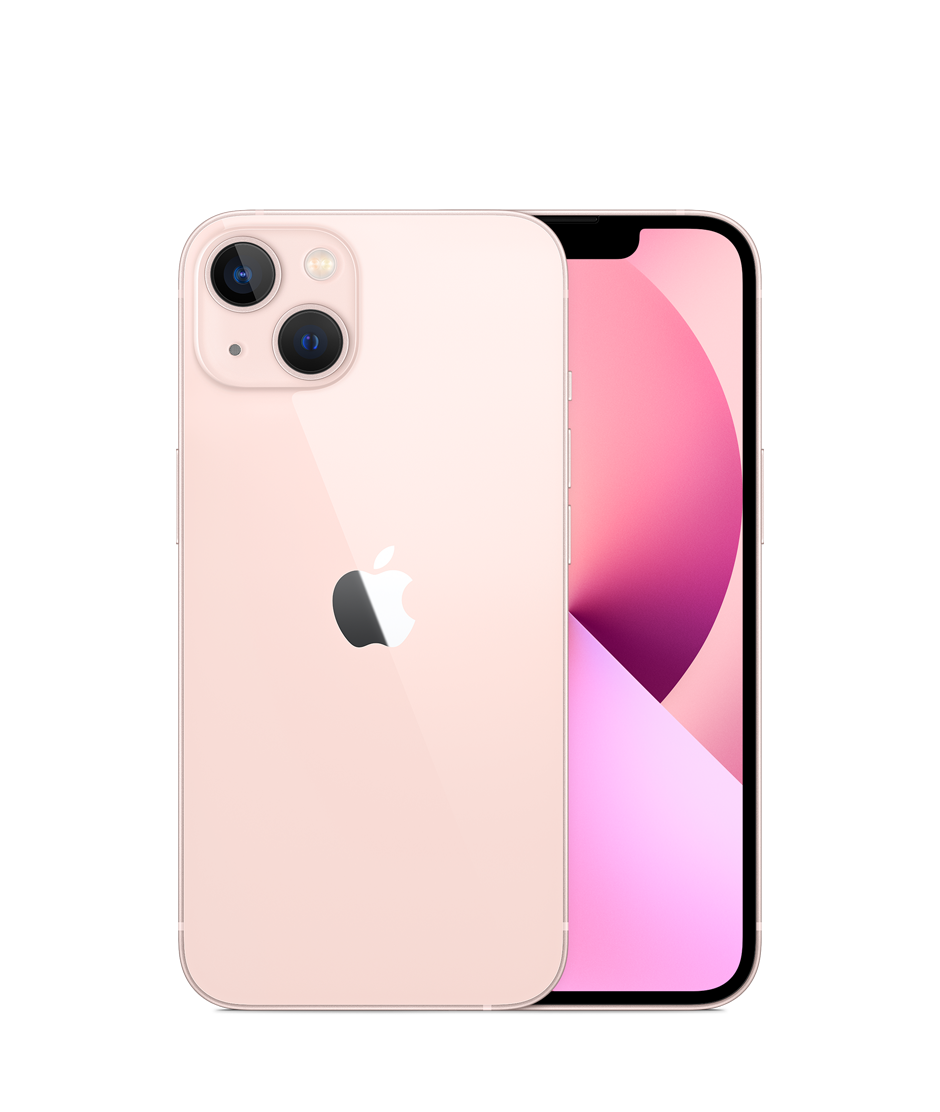
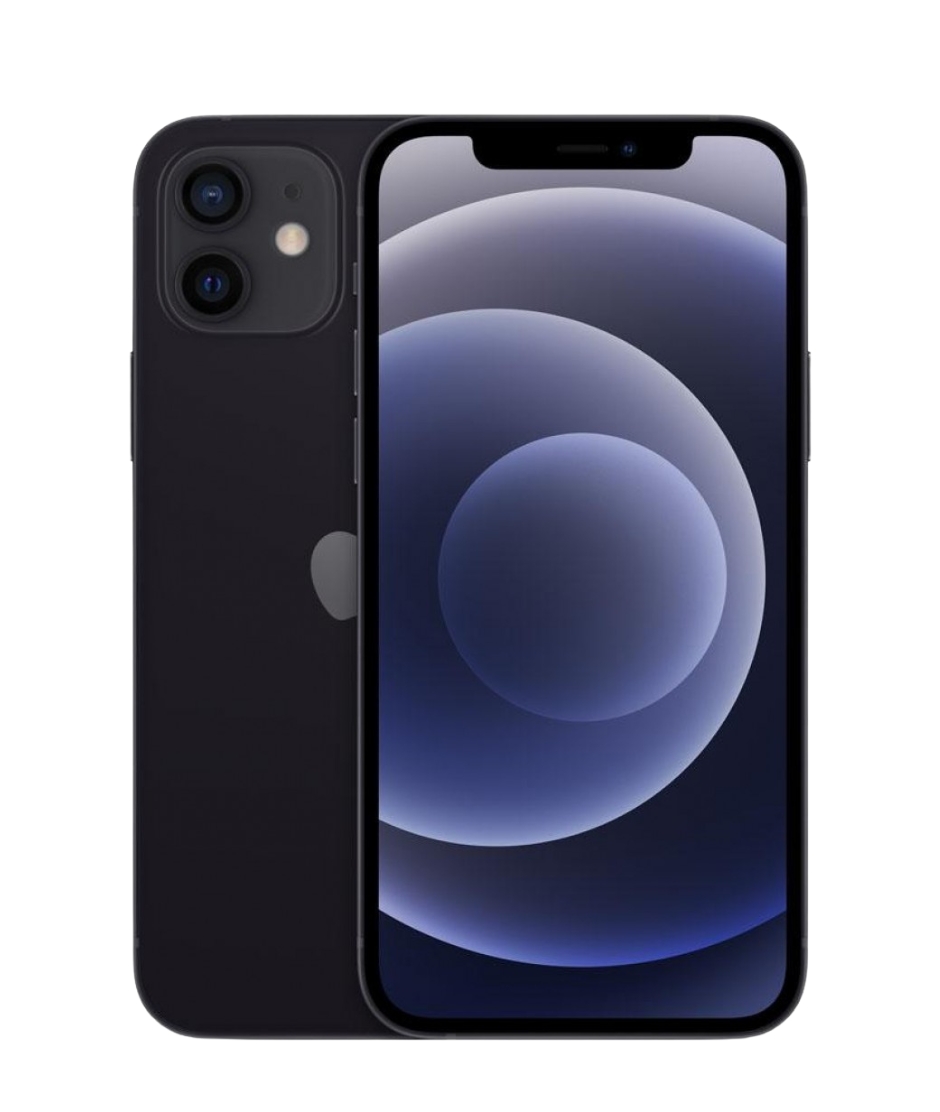
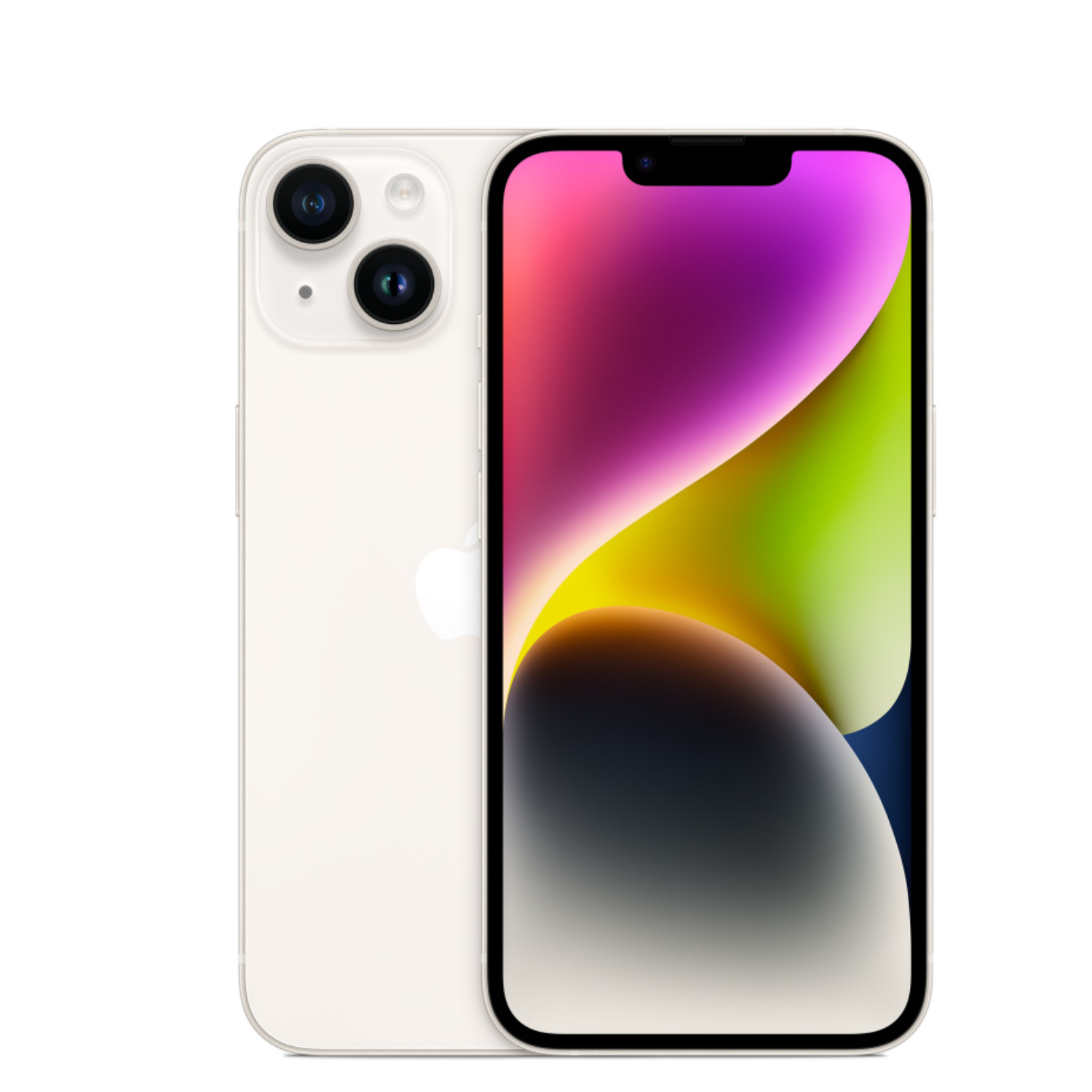
Here is a selection of our most popular models that offer the best value for money:

You don’t have to be an expert to make a safe purchase, but you do need to be observant. By following this checklist or choosing a reliable partner like Upgreat, you can ensure your “new” Apple device will serve you well for years to come.
Check out our blog for more reviews, trends, and news.
To stay up to date with Upgreat deals, follow us on FB or Instagram.